
How to enrich your data with GA4 Data Import

Management Summary
This article will help you to find out what to consider when using the data import feature in Google Analytics. Save time by asking the right questions at the beginning of the project.
When should you use GA4 Data Import?
It is helpful when you want to combine the data that you already have in Google Analytics with data that you have available in other sources.
What will you use the data for?
Write down what you want to be able to do in GA4 (or another tool where you will use the data). What kind of analysis would you like to do that you cannot do currently? GA4 Data Import lets you upload many kinds of data, but there are limitations. Save time by knowing exactly what you need and how you will verify that the new data covers your use case.
Ask yourself the following questions.
The use case you want to cover:
- What question do you want to answer?
- Which kind of analysis do you need to answer this question?
- What data is currently missing? e.g. customer lifetime value, product variant, amount of returns etc.
- Will you do the analysis in a GA4 or send it on to another tool? Does this tool have any special requirements? Read here for tips on how to visualise your analysis in GA4 or Looker Studio.
The data you are missing:
- Will you need a metric or a dimension?
- Can you use a built in definition or will it be a custom definition?
- Which scope do you want to work with in your analysis?
- Which other data do you want to combine this data with?
The data you have:
- Do you have access to the data you need? If not, what is required to get access to it?
- Within which timeframe will the data you want to import be available?
- Do you have the data in the required format? If not, what do you need to transform the data?
Set up your import
There are five types of data that you can upload via GA4 Data Import.
- Custom event data – custom dimensions for existing events.
- Cost data – cost, click and impression data for non-google campaigns.
- Item data – data about your products like item brand or item category.
- User data – information from your CRM like for example customer lifetime value.
- Offline event data – events that cannot be collected with SDK or Measurement Protocol.
The details of each type of import and how to set it up is covered in Google’s documentation.
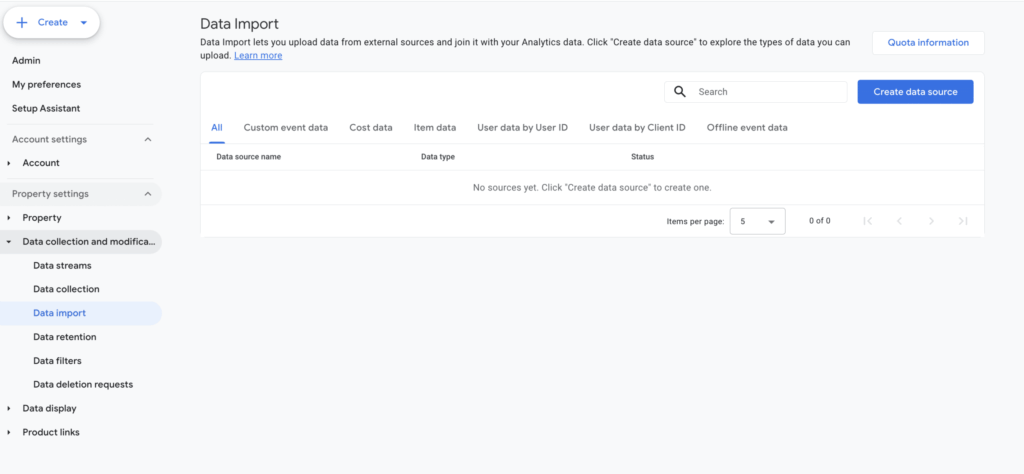
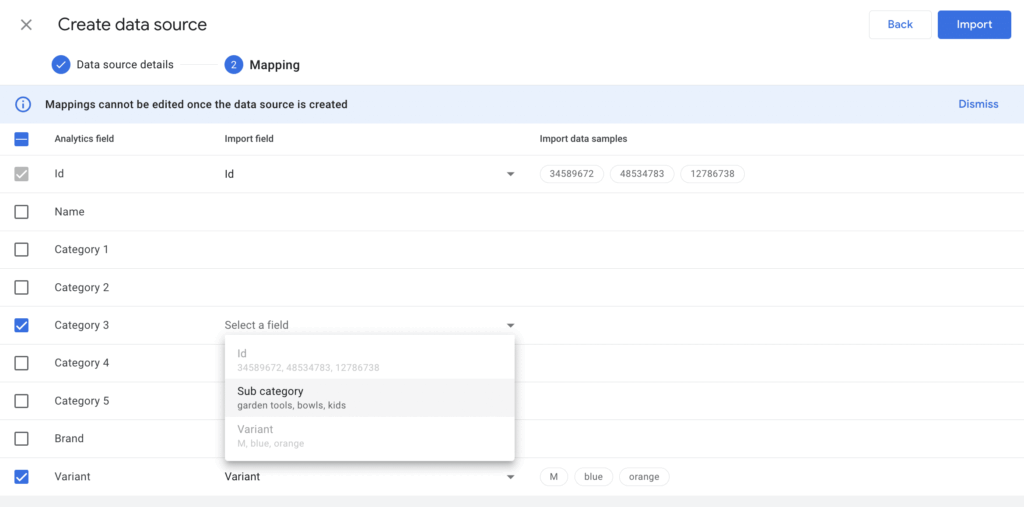
Set up Data Import, Screenshots – Source: e-dialog
Import options
There are three ways to set up your import.
Manual CSV upload. This is a good option for quickly testing out the import or when you do not have to do the upload so often. For most types of data the interface will show you which dimension or metrics are available and let you manually map the fields in your csv to the relevant custom definition. The exception is the offline event data type. For this data type the csv needs to be formatted in a specific way. Here you can find the details.
SFTP upload. Instead of manually uploading data, you can automate the process via SFTP. This option means that your organization will host a file with the data that you want to upload on a server. You can then set a schedule for GA4 Data Import to daily, weekly or monthly fetch the latest version of the file. This is a good option if you have data that changes often. Keep in mind that there are certain requirements to fulfill. You can find them in the documentation.
Salesforce. This is an option for one of the types of data that you can upload – offline event data – since you can only upload lead information from Salesforce Sales Cloud to Analytics. For this method it is also possible to schedule the import, and you can do it per hour, day, week or month.
Limitations that you should be aware of
Custom event data
Only page dimensions and event scoped custom dimensions are available to import data to. So you are not able to upload metrics as custom event data.
Item data
Only built in dimensions are available to import data to. That means that you are not able to upload item scoped built in metrics like price or item scoped custom metrics like profit margin.
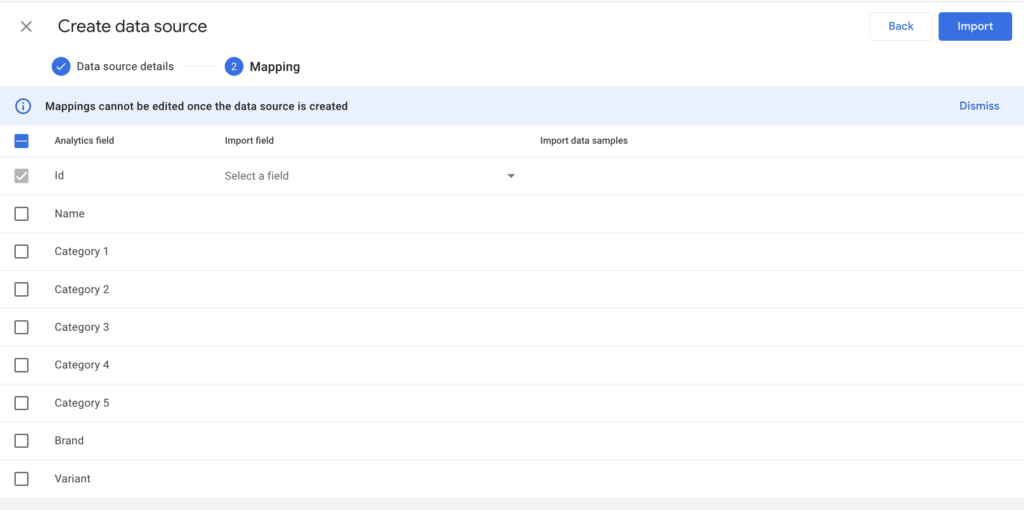
Mapping data to import, Screenshot – Source: e-dialog
Offline event data
You can provide a timestamp for the event, but it cannot be longer back in time than 72 hours.
Data deletion and historical data
For user and offline event data types, the data you import is permanently joined with any relevant analytics data that is processed or collected after the import takes place. This means two things:
Deleting the import will not delete any of the data that has already been attached to your analytics data. If you delete the import then no future data will be processed. If you want to get rid of data that has already been joined, you need to make a proper data deletion request.
You cannot combine these imports with historical analytics data. As mentioned above, the offline events can be backdated 72 hours, but more than that is not possible.
For the other data types, the data is joined when you run a report. That means that if you delete the import, the import data will not be joined with the analytics data the next time you run a report. And you can join your imported data also with historical analytics data.
Validate the upload
When you have set up the import for the first time, run a couple of test uploads and check that the data is working as you intended in your analysis.
Combine it with the right data and answer your question with help of your test data. Does the tool where you use the data interpret it as the correct data type?
Compare the results of the different test uploads. Does the data get overwritten in the way you do expect? Check in regularly to see that the SFTP or Salesforce automation is working if you are using them.
Conclusion
Ask the right questions and be aware of the limitations when planning your project. Then you can take advantage of the user-friendly interface and create insightful reports combining online and offline data with GA4 Data Import.




