
Customtask 8211 The Google Universal Analytics All Rounder
Management Summary
Google Universal Analytics
If a user visits a website with Universal Analytics and causes a page view to be sent to Analytics, this will be done11 such tasksexecuted. ThecustomTaskis called first and can therefore manipulate all data before it is further processed by Google Analytics.
The remaining tasks that are called by Analytics after customTask are used forValidating the input data, generating the tracking call and sending the tracking datato Google’s servers. You can intervene in all of these processes using the JavaScript API from Google Analytics. However, in this article, we’ll take a closer look at the customTask and explain why it’s so useful.
What is possible with the customTask?
How it works – how and why
Short:It can do everything you could want with Google Analytics. You just have to set it up correctly.
The default customTask, unless modified by the developer, does absolutely nothing. Now it gets technical: you have to think of the tasks that Analytics goes through as functions that are executed one after the other. A function can contain several commands that are executed line by line. By default, the customTask does not have any tasks and does nothing. Analytics executes its command chain normally and sends the tracking call.This empty customTask can now be overwritten with your own customTask function using the JavaScript API provided by Analytics. So this will make Analytics execute our function instead of the empty and useless function.
With analytics.js (Native)
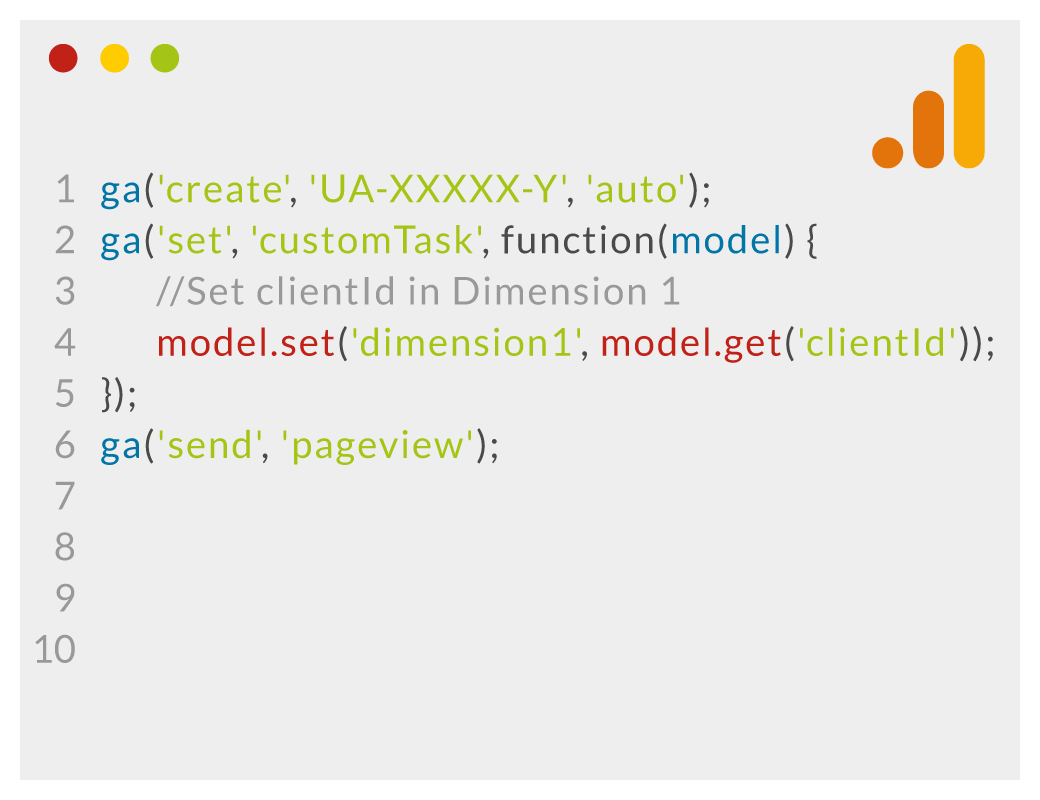
If you have integrated Google Analytics natively into the website source code, you can use ga(‘send’, ‘pageview’); Command to intervene in the customTask:ga('create', 'UA-XXXXX-Y', 'auto');
ga('set', 'customTask', function(model) {
// Set clientId in dimension 1
model.set('dimension1', model.get('clientId'));
});
ga('send', 'pageview');
Using Google Tag Manager (GTM)
With the Google Tag Manager the procedure looks a little different: You have to carry out the setting either in the Google Analytics settings variable (recommended) or by overwriting the settings variable for a specific tag.
For both variants, you have to create a field called “customTag” for the custom fields, which contains a custom JavaScript variable as a value: Now you have to create the variable {{JS – Custom Task}}:
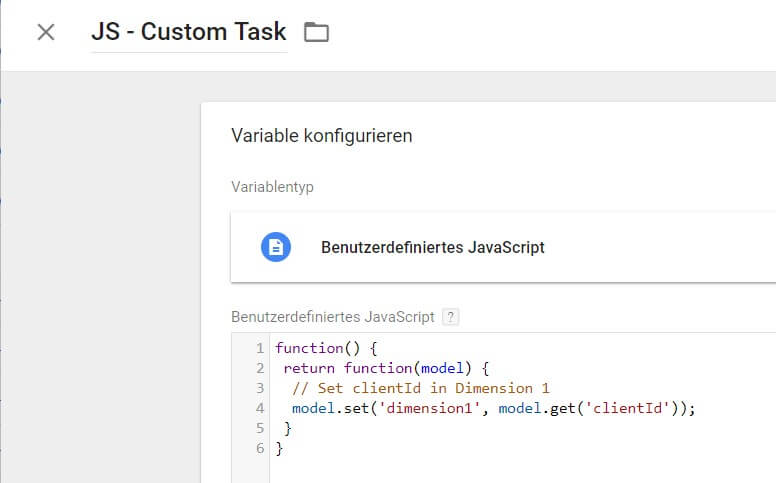 The code from the screenshot:
function() {As can be seen in both examples, our functions contain a “model” variable set by Analytics. With this variable we can read values and set values.
return function(model) {
// Set clientId in dimension 1
model.set('dimension1', model.get('clientId'));
}
}
When the code is executed as specified here, the user’s client ID is stored in the first custom dimension.
Example: Note tracking opt-out
If you want to offer your own users the opportunity to deactivate tracking, you can easily do this using cookies. You can deactivate tracking on two levels:(1) Deactivate Google Analytics completely:Cookie name “optout_ga”(2) Deactivate only the display features:Cookie name “optout_dc”
There must be logic on the website that sets these two cookies to “true” when the user opts out. In the Tag Manager you configure two new first-party cookie variables: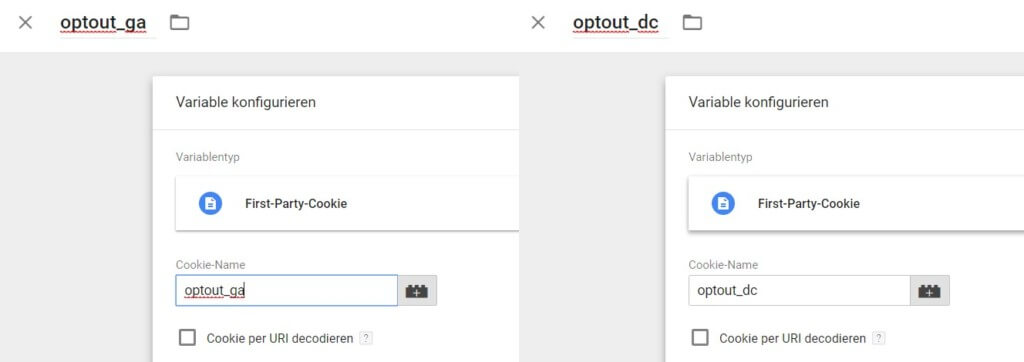 After the two variables have been created, you can now create a custom JavaScript variable in the GTM and specify the following:
function() {If you now add this JavaScript variable to the Google Analytics tag settings in GTM as a value for “customTask”,This first checks whether the cookies are set and set to “true”.. If this is the case, the tasks“sendHitTask”(= Analytics Hit) or“displayFeaturesTask”(= Display Features Hit).zeroset and thus aTracking prevented.
return function(model) {
if({{optout_ga}} === 'true') { model.set('sendHitTask', null); }
if({{optout_dc}} === 'true') { model.set('displayFeaturesTask', null); }
};
}
Example: Duplicate tracking
Anyone who uses the Google Tag Manager frequently may have encountered the problem that in order to track in two Google Analytics properties, two tags must be created in the Google Tag Manager. The customTag provides a remedy here and allows you to send the Google Analytics call to any other property with just a few lines of code.
In the affected Google Tag Manager Universal Analytics tag, set the “customTask” again in the custom fields and create a new custom JavaScript variable as the value, for example with the name“JS – CustomTask – Duplication”.Now all you have to do is paste the code with the duplication logic into the code field:function() {In the code, the value UA-XXXXX-Y needs to be replaced with the second Google Analytics UA ID.If you want to use more than one functionality at once in the customTask for a Google Analytics hit, the codes must be combined in a customTask function.Do you need support in implementing advanced tracking solutions? Would you like to be able to evaluate certain data in Google Analytics and do you need support installing it on your website?
// Replace the value of secondUAID with the UA ID where you also want to send the hit
var secondUAID = 'UA-XXXXX-Y';
var origSendTask = '_' + secondUAID + '_originalSendTask';
return function(origModel) {
window[origSendTask] = window[origSendTask] || origModel.get('sendHitTask');
origModel.set('sendHitTask', function(newModel) {
var hitPayload = newModel.get('hitPayload');
var UAID = new RegExp(newModel.get('trackingId'), 'gi');
window[origSendTask](newModel);
newModel.set('hitPayload', hitPayload.replace(UAID, secondUAID), true);
window[origSendTask](newModel);
});
};
}




