
Expanded Data Sets 8211 With Ga 360 Go Into Detail

Management Summary
Do you often ask yourself, what is in the “Other” line in the middle of a GA4 report? With 360 properties this can be analyzed in detail. How to add an expanded data sets is explained in this article.
Expand Google Analytics reports by up to 2 million rows
The “Other” row in Google Analytics 4 reports often occurs when analyzing dimensions with many different values. When it comes to comprehensive dimensions, such as hundreds of thousands of articles, page paths or IDs, Google speaks of high cardinality. This high cardinality can cause data to be merged under the “Other” or “other” row in reports. The “Other” line can then be expanded into up to 2 million lines using expanded data sets.
What should be taken into account with extended data sets?
Like other features, advanced datasets also have some limitations and requirements. Here is some helpful information when dealing with extended data sets:
- Advanced datasets are exclusively a Google Analytics 4 360 feature.
- Creation can take up to 48 hours.
- The feature can be used for standard and custom reports.
- The report that contains the “Other” line must be located under the “Reports” tab.
- The role of editor or administrator is necessary for the respective property.
- 100 extended data records are possible per property, after which created data records must be deleted.
- A maximum of 6 dimensions and 12 metrics can be included in the report. This also includes dimensions and metrics used in filters and comparisons.
To request an extended record:
Step 1
View a relevant report with the “Other” or “(other)” row in a Google Analytics 4 property.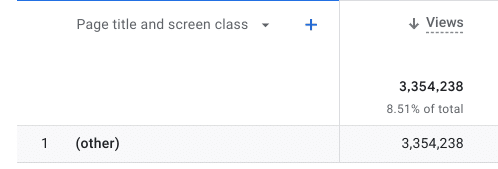 Pages and screens report in a GA4 property with the line “Other”/”other”, source: e-dialog
Step 2
Use all the filters, comparisons and dimensions you want.
Step 3
Click the data quality icon. Data quality symbol for GA4 reports, source: e-dialog
Step 4
Click “Maximize this data” or “Expand this data.”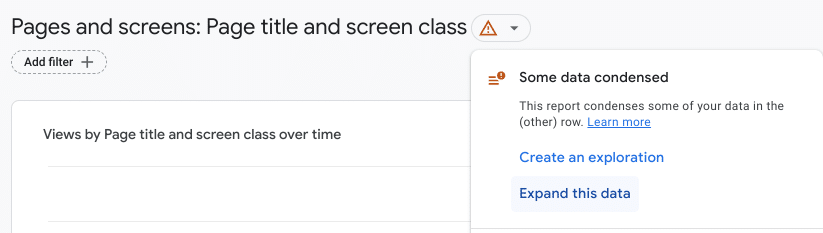 Setting “Maximize this data” / “Expand this data” in the GA4 interface, source: e-dialog
Step 5
A mask now appears in which the name and description must be entered.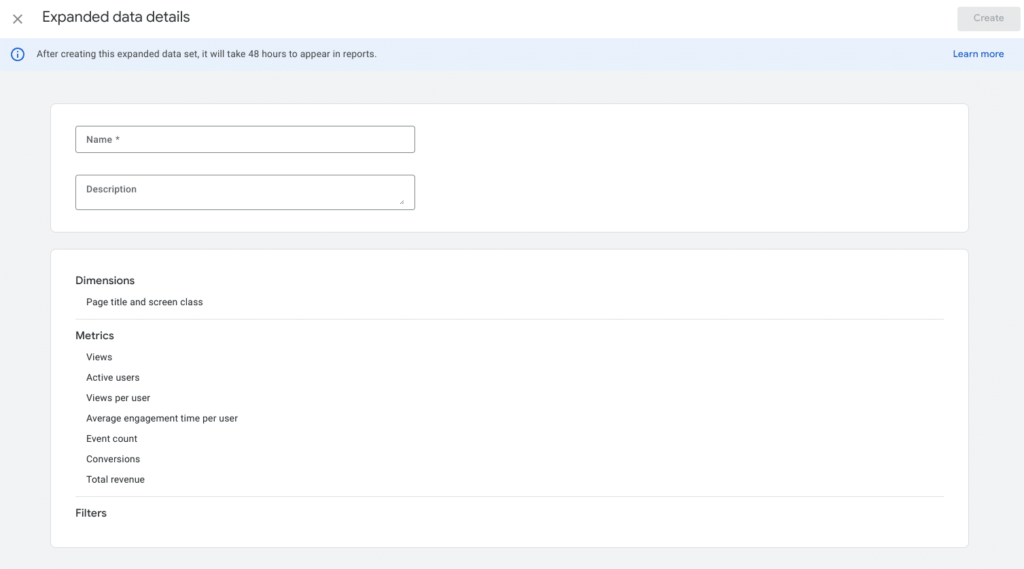 Input mask for expanded data set, source: e-dialog
Step 6
Click “Create” or “Create”.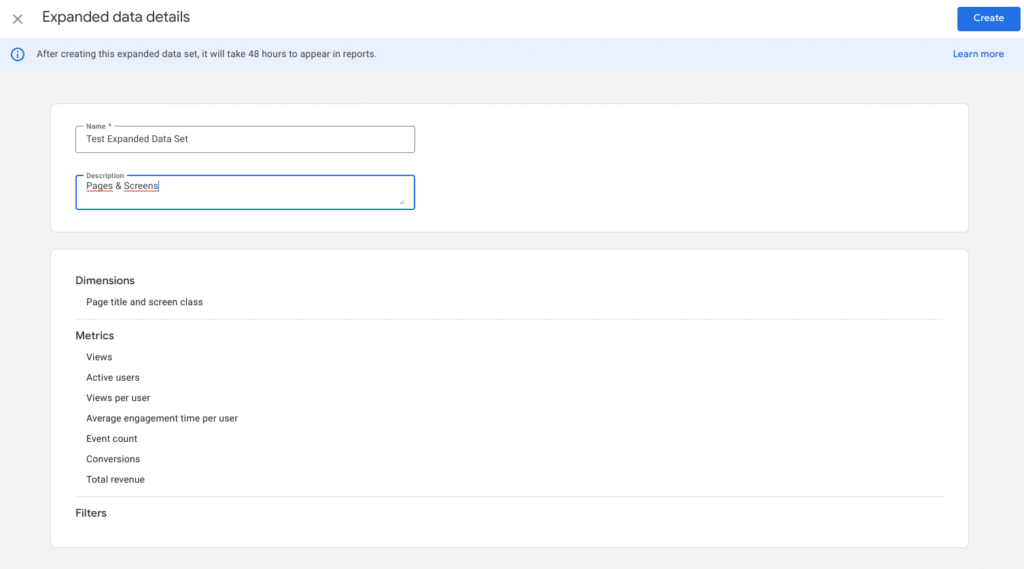 Create button for Expanded data set, source: e-dialogIf you revisit the report after 48 hours, the report will contain the expanded data and the “Other” row will no longer be visible. If the extended data contains more than 2 million rows, the report may still contain “Other.”
Conclusion
The expanded data sets feature in Google Analytics 4 can drill down into the “Other” row and uncover valuable data. The function is exclusively for 360 Properties. After the extended data has been created, additional lines will be visible in the report after 48 hours instead of the “Other” line. Using the step-by-step instructions explained in the article, the hidden function can be quickly used in everyday work.




