
Format Gallery In Display 038 Video 360
Management Summary
If you understand the Format Gallery and use it correctly, you can facilitate collaboration between creatives and media teams and thus increase your campaign success. In this article you will learn how the Format Gallery works and what exactly you need to pay attention to in order to get the best benefits from it.
Advertising materials as the basis for campaign success – The Format Gallery in Display & Video 360
The Format Gallery is a workspace that is intended to facilitate collaboration between media and creation. A selection of creatives is available in the tool. These can be created and played directly there. Advertising materials can be tailored and dynamically adapted depending on the target group or, for example, individually to customer segments – the options range from the individualization of call to action buttons, disruptors, background images and landing pages. These elements are then controlled and played out in a data-driven manner. Programmatic buying can therefore be combined directly with data-driven creatives to make advertising campaigns more effective!
Below we provide an overview of the available formats, show which of them can be provided with data-driven dynamic rules and give tips on how to use the Format Gallery correctly.
How does it work?
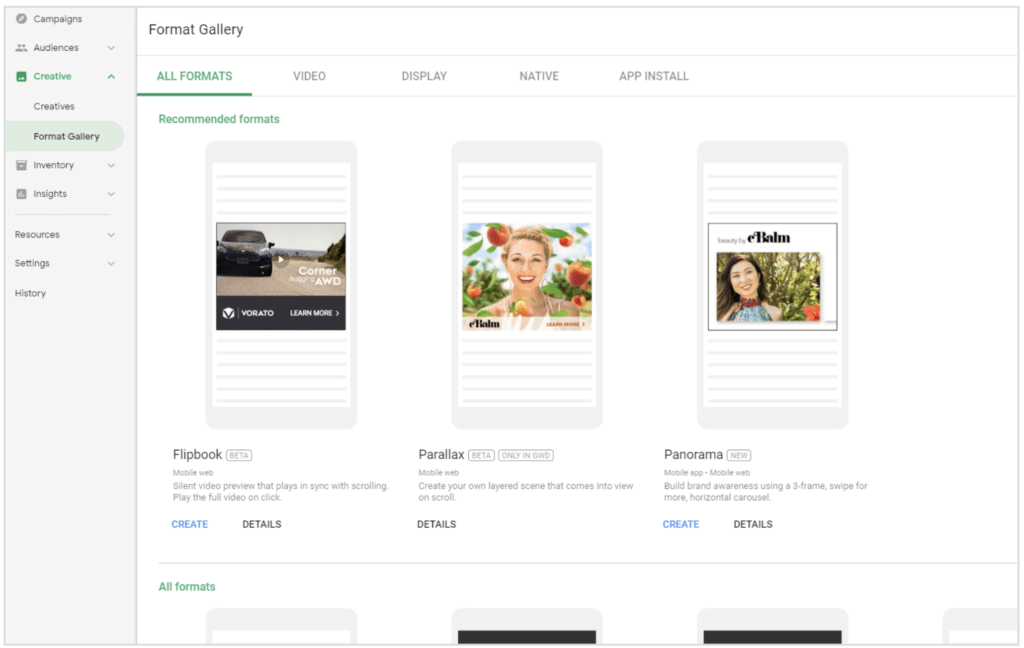
The Format Gallery can be accessed in the left navigation pane of DV360.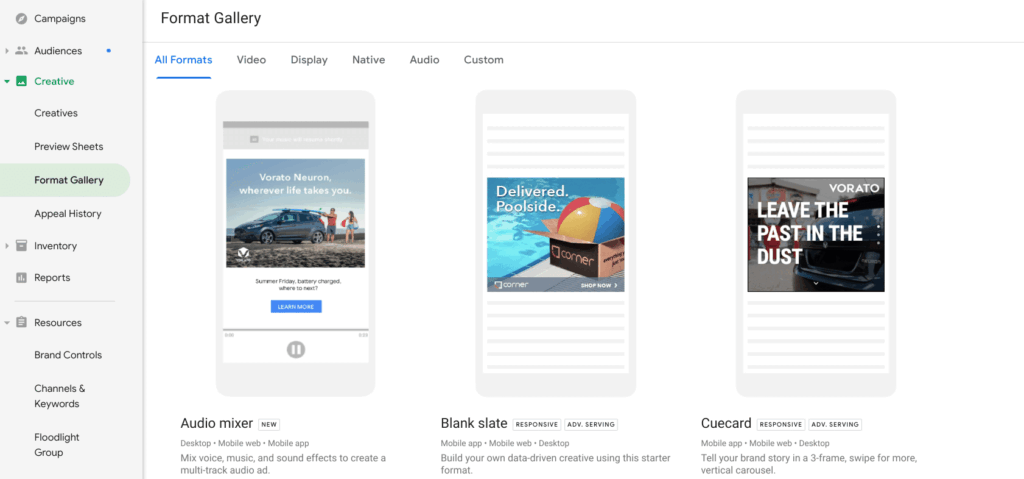 Format Gallery navigation area, source: Google
You can choose between video, display, native, audio and custom formats. The following formats are available: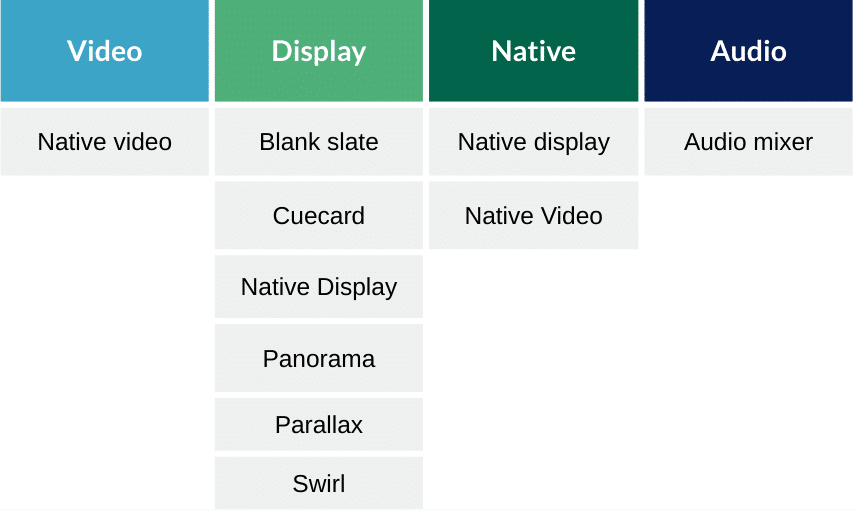 Format Gallery Formats, source: e-dialog
If the right assets are available, banners can be created very intuitively using the Format Gallery. Campaign managers and the creative team can work together on different variations & Include data signals from Google (such as affinities or in-market audiences).
The following formats can currently be controlled directly in the Format Gallery with dynamic rules:
- panorama
- Cue cards
- Blank slate
The Custom format makes it possible to create your own data-driven advertising format in the ad canvas. It is possible to select a creative templateGoogle’s Rich Media GalleryUse it as a basis and customize it or create a custom format in Google Web Designer.
In addition to the formats already mentioned, the Audio Mixer format can be created. This allows you to create an audio ad by combining up to 5 music, voice and sound effects files.
Structure format gallery
The Format Gallery consists of the following menu items:
- AdCanvas
- Dynamic Rules
- Details
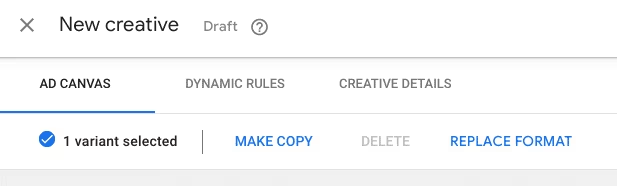 Format Gallery Creative Details, Source: Google
A notice:The menu item – Dynamic Rules – can only be found in datadriven creatives. Currently these are: Panorama, Blank Slate and Cue CardsJohn Doe
Creating an advertising material in the DV360 Format Gallery
Step 1: Ad Canva
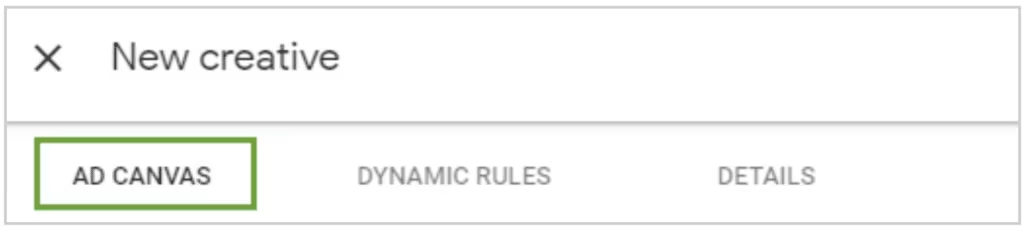 Ad Canvas creation, source: Google
In the first step, the individual elements of the advertising material can be adapted (depending on the format). The number of elements differs depending on the format.However, in principle there is always:
- a logo
- background
- Texts
The assets can be loaded into the tool by clicking on “Browse” and/or drag-and-drop. The headline, description, call to action can then be adjusted and the landing page can be stored. If you want to change the color and transparency of the CTA, this can also be set directly below. In another simple step, the background color can be adapted to the CI.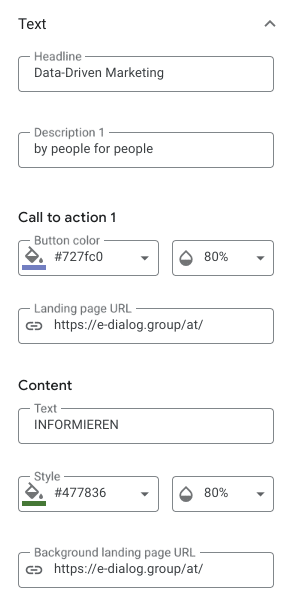 Format Gallery Text Options, Source: Google
Step 2: Create dynamic rules
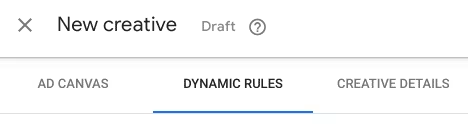 Format Gallery Dynamic Rules, source: Google
Dynamic rules can also be defined for all data-driven formats. These allow the advertising material to be displayed dynamically – i.e. elements such as call-to-actions, landing pages, disruptors or background images can be adapted to the respective target group. Depending on the campaign set-up, the variants can also be assigned to different audience lists, categories, geolocations, times or line items.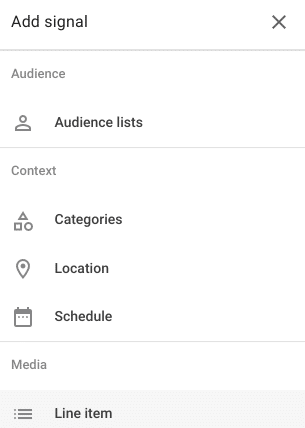 Data Driven Formats Signals, Source: Google
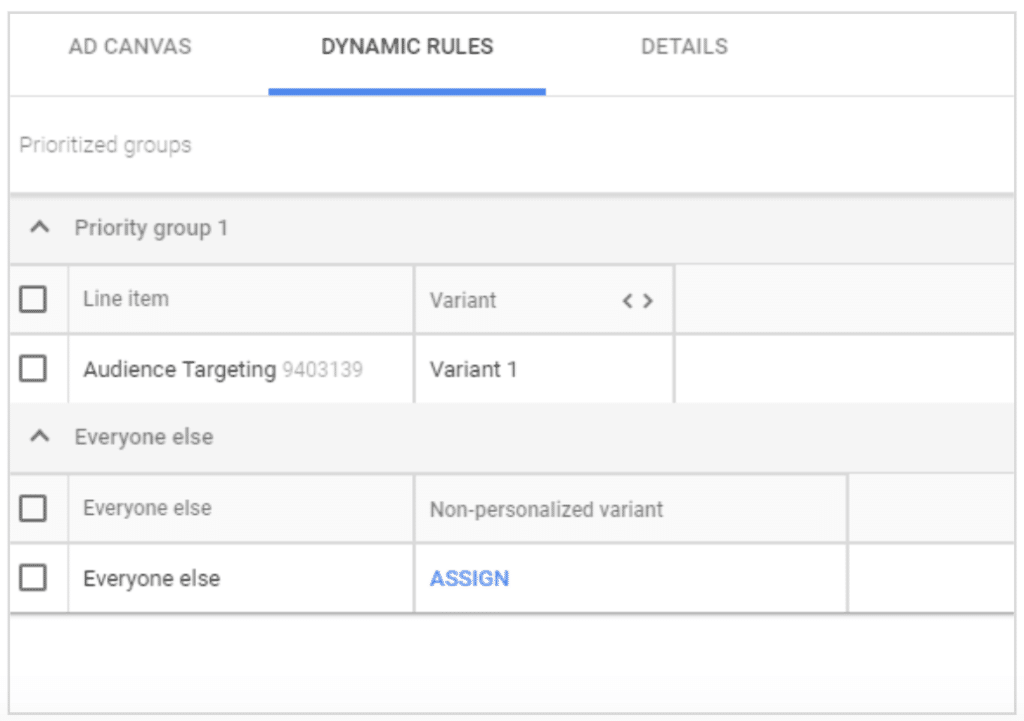 Dynamic Rules Details, Source: Google
The distinction is often made directly in the line items (e.g. between New Audience and Re-Targeting) and the variants are then simply assigned to the respective line items.
Important:A default variant must always be specified, which is always played if none of the rules mentioned above apply.John Doe
Step 3: Details
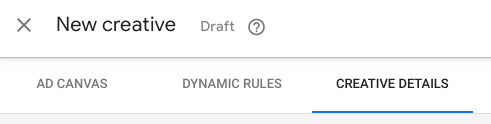 Creative Details Overview, Source: e-dialog
Under the item -Details- you can, among other thingsFallback imageas well as theFallback landing pagebe deposited.After that, the creatives only have to be assigned to the line items (Campaign > Insertion Order > Line Item > Creative Assignment).The dynamic rules determine which variant is shown for which line item – so nothing additional needs to be set here.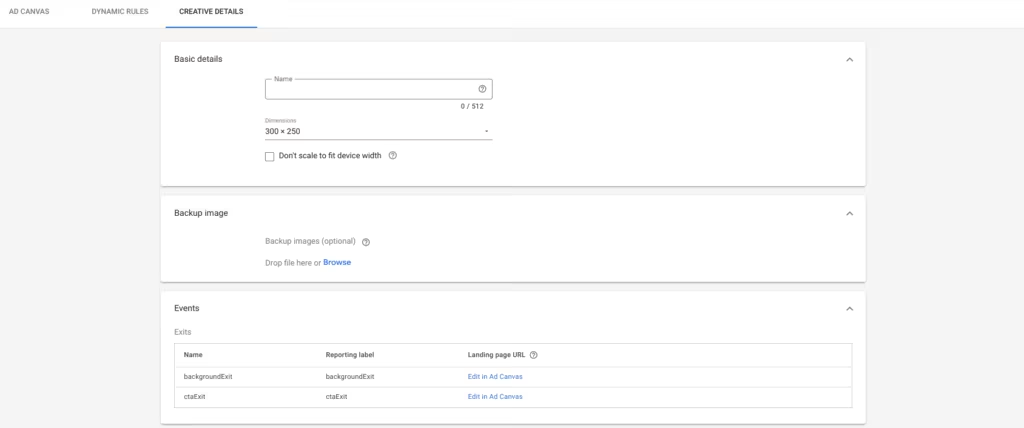 Format Gallery Creative Details, source: e-dialog
If the available formats in the Format Gallery are not sufficient or certain dimensions are desired, you have the option of creating an advertising material in Google Web Designer. This can then be uploaded directly to the Format Gallery – alternatively, for example, an existing data-driven creative (such as Blank Slate or Panorama) can be “overwritten” so that dynamic rules can also be stored in the specially created format.
Tracking
The tracking of the formats using Campaign Manager is created automatically (under the so-called Shadow Advertisers) when DV360 and the Campaign Manager are linked.You can find it at:BidManager_Campaign_DO_NOT_EDIT_XXXXXXX (Advertiser: BidManager_Advertiser_DO_NOT_EDIT_XXXXXXX)Tip: To make it easier to find the right tracking, simply compare the ID of the DV360 advertiser with the DO-NOT-EDIT advertiser name in the Campaign Manager.
Nothing can or needs to be adjusted in this view. The respective campaign is then simply used for reporting.Danger: the DO_NOT_EDIT campaigns in the Campaign Manager usually have the status -Archived-For some formats (e.g. native ads) it is now possible to store a Campaign Manager 360 tracking ad under Creative Details.In this case, a placement with a 1×1 tracking pixel must be created in Campaign Manager. You can search for and select this tracking ad in DV360. In this case, the data does not arrive under the BidManager campaign, but under the campaign in which the tracking ad was created.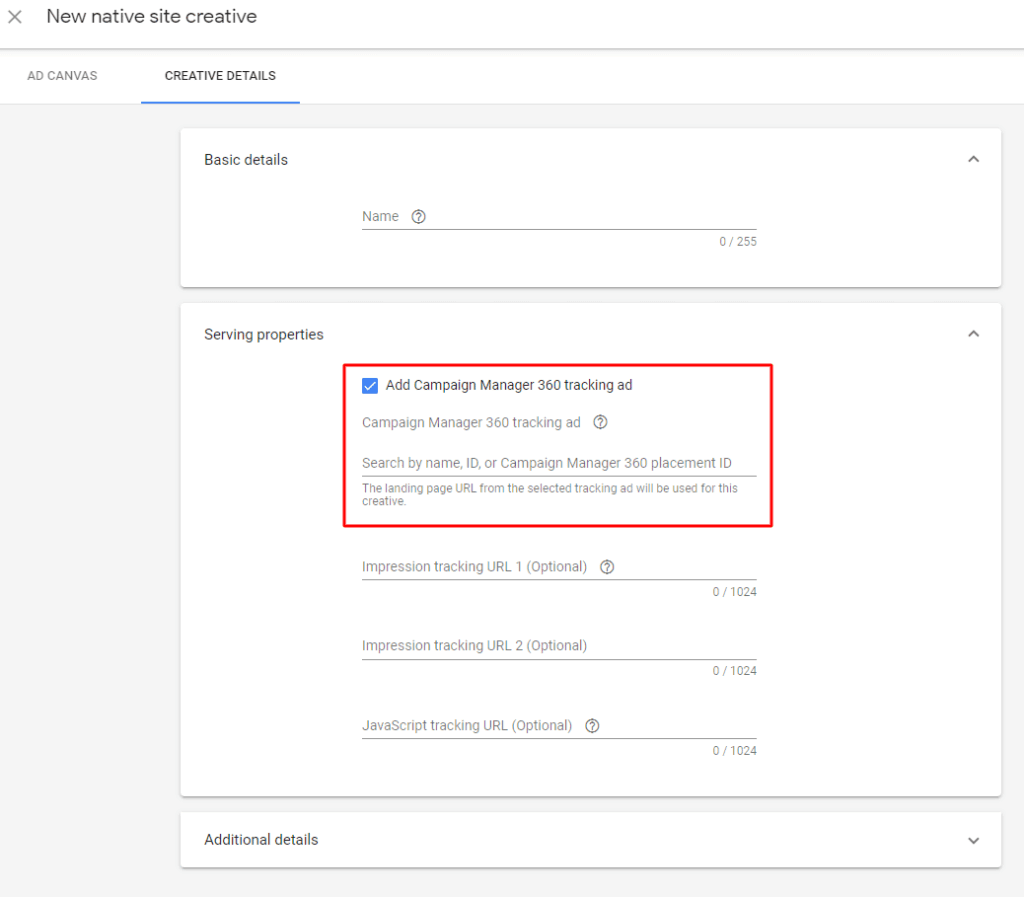 Format Gallery Tracking, source: e-dialog
Creative User Role in Display & Video 360
Users who are solely responsible for creating creatives (e.g. creative agencies or graphic designers) can be assigned their own creative user role. To do this, simply select the appropriate role under User Management.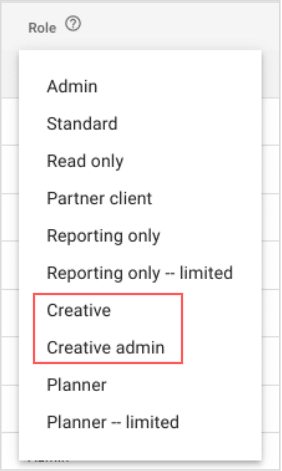 Format Gallery User Roles, Source: e-dialog
As soon as a creative user has logged in, they are taken directly to a personalized landing page in DV360 where they can start creating creatives straight away.Creative users can:
- Upload, create, edit and
- Delete creatives
- Use Format Gallery
- Read-only of some performance metrics, campaigns, audiences and settings (without cost-related values)
- Pulling standard reports (here too without cost-related values)
Creative users cannot:
- View cost-related values (such as media costs, fees, CPMs, CPCs, budget, billing data, etc.)
- Create or edit campaigns, audiences, resources and settings
- Add or remove users
Conclusion
Format Gallery enables efficient creation and customization of creatives using drag-and-drop and can create simple data-driven dynamics without spreadsheets and without Studio. With dynamic rules, the creative content can be tailored to the user for each individual impression. It is particularly suitable for testing different subjects and variants and primarily enables easy collaboration between creative and media teams. Ideas can be exchanged and workflows can be parallelized to create a shared workspace.
If you would like to individualize and dynamize your advertising materials or use the Format Gallery efficiently, we would be happy to support you. Write to us atkontakt@e-dialog.group
This article was first published on April 19, 2019 and updated on July 3, 2023.




