Gtm Rights Management With Container Zones
Management Summary
What restrictions do zones allow?
URL zones
On the one hand you can have restrictionsbased on URLsfurnish. For example, a sub-container is only loaded on pages whose file path/blog/or/shop/contains. Or you can limit a zone to a specific subdomain, for example the host name ends with.plfor the Polish version of your site.
However, please notethat URL rules are only evaluated when the page is accessed. If the URL changes later, for example in a single page application, no pageview event takes place and the rule is not checked again.
Tag restrictions
You can also specifywhich tags, triggers and variables can be used within a specific zone. By default, new zones allow the use of all Google tags (Google Marketing Platform – formerly Analytics, Adwords, DoubleClick…), all trigger types and all variable types except custom JavaScript.
Third-party tags and Custom HTML must be enabled manually, if they should be allowed in a zone. However, custom HTML and custom JavaScript are the Swiss army knife in GTM-based online marketing. But they also have the most potential to wreak havoc on the website. Therefore, think carefully about how you want to handle these permissions!
However, “forbidden” tags can still be created in the zone containers.However, they are not displayed if the container was integrated into the website via the master container. However, if the zone container is integrated directly into the website, the zone restrictions no longer have any effect.
If you do not enable type restriction, all tag, trigger, and variable types can be used in this zone.
Trigger-based triggers
And finally, you can tooUse triggers that you have defined in the main container as a rulewhether a zone is running or not. For example, a history change on a single page application. Every time the trigger fires, it checks whether the zone is still being included or not.
Setting up zones in GTM
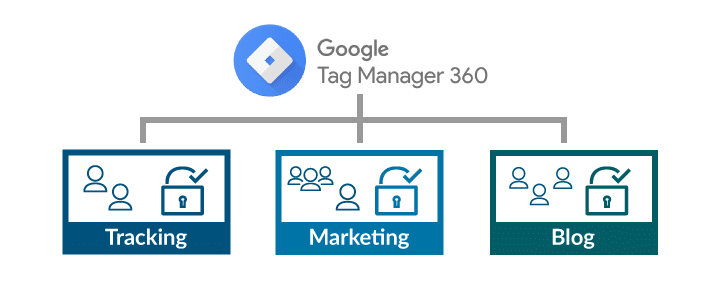
As an example, a container with three zones should now be created: a tracking zone for the analytics department, a zone for online marketing and a zone for the weblog, which is maintained by its own team.
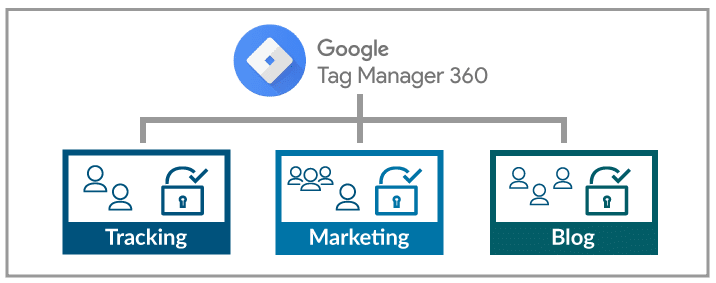
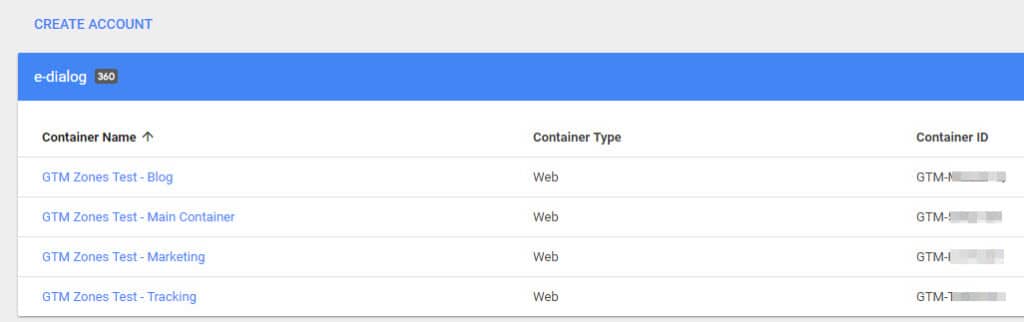
To do this, four containers are first created in the Google Tag Manager: a master container, which is also integrated into the website, and three additional containers for the three zones.
The three sub-containers are now integrated as zones in the interface for the master container: To do this, click on the new menu itemZones/Zones:
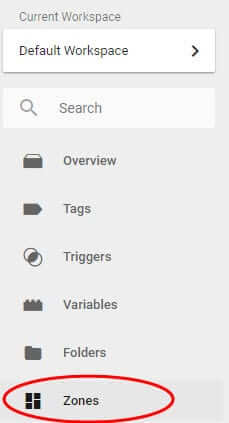
You will now see an empty list of zones in the main area of the GTM interface. Click hereNew/Newand a panel will open where you can create a new zone.
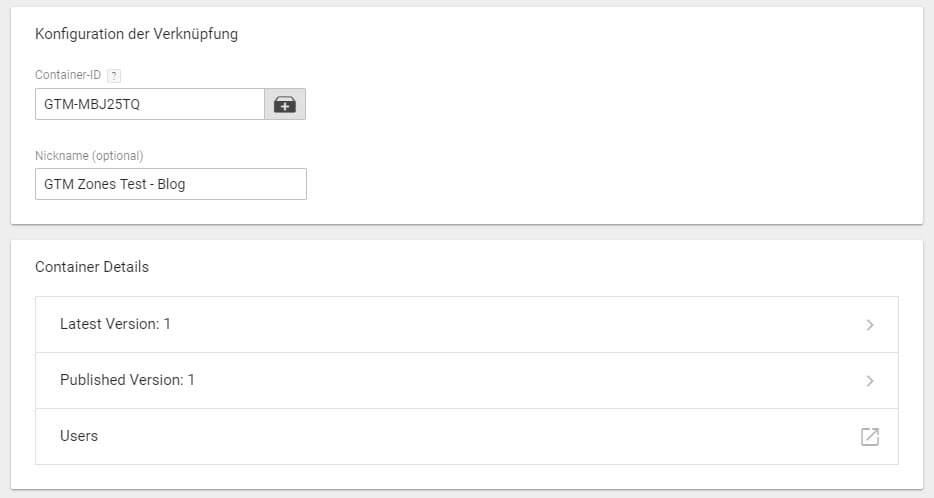
Enter a meaningful name here. In the areaZone configurationclick on the small plus symbol and another panel will open. Enter a GTM container ID here or use the icon to the right of the input field to display a list of all your containers in this account:

Select one of the sub-containers and assign a nickname that is perhaps a little more descriptive than GTM-ABC123. When you select the container from the list, GTM suggests the container’s name as a nickname.
You will now receive interesting information about the container you have just integrated, such as the last version created/published and which users are authorized for the container:
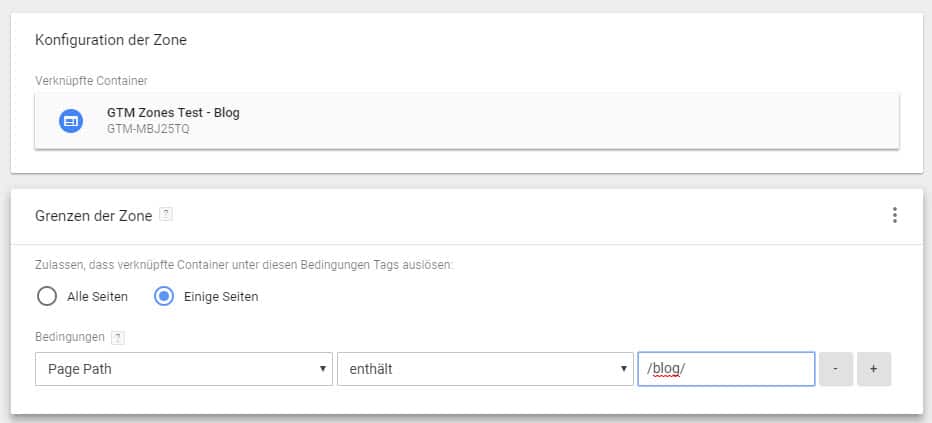
Click onAddand now define itBoundaries of the Zone / Zone Boundaries: Choose eitherAll Pages / All Pagesor define withSome Pages / Some Pageson which pages this zone should be used, in our example the blog pages (Page Path contains/blog/).
Finally, you determine which tags, triggers and variables are permitted in this container. For the marketing zone you should definitely spend the dayCustom HTMLAllow if you want to use Facebook Pixel, because there are currently no predefined tags for Facebook. Otherwise, check out the list of third-party tags and pixels andactivate what you need. Also deactivate everything that has no place in a zone: for example the Google Ads tags (formerly Adwords tags) in the tracking zone and the Analytics tags in the marketing zone.
Use Case: Google Analytics and User Consent Management
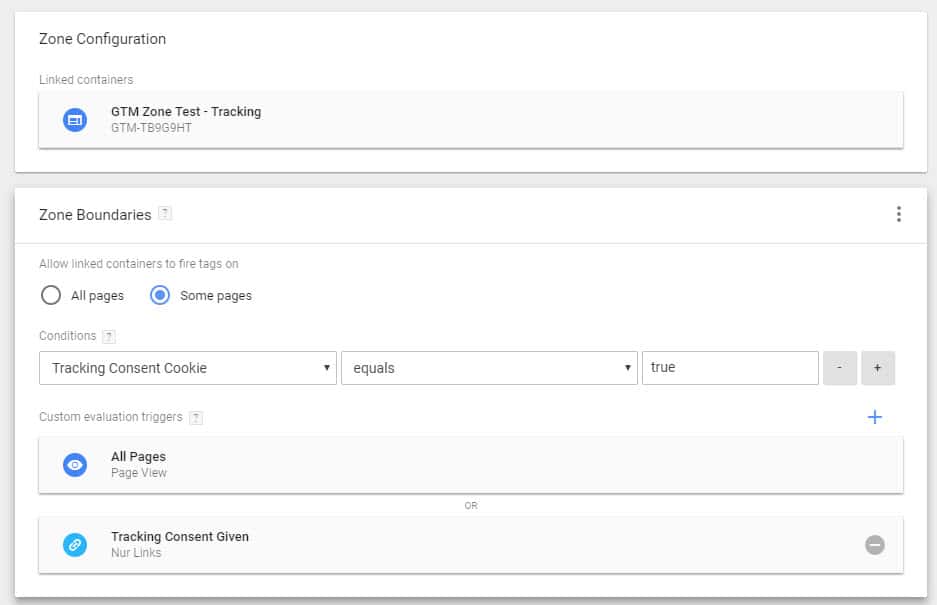
With the zones, it is now very easy to only record the visitor in the tracking software if they have given their consent. Instead of providing each individual Google Analytics tag with a corresponding trigger, you now put all tracking tags in their own zone and only load them when the corresponding cookie is found with the visitor’s consent:

If the tracking is to begin on the page on which the visitor gives their consent to tracking, the trigger-based triggers are used: the zone with the tracking is loaded each time the page is accessed if the cookie with the consent is present OR if the button with which the consent is given is clicked:
Set up
Before introducing zones, we at e-dialog worked with multiple containers. Usually one for us, one for the customer so we don’t get in each other’s way. The new zones aren’t all that different from our two-container approach. The only thing new is that there is now a master container.
This, really only this, must be installed on the website; all other containers that were created as zones are loaded from this master container.
One data layer to rule them all
It was already like this: if several containers were integrated into a website, they could all use the same data layer. The information written to the data layer was usable in all containers.
Since the zones are nothing more than additional GTM containers, they behave the same way.Datalayer values are available in all zones. Unless data layer variables have been disabled for a specific zone.
How do zones work exactly?
Preview mode
In the preview mode in the main container you can now see all tags that are fired in the main container and which zones are included. For each zone it is stated whether it is active or not, i.e. whether it is currently being used. In the example below is the zoneBloginactive because the screenshot was not taken on a blog page:
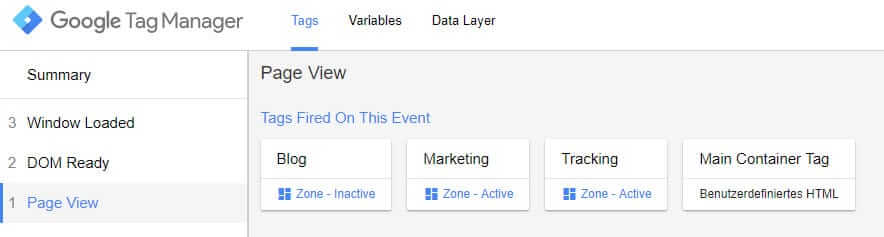
It is not clear which tags are fired in the active zones. However, if the preview mode is also active in the sub-containers, you can switch between the zones in which the preview mode is active in the debug panel on the right:
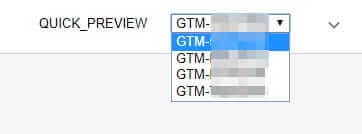
If the container of a zone is selected here, you can – as usual – examine which tags are fired, when and why. But only in the currently selected zone. And zones can only be selected if they are active on the current page.
The problem here, however, is that if a tag is not fired because the zone does not have permission to do so, this cannot be seen in the debugging information.We hope that Google will make improvements here.
When does something go online?
If the container of a zone is published, then this change is automatically valid for the master container. This does not have to be published additionally. This is convenient, but should be taken into account when designing rights management.
Exchange of data between zones
As already mentioned, all data layer information is available in all zones.Beyond that, however, there is no exchange of information between the individual zones or between the zone and the master container. A newsletter subscription trigger in the tracking zone cannot therefore be used in the marketing zone to fire a conversion pixel. The corresponding trigger must be created again here.
Hierarchies and loops
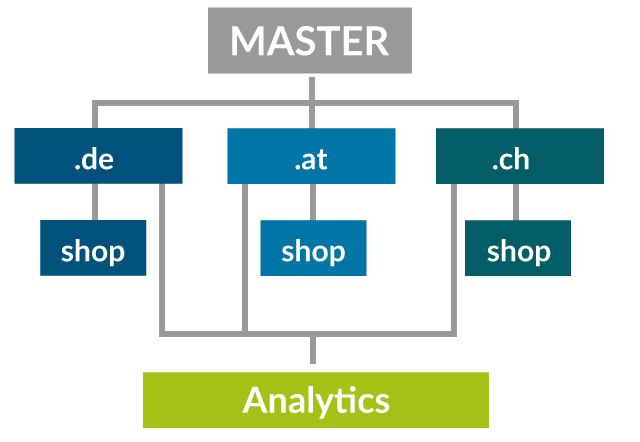
Zones can themselves have zones. This allows you to create a very detailed hierarchy structure. A master container could have zones for the individual language versions of a website, which in turn each have their own zone for the shop subdomain.
You can even set up the master container as a zone of a zone.The Google Tag Manager ensures that there are no endless loops:The master container is only loaded as a zone if it is not integrated directly into the website. The browser console indicates that an attempt was made to load a container twice: once directly in the page source code, once as a zone:

Finally, it should be noted that theContainers integrated as zones do not have to be 360-enabled themselves. They also don’t have to come from the same account as the master container. Yes, you don’t even need access to the mounted container if you know the GTM container ID.
Zones as standalone containers
There are no dedicated zone containers, only containers that are loaded as a zone in another container.This means that the zone container is always a full-fledged container; it only becomes a zone container when it is loaded as a zone. This can also be integrated directly into a website in the page source code. In this case, of course, it doesn’t behave like a zone, so all restrictions, both URL-based and tag/trigger/variable restrictions, are removed.
Zones as standard setup
A container can also be loaded as a zone in several other containers. This can be used, for example, to create a Google Analytics standard setup that is implemented as a zone by all of your own websites. If the central web analysis team makes changes to the tracking, these are immediately active on all websites without any effort being incurred by the individual site managers.
Conclusion
We have been practicing the approach of integrating multiple containers for different tasks or teams at e-dialog for a long time. Until now, all containers had to be integrated into the website. You also had to intervene on the website if another container was planned.
With the new zones, it is enough to install a GTM container on the website; additional containers for agencies or your own teams are created and integrated via the GTM interface. This means you are more independent of your own IT or web agency and their release cycles.
Nesting the individual containers is also a great feature that allows GTM setups across multiple companies, websites or language versions to be managed more efficiently and clearly. Only the lack of ability to exchange data between the individual containers makes up for some of the productivity gain.
The big plus point of GTM zones is the rights management that it enables. Until now, this was only possible with great difficulty.