
Hosting A Google Server Side Gtm Container On A Vps

Management Summary
Server side tagging
Introduction
What is Server Side Tagging?
With server side tagging (or tracking), data is redirected via its own server instead of being sent directly from the user to the processing servers (e.g. Google Analytics).
Why is it important, who needs it?
Until now, the tracking data has been sent directly from the web visitor’s browser to various other platforms. With SST, the information is now sent to its own domain or server, which then sends the information to various other platforms.
This has severalAdvantages:
- Relieving the burden on the resources of the website or the website visitor’s device
- Clear and structured data flow
- Granular control over all routed data
- Better options for anonymizing and pseudonymizing data
TheDisadvantageis the increased effort of implementation and maintenance because you control the server yourself and are responsible for it. There are additional costs for hosting the tracking server.
Implementation options
They existvarious options and different providersto send tracking data via its own server. We focus on the Google Suite because Google offers a lot of experience and quality solutions in this area.
Google Server Side Tagging can be done onthree different variantsbe implemented:
Google Managed in Google Cloud
This is the easiest and fastest way to implement itDeploy and manageof the server directly from Google. In practice, however, this does not make sense, as Google currently only allows server locations in America.
Self-managed in the Google Cloud
The most common solutionis to host the tracking server via the Google Cloud. You use thisGoogle Cloud RunorGoogle App Engineto host the Docker image provided by Google. TheInstructions can be found herebecome.
Self-managed on your own server
The server side Docker image provided by Google can also be self-hosted on your own server. This variant involves more work because you have to manage the network infrastructure and the servers (failure security, load balancing) yourself.
The technical overview
How does the data flow?
In current tracking solutions, the data flows between a client (web browser, smartphone, PC) and a service provider (Google Analytics, Meta, TikTok). With server side tagging, there is a separate server between the website visitor and the service. This server receives the requests from the user, can process, modify and prepare them and then forward them to various third-party providers.
The following graphics show the performance advantage, since in the case without server side tagging the client (e.g. the cell phone) has to set up three of its own connections to the different providers, whereas with SST only one connection is necessary and the server takes care of the distribution. This reduces the load on the user’s device and the website loads and responds more quickly.
What exactly is the tagging server?
The tagging server is provided by GoogleDocker Image. This is a technology to run virtual servers. Inside this Docker image there is anodeJSServer that aScript from Googleloads. This script loads a Google Tag Manager (GTM) container in which the data processing rules can be configured.
The Docker image can be used to host a server side GTM container on your server.As with client GTM containers, the server side container is managed via the tag manager interface.
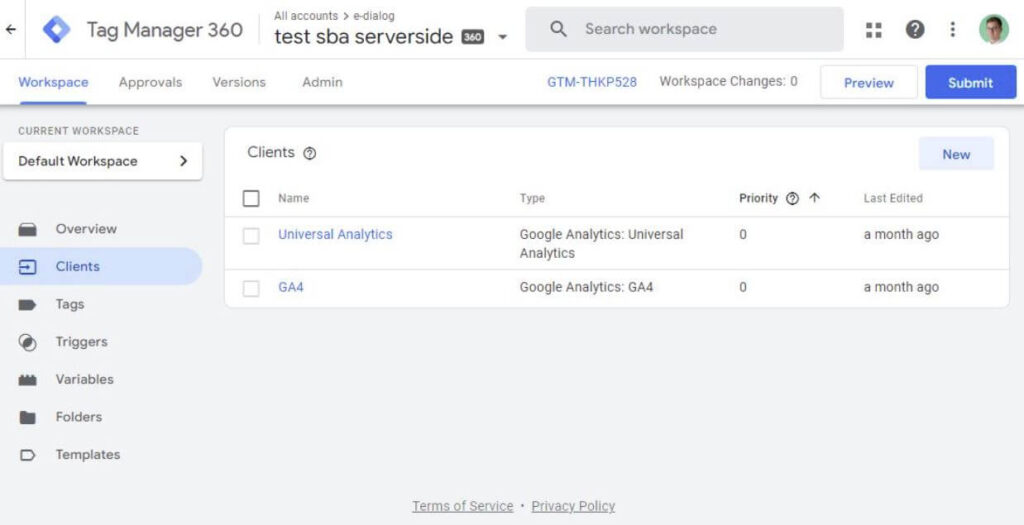 “Clients” can be defined via the GTM interface. These are basically Javascript-based request handlers with which incoming requests can be processed or routed.
Preview and production environment
As with client side GTM containers, there is the option to start the server side container in a preview mode. This allows changes that have not yet been published to be tested locally.
If you start the server container in preview mode, a browser window opens in which you can see your incoming requests and also which tags are triggered by the requests. This is particularly useful for testing new versions without releasing them to production.Danger:In order to use the preview mode, you need your own Docker container or server as well as your own subdomain.
Self-managed self-hosted server side tagging
We recommend hosting the Server Side Tagging Container on Google Cloud. This offers clear administration and control of the container and abstracts technical details.
The solution described here is used by us for debugging and development and should not be adopted on productive systems. However, it gives a basic overview of how self-hosting an SST GTM container can work.
The basic components
The Docker containers
Google providesDocker Imagesready to use the GTM container. These containers can be used both in the Google Cloud and on your own server.
The proxy
In contrast to Google hosted server side tagging, on which theGoogle Cloud Platformthe routing andLoad BalancingWith self-hosted SST you also have to take care of providing the network and proxies. In this example we use the common oneNginx Proxy.
Load balancers
Depending on the traffic, one server is not enough. While you can easily use scalable services with the Google Cloud, this is your own responsibility with the private server. This topic is technically challenging and beyond the scope of this article.
What is required to run the server?
The client container
In addition to the SST container, a client container must also be present as usual. This will be integrated on the website. The HTTP requests coming from the client are configured via this container.
As an example, we will send Google Analytics 4 (GA4) events via a server. That’s why we need a GA4 configuration tag on the client. The trigger should be “All Pages” so that it fires on every page.
The tag requires a valid measurement ID, which is included in theGoogle Analytics settingscan be found. Additionally, we need a server container URL, e.g. tracking.e-dialog.group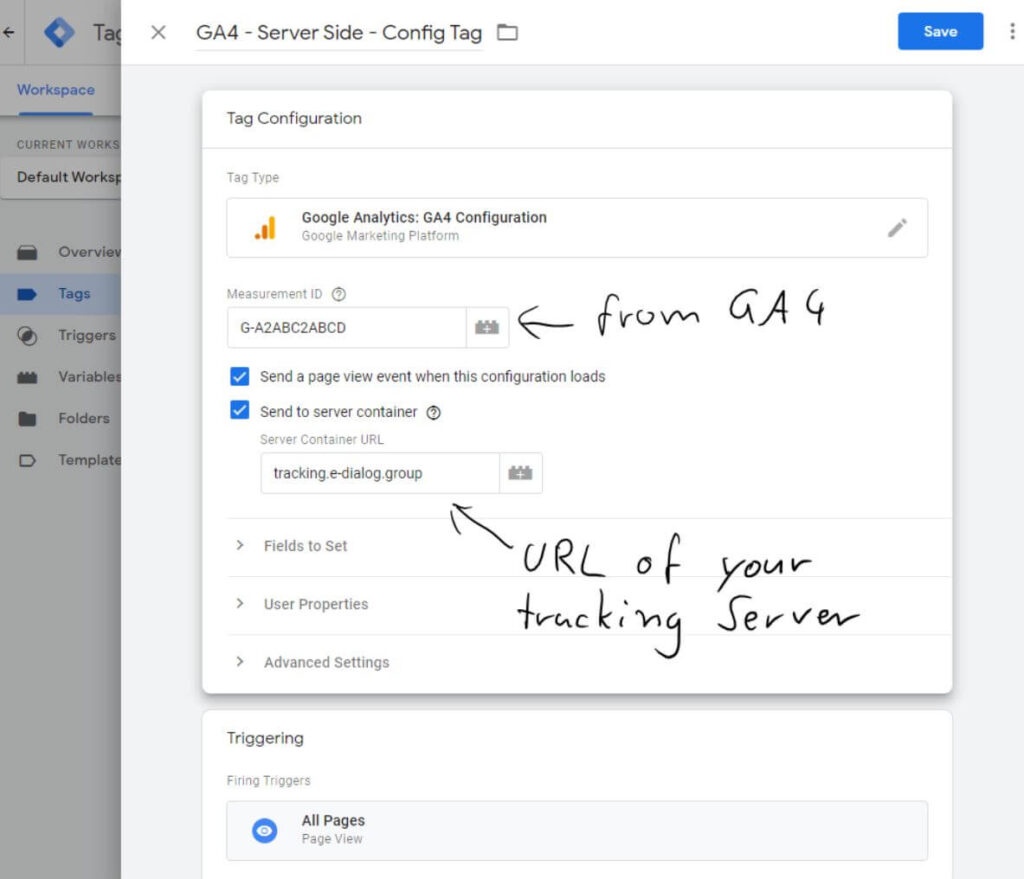 In this example we leave it at the page view event, which is also fired on this day. Of course, various other events can be created in this container.
The server container
You can easily select the server-side container using the “Server” selection when creating the container: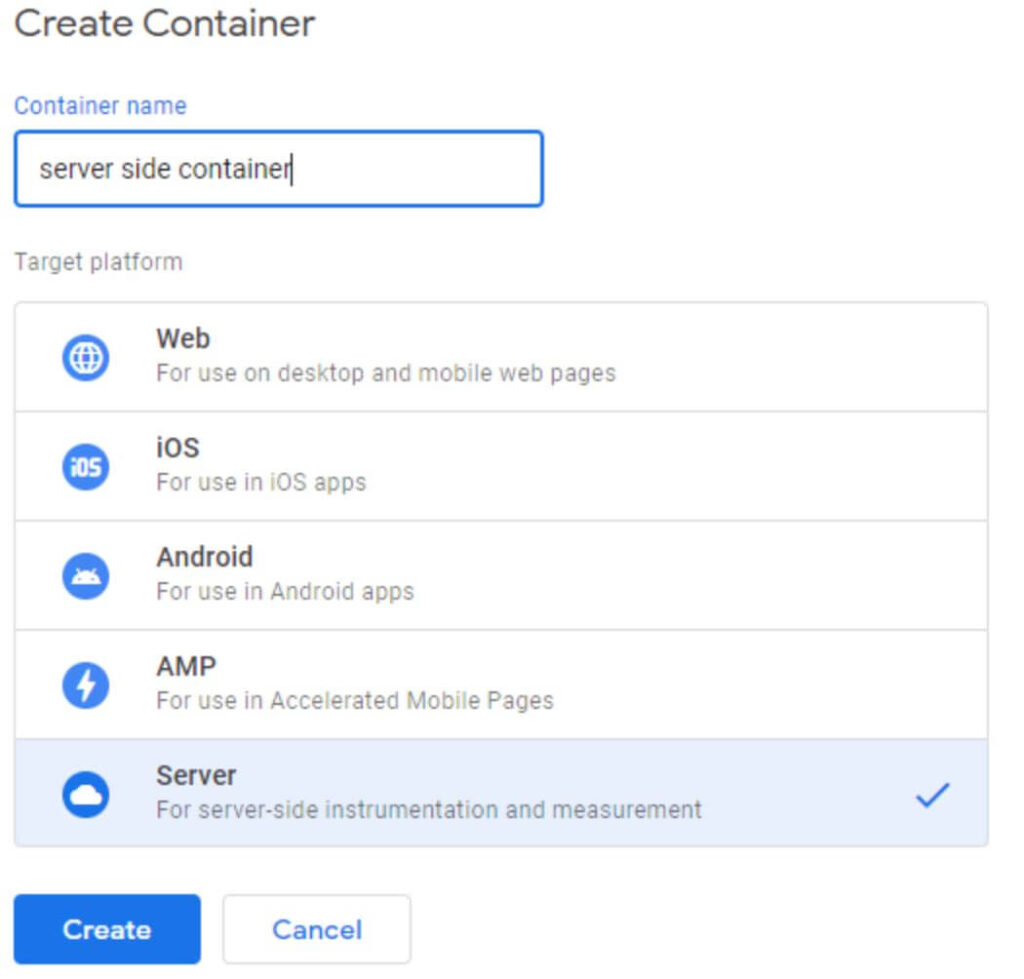 After clicking on Create, a popup opens:
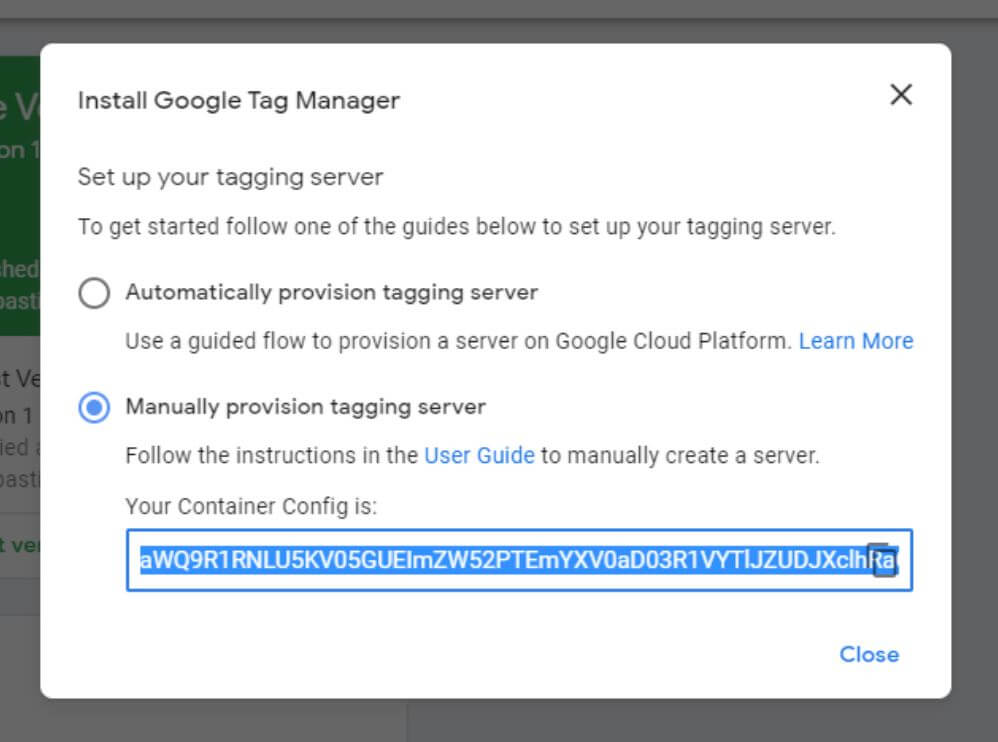 For tracking on your own server, the manual option must be selected. We will need the container config shown here later in the Docker configuration. It can be accessed at any time via the settings.
With the server side container creation, two server side clients are automatically created, one for Universal Analytics and one for GA4. This means analytics requests can be processed immediately. You don’t have to change anything here. A tag is also required that processes the Google Analytics events:
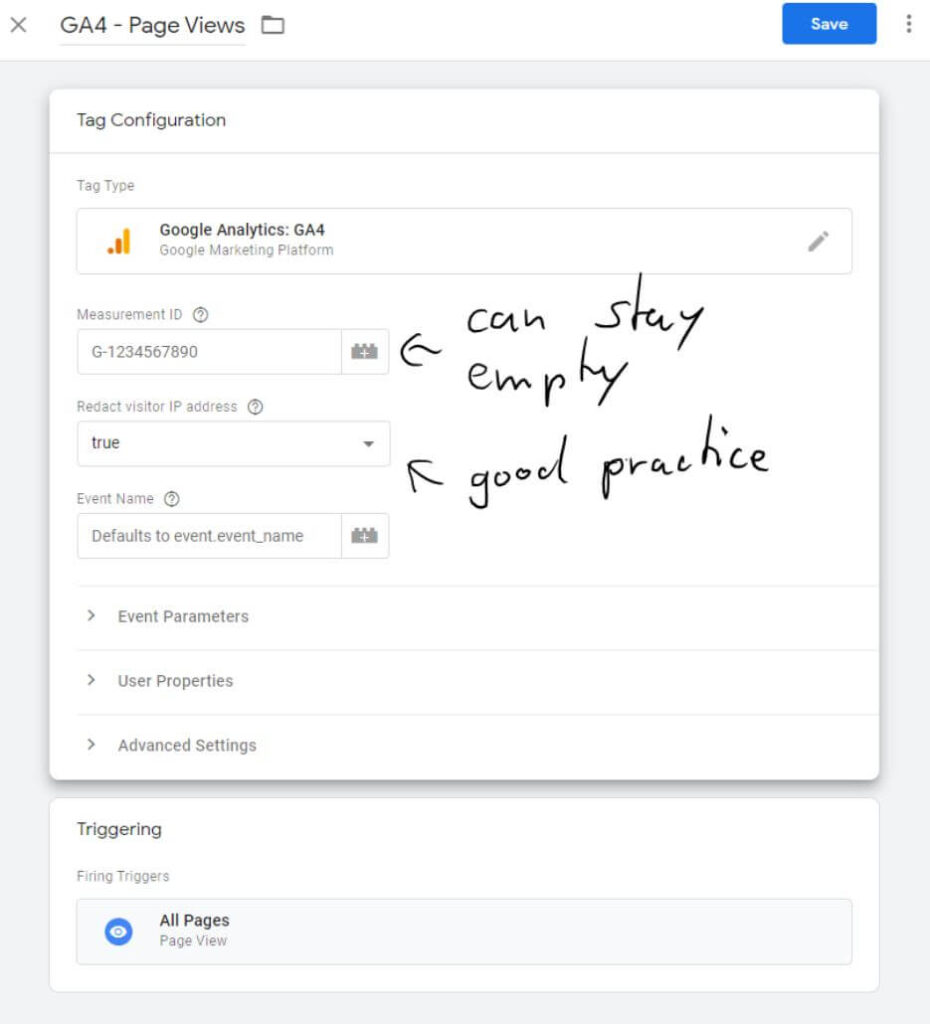 The measurement ID can remain empty; it will then be taken over by the request sent by the client container.Anonymizing the IP address is an important tool for data protection and a major advantage of server side tracking.
The tracking server
Here you have free rein to choose a server. It is an advantage if you think about expandability when selecting the server, for example to position your tagging server behind a load balancer.
Basically, any server can be used on which you can host Docker containers – i.e. practically any common operating system as well as common cloud solutions.
I have one for this articleCPX 21 instance from Hetznerused and installed the provided Docker Ubuntu image on it in order to then make further settings via SSH.
Domain/DNS settings
Since the tracking server is under your control and should also be accessible under the same domain as your website, appropriate DNS settings must be made.
To do this, a DNS entry must be created which points to the IP of the tracking server.
The server’s IP address can be easily accessed in the Hetzner Cloud: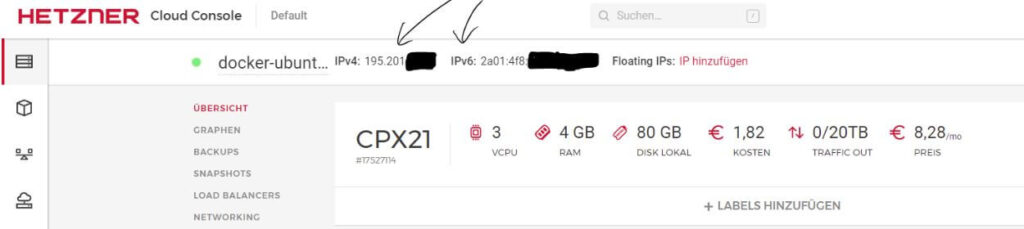 A subdomain is required for normal operation. In order to use the preview mode you need a second subdomain. In this example, the tracking server has the subdomain “gtm” and the preview server has the subdomain “preview”: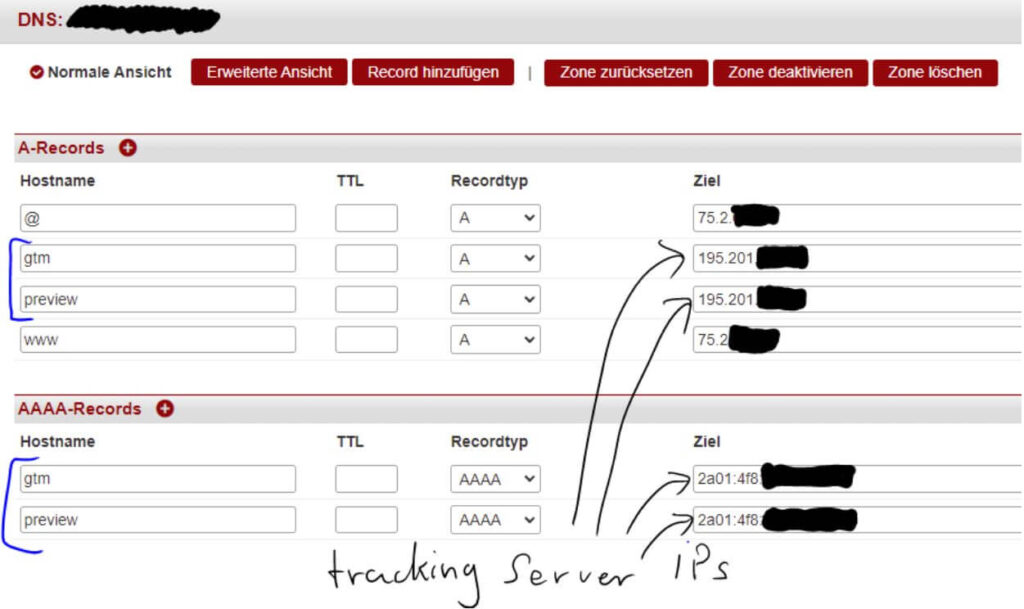
Nginx and the SSL/TLS Certificate
Since we use Nginx as a proxy, the service must first be installed on the server. OneInstructions for Ubuntu can be found at this linkbe found.
After Nginx has been installed, it is important to check whether the server is publicly accessible. TheDefault Nginx configurationhosts static web files, making testing easy. If you access the IP of the server, you should see the Nginx welcome page.
For Google Server Side Tagging to work, a valid SSL certificate is required. How you install one depends on the server you use. For this example we have theCertbot with Let’s Encryptused.
Edit and deploy your configuration
All configuration files needed for this example canherebe found.
To stay clear, we use twodocker-compose files.
A Docker-Compose to start the proxy and a Docker-Compose for the GTM containers.
docker-compose.proxy.yml
Ports 80, 443 and 8080 are mapped for the proxy container. A network for the required Docker containers is created. gtm_production and gtm_preview are references to the respective Docker containers.
Likewise, folders are shared with the host:
- Log files and the webroot for testing & Debugging
- Nginx Config for all proxy settings
- The TLS certificates
docker-compose.gtm.yml
The proxy server’s docker-compose does not necessarily need to be adjusted. Depending on your setup, other ports or volume bindings may be necessary.
Step 6: Start the Docker containers
To start the containers, you have to upload your config files to the server. The containers can be started with the following commands:
docker-compose -f docker-compose.gtm.yml up -d
docker-compose -f docker-compose.proxy.yml up -d
Using docker ps, the currently running containers can be listed.
There should now be 3 containers running; the proxy, the tracking server and the preview server.
If everything is configured correctly, events will now start running and the website or the current GTM container can be tested in preview mode via the GTM.
Attention: These instructions show a simple example of the operation of a tracking server. For real operation, the Nginx configuration, the network structure and the server management must be well thought out and adapted to your specific needs.Debugging:
If something doesn’t work, you can check the Nginx Access Log to see whether connections are being established. In addition, the error log can be used to check whether there are connection errors.
CONCLUSION – Server Side offers full GDPR compliance
It is possible to host the Side GTM server completely independently of Google servers. However, this requires significantly more effort and know-how. Alternatively, Google Cloud can be used as a host. Since the SST GTM runs in a Docker container, switching between self-hosted and Google-hosted solutions is easy.
There is currently a lot of discussion about GDPR compliance. Google’s SST GTM is flexible enough to map any data flow scenario. The challenge is to use the technology provided correctly.




