How Native App Event Tagging Works in GTM

Management Summary
Have you ever wondered what is possible in an Android or iOS Google Tag Manager container? In this article, we will look at some examples of how you can set up tags to track native app events. The user interface is similar to web tracking in GTM, but there are some fundamental differences between the two container types (app and web). This makes app tagging a little different from what you are used to with web tracking.
Tagging Native App Events in GTM
In this article, we will look at some specific use cases. If you want to understand how native app event tracking works and how it differs from web tracking, also read our blog article on the topic.
What you can do with the GA4 tag in your app container
The GA4 or Firebase tag is not strictly necessary in the App GTM, unlike in a web container. Nevertheless, it gives you the ability to control the events sent to GA4. This is great if you want to make changes to the current setup without changing the code, just like with Web GTM. There are three modes for this tag type: block, add, or modify events.
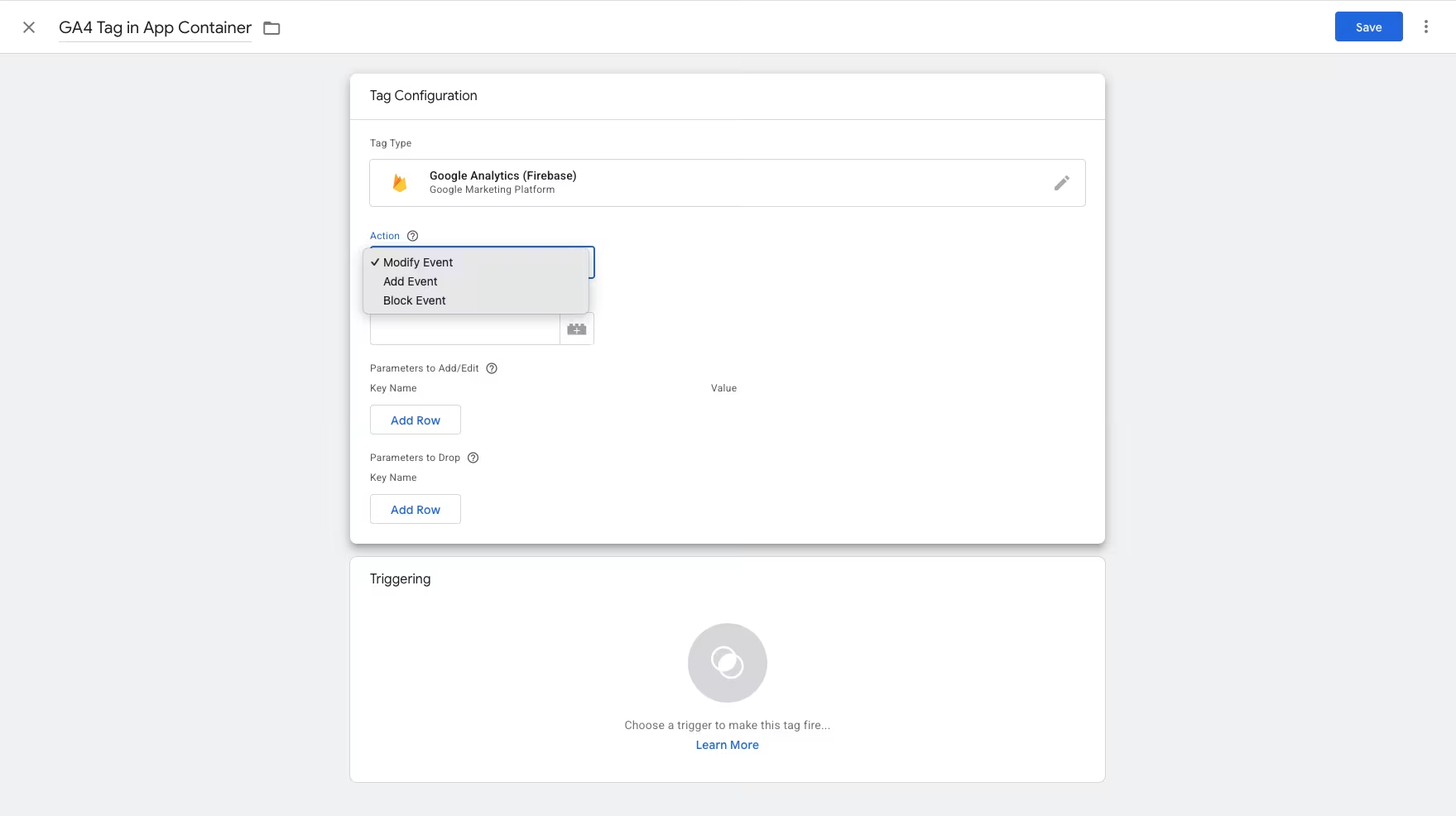
GA4 Tag in the app container. Source: e-dialog/GTM.
Block Events
If you want one of the events natively implemented in your app and sent to GA4 via GTM to not reach GA4, you can use the GA4 tag to block the event.
For example, your company has an app, and in the app, every single button click triggers an event that is sent to GA4. It contains the following information:
Event name: “button_click”
button_info: {{Name of the button}}
click_info: {{Type of button}}
Shop_section: {{Section on the website}}
The event was useful when it was implemented two years ago, but now the app has grown, and there are many more buttons. This leads to many events in GA4. You and your colleagues have decided that you do not want these events in GA4. Nobody uses this data, and it causes unnecessary costs every month. One option would be to ask the app developers to remove the event. However, you might be interested in these events in the future, and the development pipeline is full until mid-next year.
Here, it would make sense to block events. You can set up a tag that triggers on all button_click events and prevents them from reaching GA4.
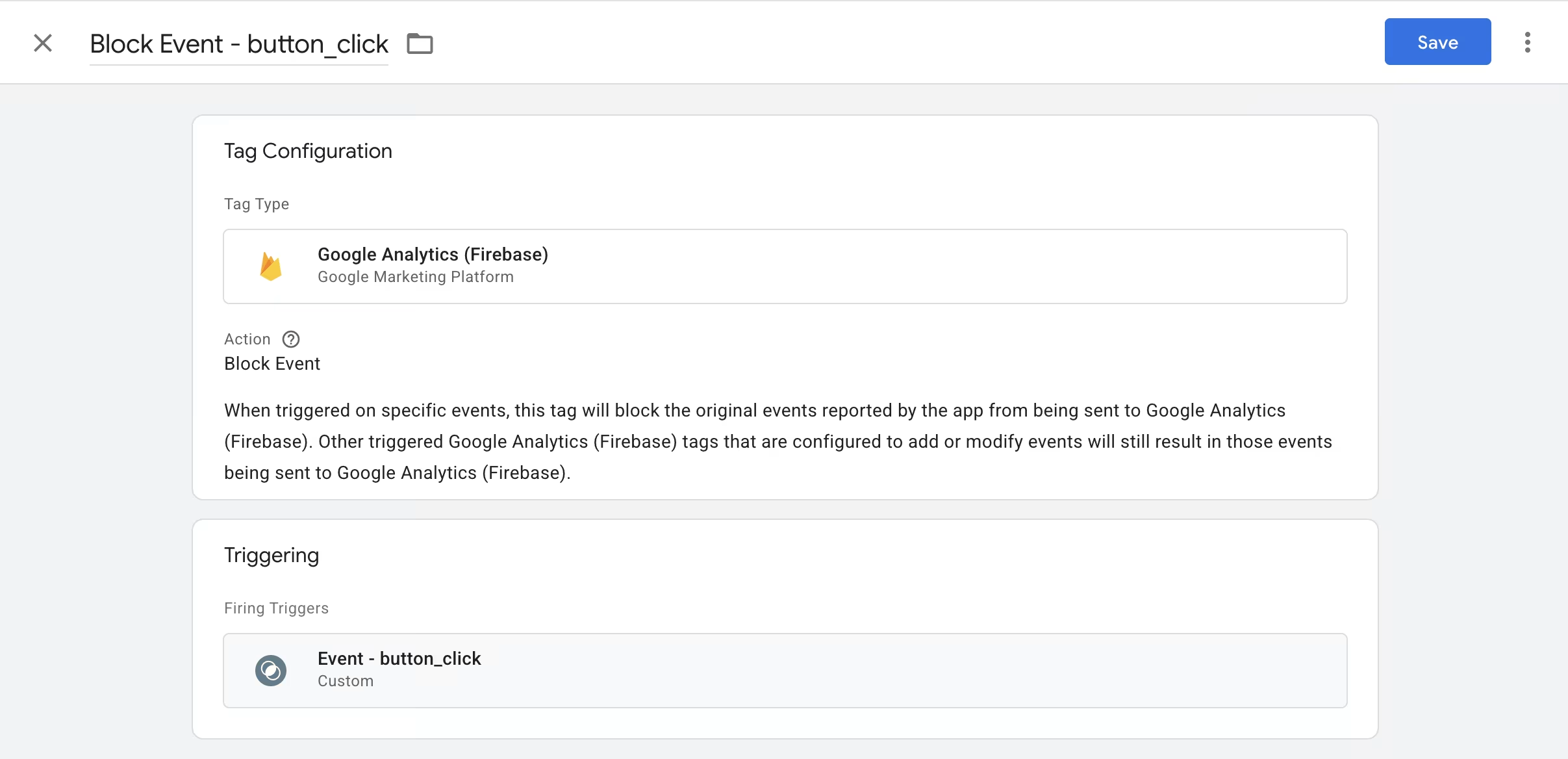
Setting up the Block Event Tag. Source: e-dialog/GTM.
Add Events
If you use this mode, you might get duplicate events if you are not careful. Setting up an “Add Event” tag that fires on all your events will add an additional event for every event that passes through the GTM container. Both the copy and the original event will still be sent to GA4. This leads to double tracking of the same event and provides you with incorrect data.
Of course, there are also meaningful use cases here. Let’s say you want to keep tracking some of the button clicks you just blocked in our previous example. Most button clicks are irrelevant, but you really want to know the click-through rate of the app’s call-to-action buttons.
For this, you can use an “Add Event” tag that only fires on button_click events that have the value “cta” in the custom event parameter “click_info”. The new event will be called button_click_cta and sent to GA4 with all unchanged parameters.
Even if you previously blocked all button_clicks with your “Block Events” tag, only the original event will be blocked. Any added or modified event you have set up will not be affected by the blocking trigger. So, the incoming button_click event will be blocked by your “Block Event” tag. But it will also be used as a trigger for your “Add Event” tag, which successfully sends the button_click_cta event to GA4.
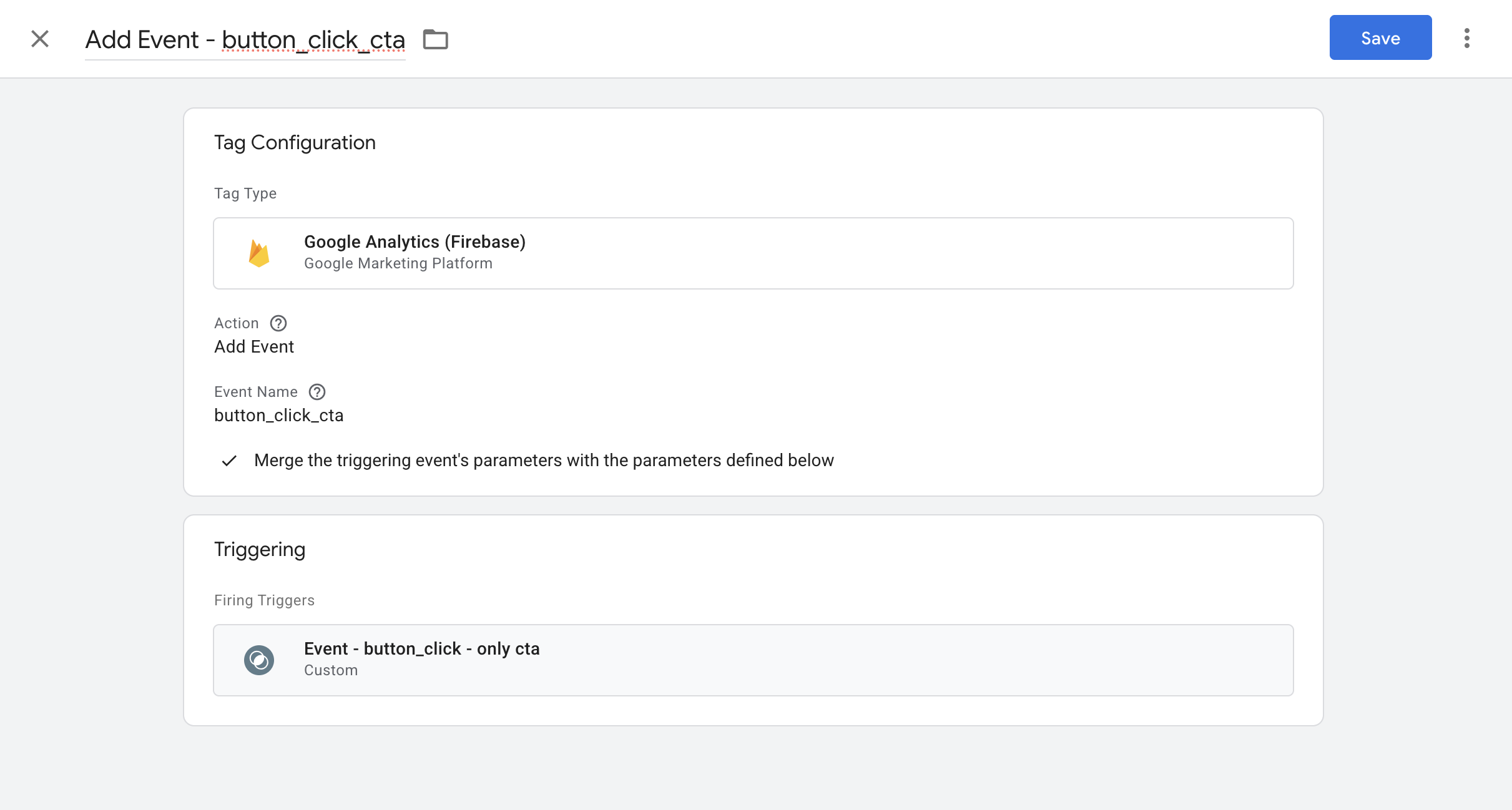
Setting up the ‘Add Event’ tag. Source: e-dialog/GTM.
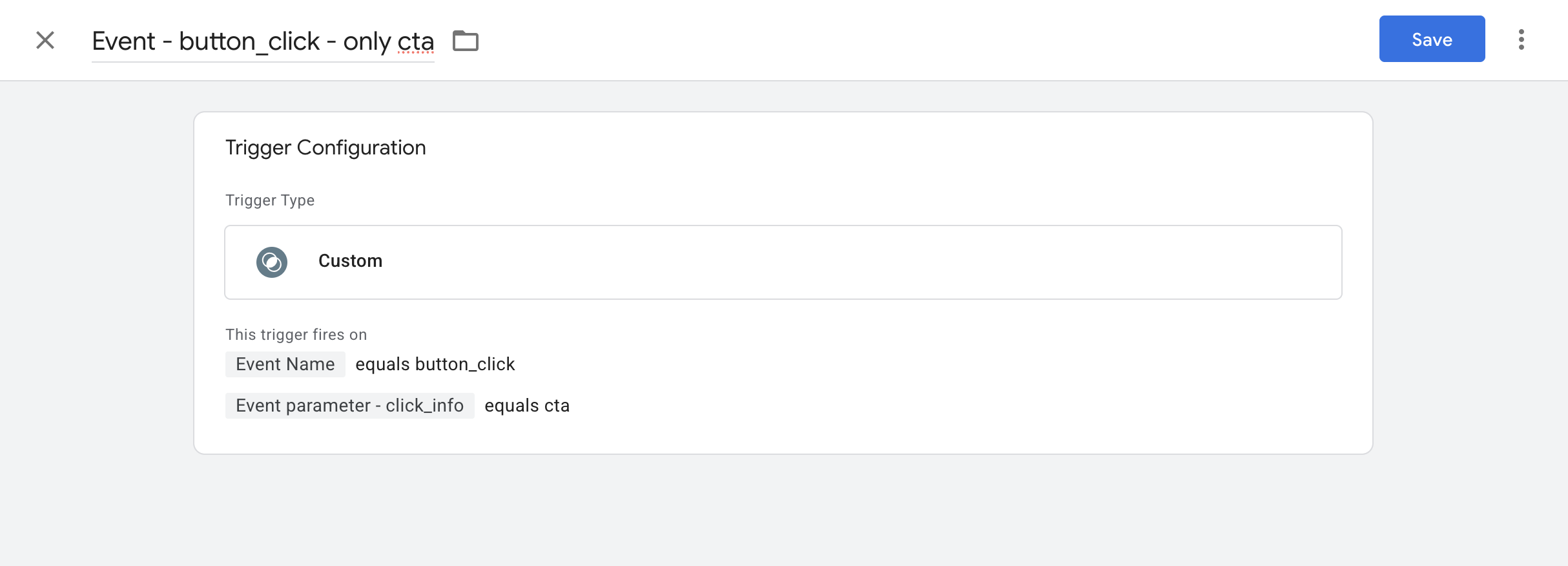
Setting up the ‘Add Event’ trigger. Source: e-dialog/GTM.
Modify Events
Let’s assume the reason no one looks at the button_click data is that the parameters do not have clear names. This means your colleagues are unsure how to use the information provided in the parameters.
To solve this, you could omit the two parameters button_info and click_info and add a new parameter called button_name_and_type. In this new parameter, you combine the values of button_info and click_info, thus providing your colleagues with a single parameter that tells them exactly which button was clicked.

Setting up the ‘Modify Event’ Tag. Source: e-dialog/GTM.
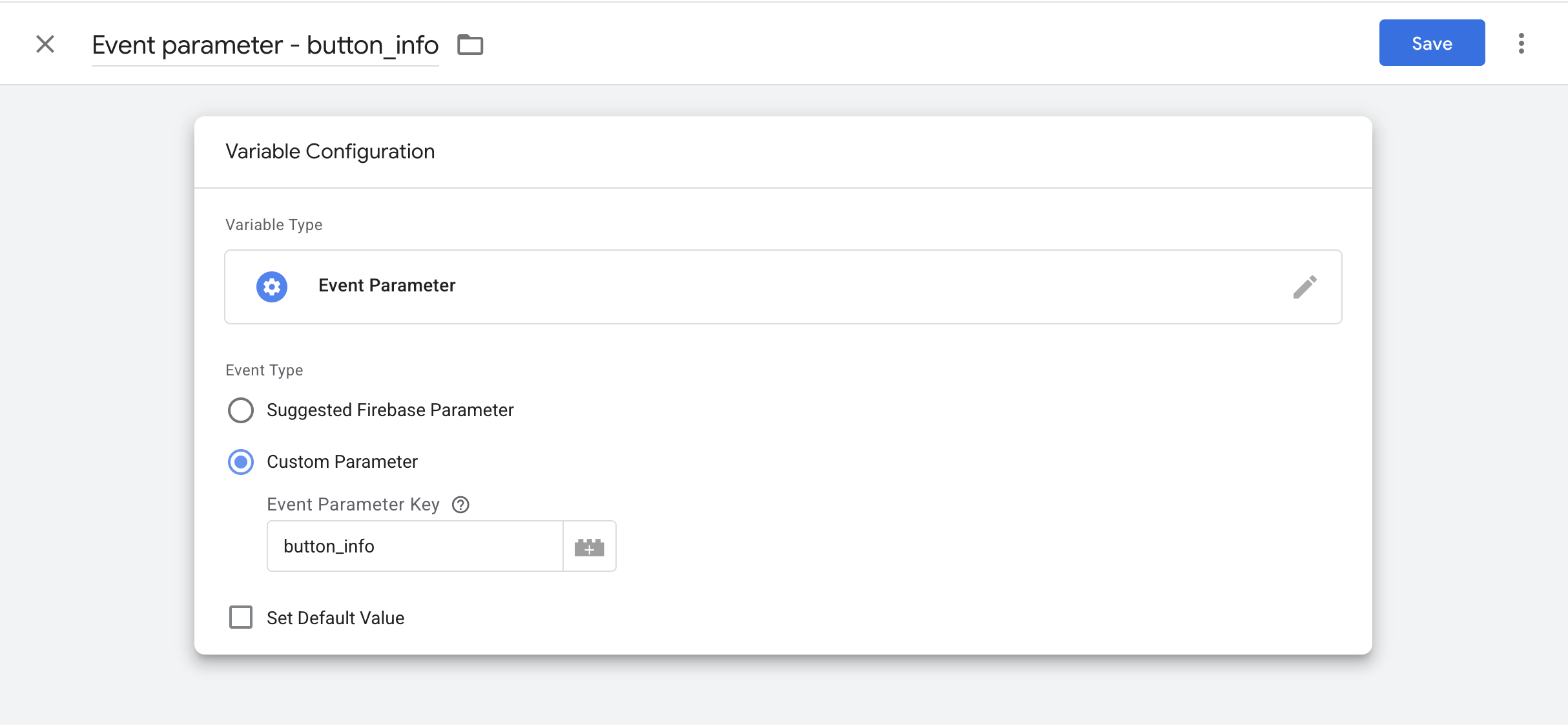
Setting up the ‘Modify Event’ Parameters. Source: e-dialog/GTM.
Tagging for other endpoints in App GTM
Automatic event forwarding only applies to GA4. If you want to forward the events you send from your app to other endpoints, you must set that up manually. For Floodlights and Google Ads, there are integrated tag types that work just as you are used to from Web GTM. Make sure you have all the information you need for the marketing tags available in App GTM.
In a GTM container for Android or iOS tracking, there are not as many predefined tag types as you might be used to from web tracking. If you want to track more than GA4, Floodlights, and Google Ads, server-side tracking for apps could be a good option.
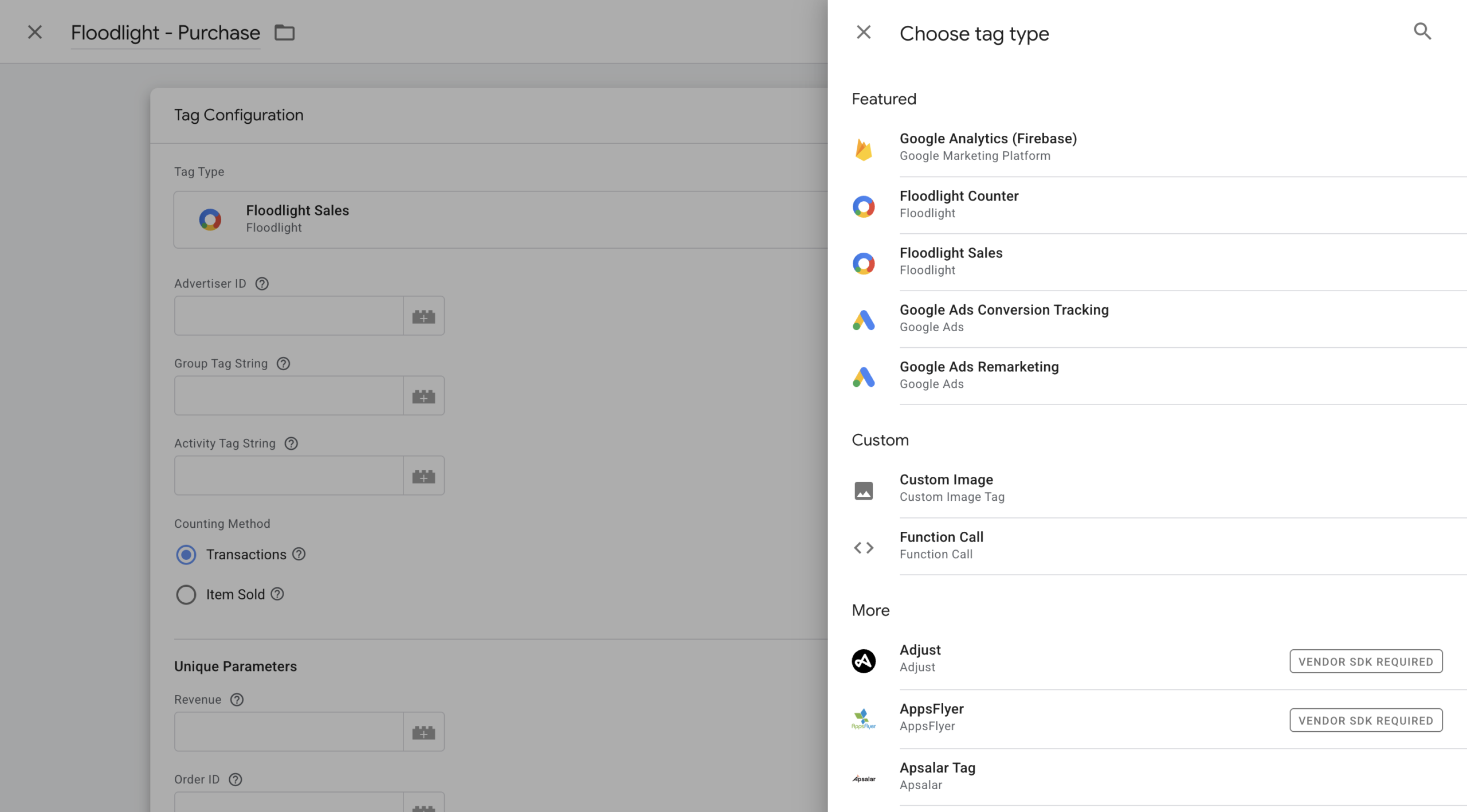
Tagging other marketing tools. Source: e-dialog/GTM
Server-side Tagging for Native App Events
The previous examples are for an App GTM Container. It is also possible to track native app events server-side. What you should know: There is no server-side app version of a GTM Container. There is only one type of server-side GTM Container, and it can be used for both web and apps. If you implement server-side GTM for your app, the tag management options you have are the same as those you are used to from server-side GTM.
One difference is that you only need one GTM Container for server-side app tracking. Server-side tracking for web requires a client-side container, which in turn sends events to the server-side container. For apps, you can either install only a client-side container or a server-side container directly in the app. More detailed information on installing a server-side GTM Container in an app can be found in the official documentation.
Tagging for Webview App Events
Does your app use webviews instead of native app events? Tracking for webviews works differently from the native tracking we discussed here. Do you want to know more about webview tracking in apps? Read our article on how to use GTM to track webviews.
Conclusion
Tagging for your app’s native events will feel intuitive if you are accustomed to web tagging. With knowledge of how app events work and the different functionalities available in the tags, you should be able to set up tagging in a way that works best for your business.