
How To Enable Conversion Measurement In Trueview Campaigns

Management Summary
Who doesn’t know that? You prepare a campaign in DV360 and create a TrueView Line Item. Then you want to select a Floodlight pixel that is already installed on the target page in order to measure the corresponding conversions. But unfortunately on DV360 this option is grayed out in the Line Item under the Conversion Tracking section.
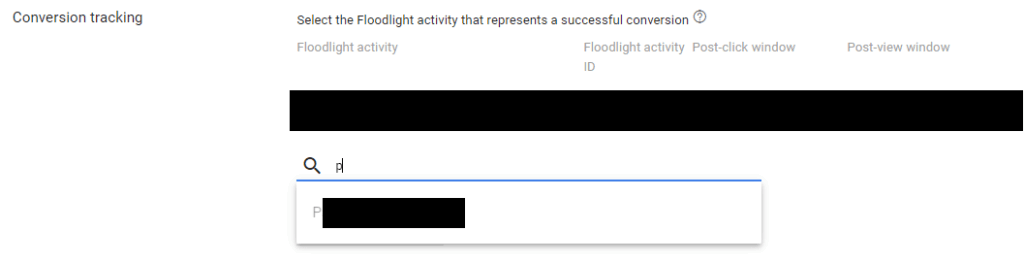
If this situation sounds familiar to you, then this blog article is for you. Below you will find out how to solve this problem in five simple steps.
1. Enable Floodlight TrueView settings
To activate this setting, you must go to the Floodlight submenu item under the DV360 Advertiser settings via the Resources menu item. Here you will find an overview of the floodlights that have been created.
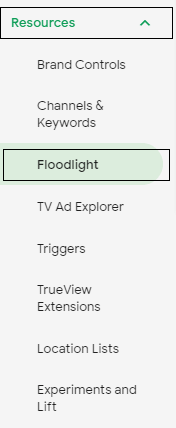
Now open the desired floodlight. At the bottom you will find the TrueView settings. Please activate this option and save.
2. Copy the code
After you save the changed settings (as described above), Google will generate a code.
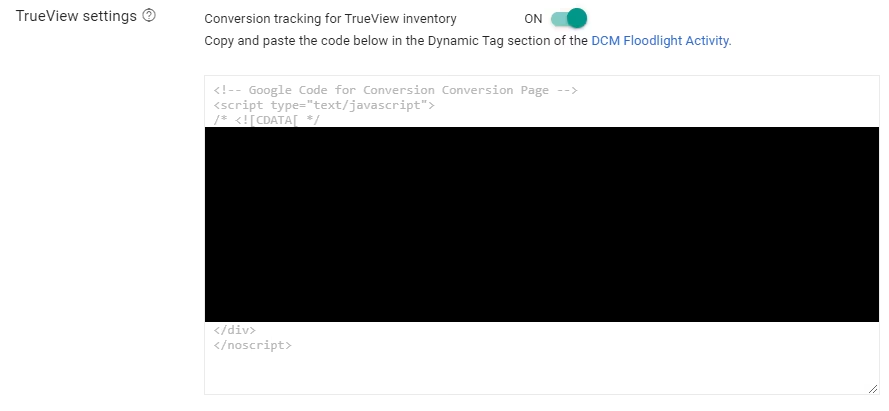
This code must then be inserted into Floodlight in the Campaign Manager.
3.Activate Tags Dynamic in Campaign Manager
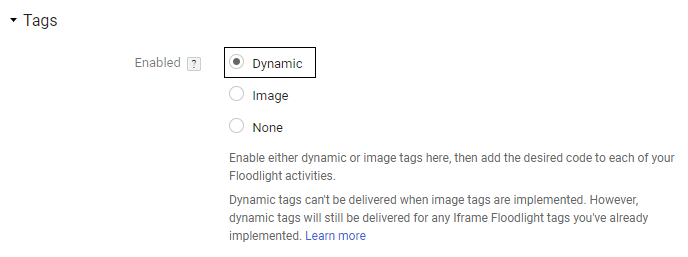
In order to be able to insert the code in Floodlight, you now have to switch to the Campaign Manager. Simply select the advertiser you want under the Advertiser menu item and then switch to the Floodlight configuration tab. Here under Tags, if not already selected, please set Dynamic and save.
4. Attach the code to the Floodlight
Now you can switch to the Floodlight Activities tab. Please select your desired floodlight from the list and open it. The last menu item you will find is Dynamic tags.
Under Dynamic tags, add >>New tag<< now enter a new line. Now all you have to do is give the day a name and paste the code you previously copied to the clipboard from DV360 into the code column.
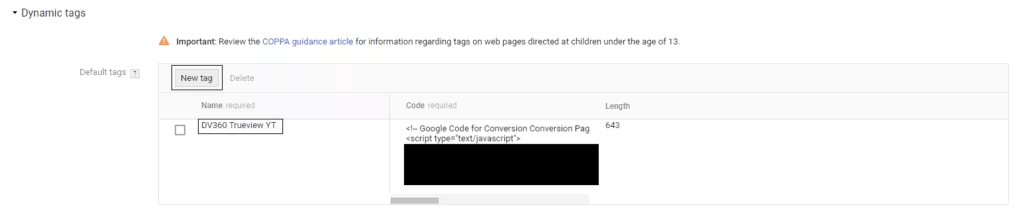
Once you’re done, don’t forget to save.
5. Select the floodlight for your TrueView Line Item
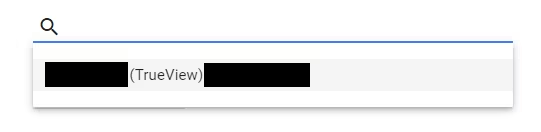
Now switch from Campaign Manager back to DV360 and can select your floodlight in the line item. The floodlight is no longer grayed out and has (TrueView) appended to the name. Now you can add it to the line item.
Complete!
Now you have activated the floodlight for TrueView Line Items and can measure conversion.
Not using Campaign Manager?
If you only use DV360 without a link to Campaign Manager for your Floodlight setup, you only need to activate the TrueView settings. (See: Point 1 – Enabling Floodlight TrueView Settings)
Still questions? We are happy to support you:kontakt@e-dialog.group
Sources:




