iFrame Tracking: Smartly Transfer Data Layer Events via postMessage

Management Summary
More control over events within iFrames: With the postMessage method, all relevant Data Layer events reliably end up in your tracking.
The Data Layer
The Data Layer is one of the most important instruments in tracking. It serves not only to trigger events but also acts as a data layer between the website and the Tag Manager, containing a wealth of data essential for tracking.
When setting up standard tracking via GTM, accessing the Data Layer is not a major challenge. Using predefined Data Layer variables, you can reach specific objects in the data layer within just a few clicks.
Special Case: iFrame
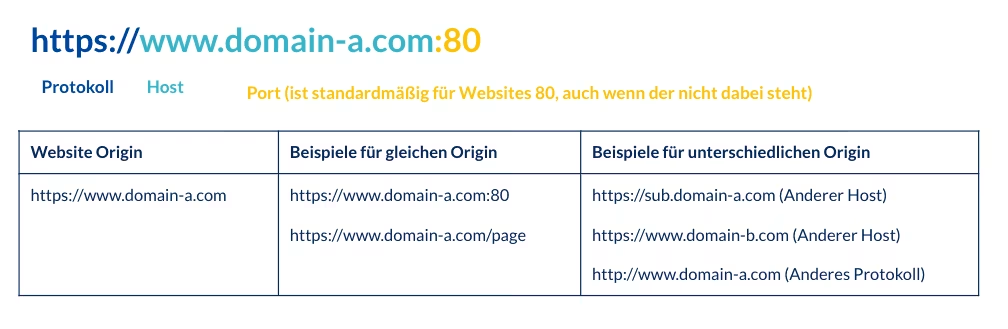
An iFrame is considered third-party content—while it is embedded in the webpage, it usually originates from a different origin. The origin is essentially the address of a website and consists of the protocol, the domain, and the port. You can distinguish whether two websites come from the same or different origins:
Common examples of iFrames include YouTube videos, forms, and third-party applications that users can interact with on the website.
When analyzing your website, you naturally want to know what is happening inside these iFrames. The problem: methods like the Data Layer do not work inside the iFrame. Or rather, you cannot access it from the website where the iFrame is embedded.
The iFrame itself can therefore contain a Data Layer, but the so-called Same-Origin Policy prohibits the parent (= the website) from accessing content from the iFrame and vice versa.
But what if an important event occurs within the iFrame that I absolutely want to analyze? In principle, it would be possible to install GTM within the iFrame, but this can lead to risks if you are not careful. For example, it can result in duplicate tracking or an inconsistent user journey.
The simpler and more secure method: Send Data Layer events to the parent via postMessage.
Communication via postMessage
postMessage is a JavaScript method for cross-origin communication. In simple terms: it is the exchange between two separate objects in the browser that do not share the same origin. An example of this is the aforementioned iFrame within the website.
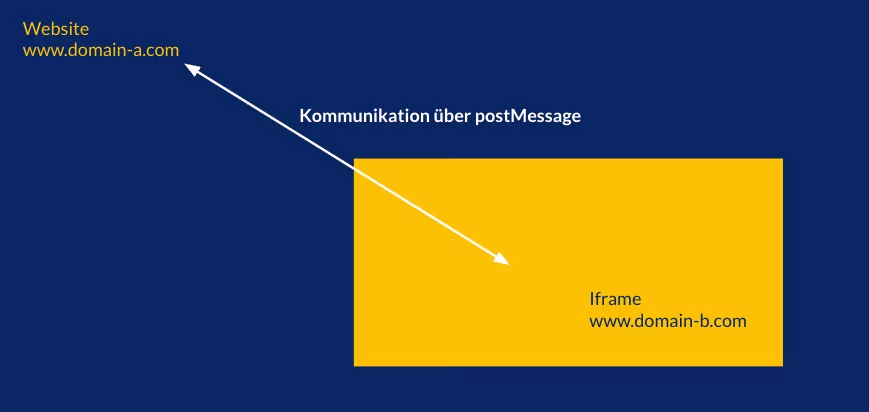
With the postMessage method, we have a way to allow secure communication between the two without violating the Same-Origin Policy. This communication always consists of two parts: the sender and the receiver.
The sender (in this use case: the iFrame) sends the message to the receiver (the website) using the postMessage method.
Basic Syntax:

message = The message to be sent to the receiver as a JS object
targetOrigin = The origin of the receiver. This should always be set explicitly! While whitelisting using * is possible, it should be avoided for security reasons.
The receiver later picks up the message using an event listener.
Step-by-Step Guide
We have now introduced two components: the Data Layer and the postMessage method. The following explains how to smartly transfer data from the iFrame to the parent GTM using these tools:
1. Define the Data Layer Event
Define what you want to send in your Data Layer event within the iFrame as usual. For example:

2. Wrap in postMessage
Now, combine the postMessage syntax with your Data Layer object and insert the following code snippet into your iFrame where you would normally perform the Data Layer push:
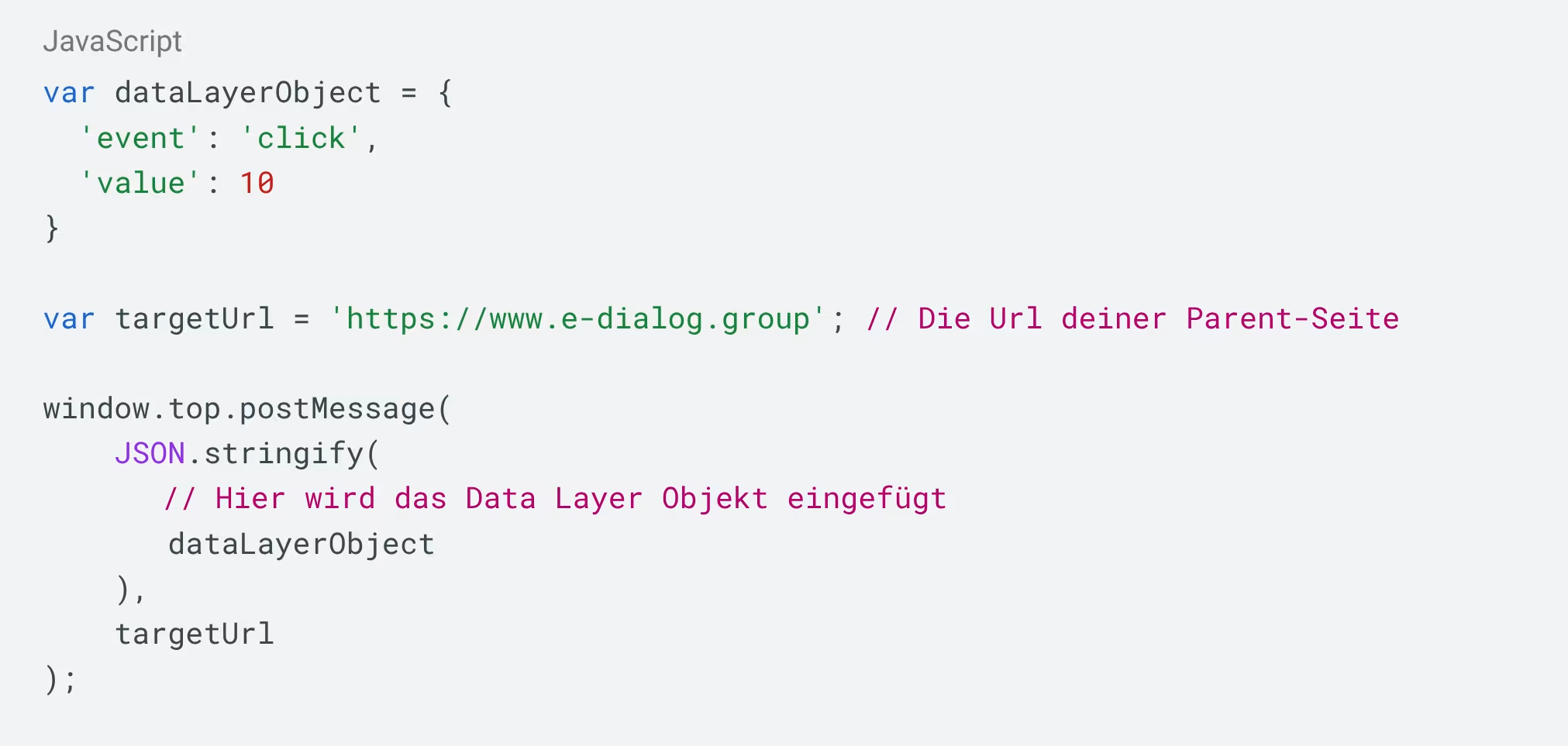
We use window.top here because we want to send the message directly from the iFrame to the parent window.
JSON.stringify is used to convert the JavaScript object into a JSON string so that it can be more easily received by the parent later. This is not strictly necessary but helps to avoid syntax errors.
With this step, you have completed the sending part. Now the receiver comes into play.
3. Receive in GTM and Push to the Data Layer
Now we continue within the Google Tag Manager container installed in the parent. Create a new Custom HTML tag in GTM:
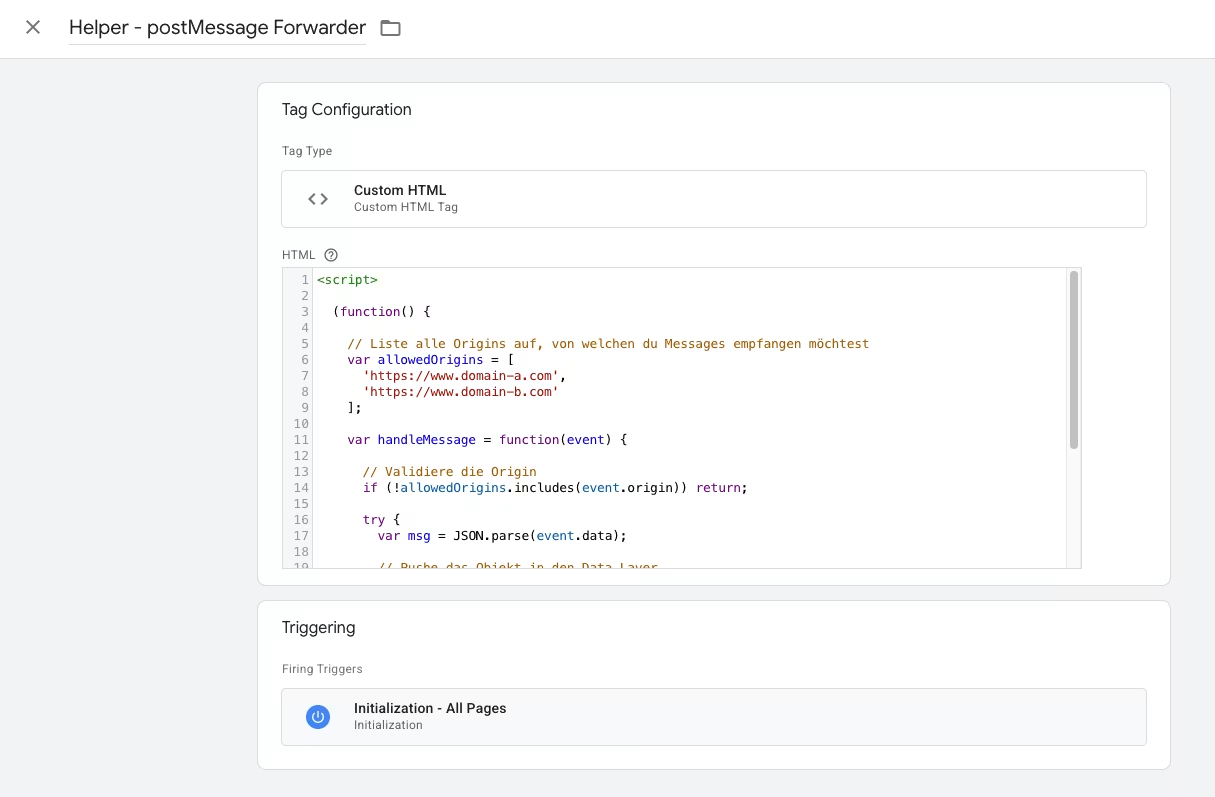
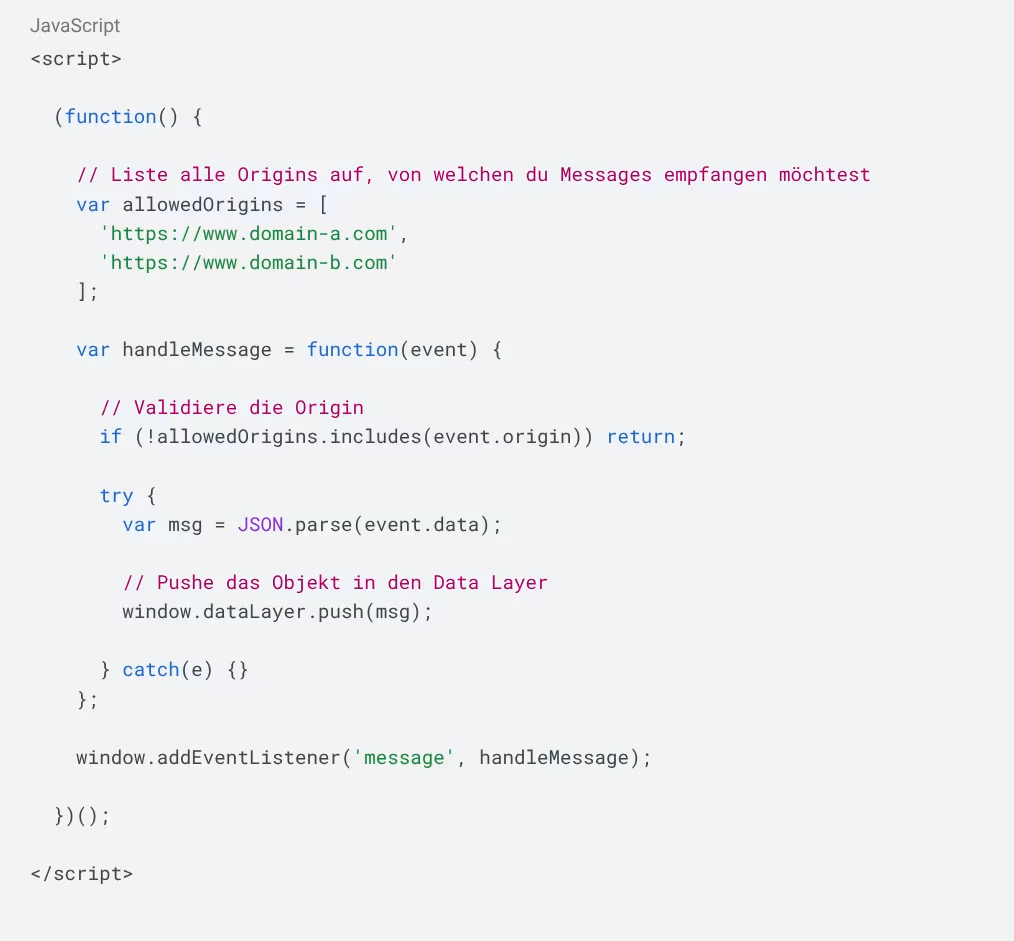
In the first step, an event listener is set for all “message” events. This allows the website to react to the postMessage and execute the function. Here too, it is important to explicitly set and verify the origins to protect against malicious messages. Subsequently, the object is disassembled and pushed into the Data Layer exactly as it was received.
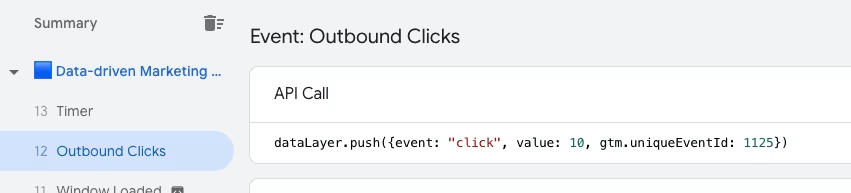
Congratulations: if you have done everything correctly, you will see the event in the Data Layer via the GTM preview shortly thereafter:
Race Conditions: Beware of Pitfalls!
A common stumbling block in connection with this tracking method is so-called race conditions. This means that problems can arise if the timing is wrong or if the sequence of events is not executed correctly. If the iFrame attempts to send events to GTM while GTM is not yet ready, the events may be lost. Therefore, ensure that you set the trigger for your GTM tag as early as possible—ideally on initialization. And as always, the best approach is: test, test, test. Simulate all your tracking events in the iFrame as usual and ensure that the sent data actually ends up in the Data Layer.
Conclusion
Tracking iFrames doesn’t always have to be difficult. With the postMessage method, you can securely send your Data Layer events to the parent in no time. And the best part: you only need to set up the receiver once in GTM.