
Importing First-Party Data with Google Ads Data Manager

Management Summary
Leverage the first-party data already available to you with Google Ads Data Manager to send even more relevant offers to customers who have already shown interest in your products.
Introduction
Google Ads Data Manager is particularly valuable when you want to use data from external systems for bidding in Google Ads. The major advantage of this tool lies in its guided workflow within the platform. This makes the process accessible even for marketers who do not have the time, technical expertise, or API access to submit data manually.
Data Sources
The following sources can be used for data upload via Google Ads Data Manager:
- Amazon Redshift & Amazon S3
- BigQuery & Google Cloud Storage
- Google Sheets & HTTPS
- HubSpot & Salesforce (not available for Customer Match)
- MySQL, Oracle & PostgreSQL
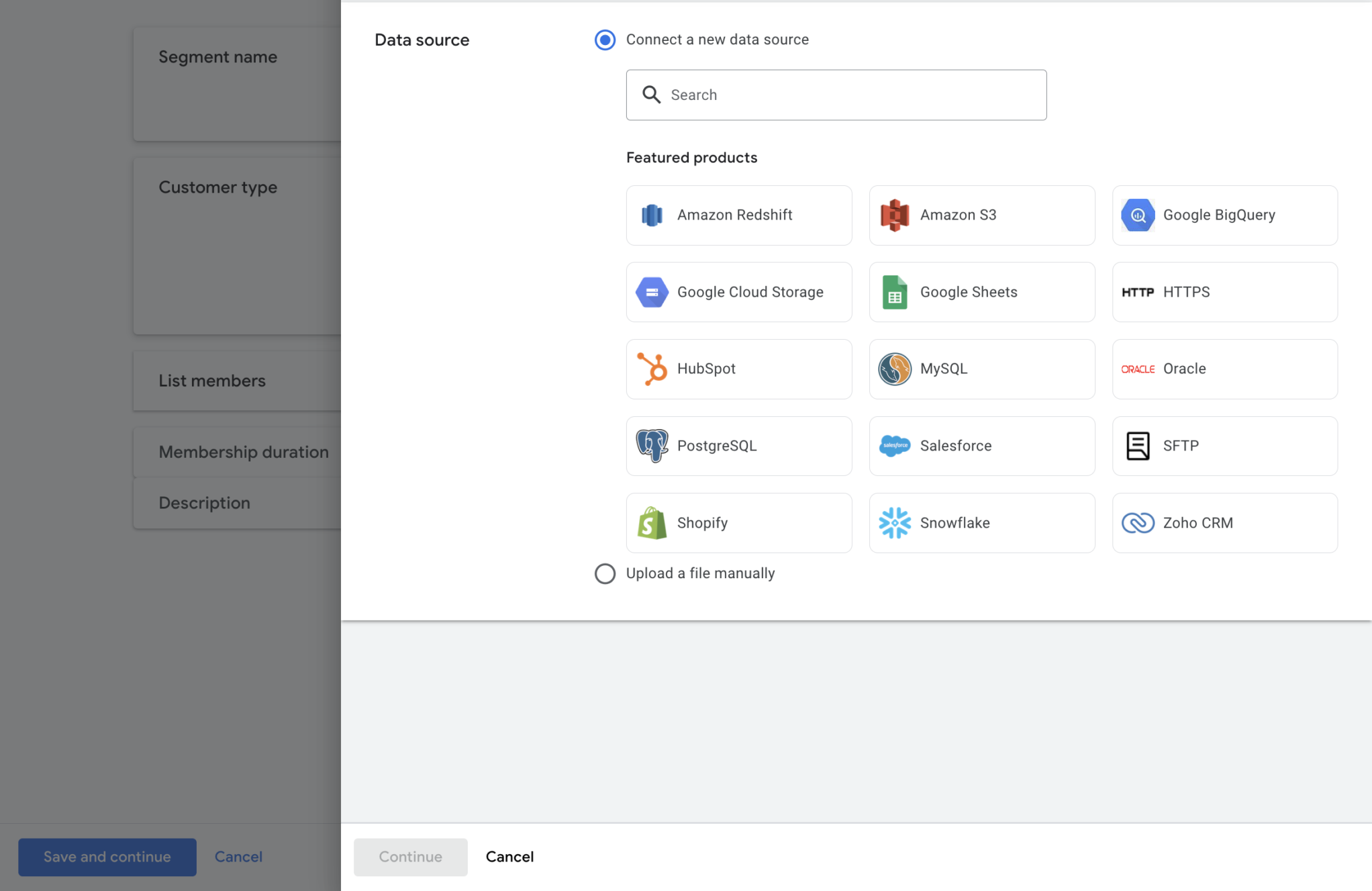
- SFTP
- Shopify (not available for offline conversions / enhanced conversions for leads)
- Snowflake & Zoho CRM
Data Destinations
There are two primary options for activating your data:
- Customer Match: This links your data with a customer list.
- Enhanced Conversions for Leads (formerly Offline Conversions): This links to a specific conversion action.
Setting Up and Automating Data Import
Here are the critical steps and considerations when connecting a data source and automating the import. In this example, we upload first-party data about website customers via SFTP for use in Customer Match.
Before You Start
-
Objective: Consider carefully what you want to achieve with the data. If you plan to create segments, verify that the audience is large enough. Overly granular segments are often not effective for bidding.
- Formatting: Ensure that all required fields are supported and correctly formatted. Formatting requirements can be found in the Google documentation.
- Access Rights: Verify that you have access to the data source to complete all necessary authentications.
- Proof of Concept: Conduct a test upload first. Use sample data for a one-time import to ensure everything works as intended before setting up automation for the entire team.
Connecting a Data Source
1.
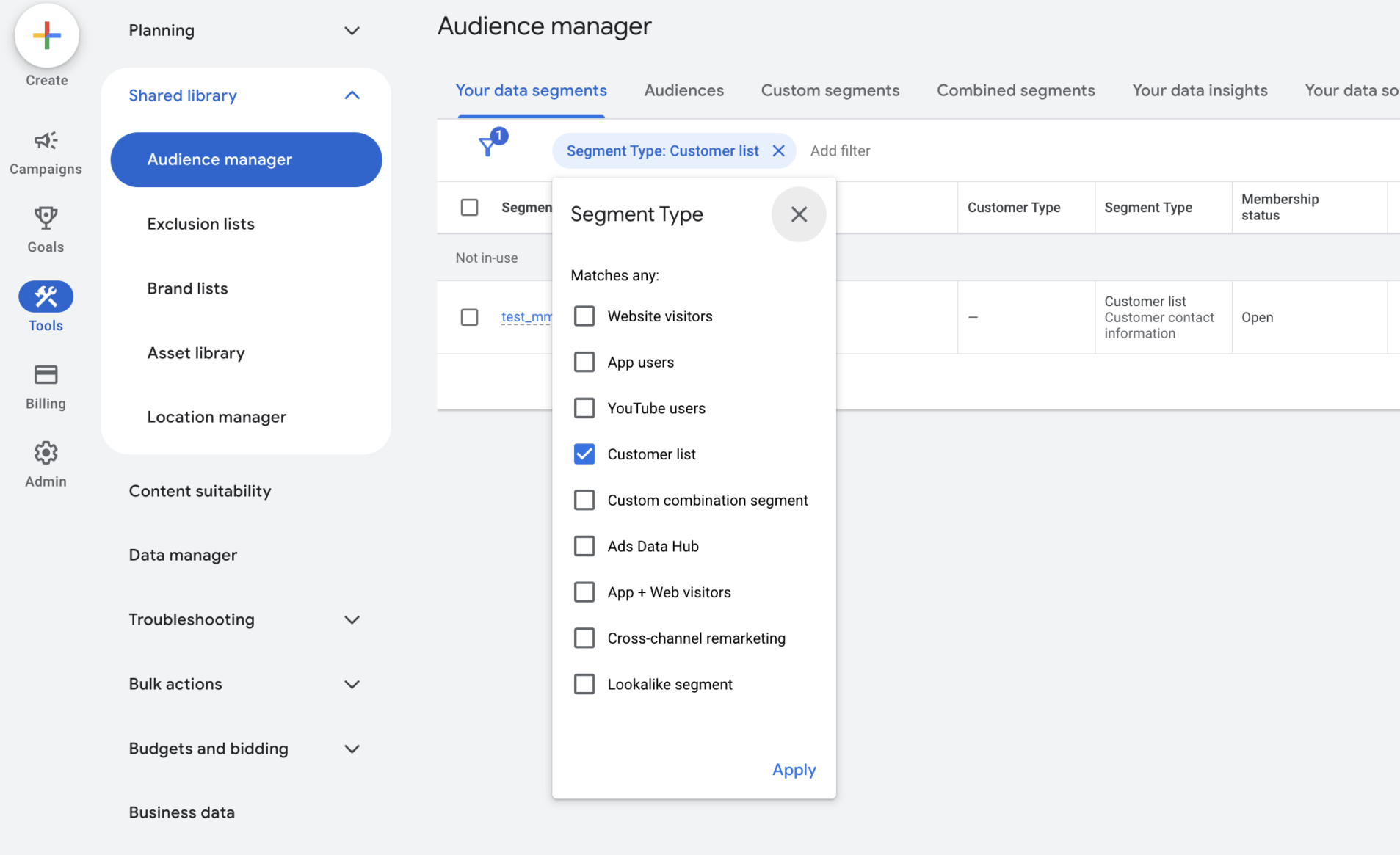
Navigate to Tools > Shared Library > Audience Manager > Your data segments. Select the customer list you want to upload data to. Use the filter “Segment type = Customer list” to find suitable lists or create a new list.
2.
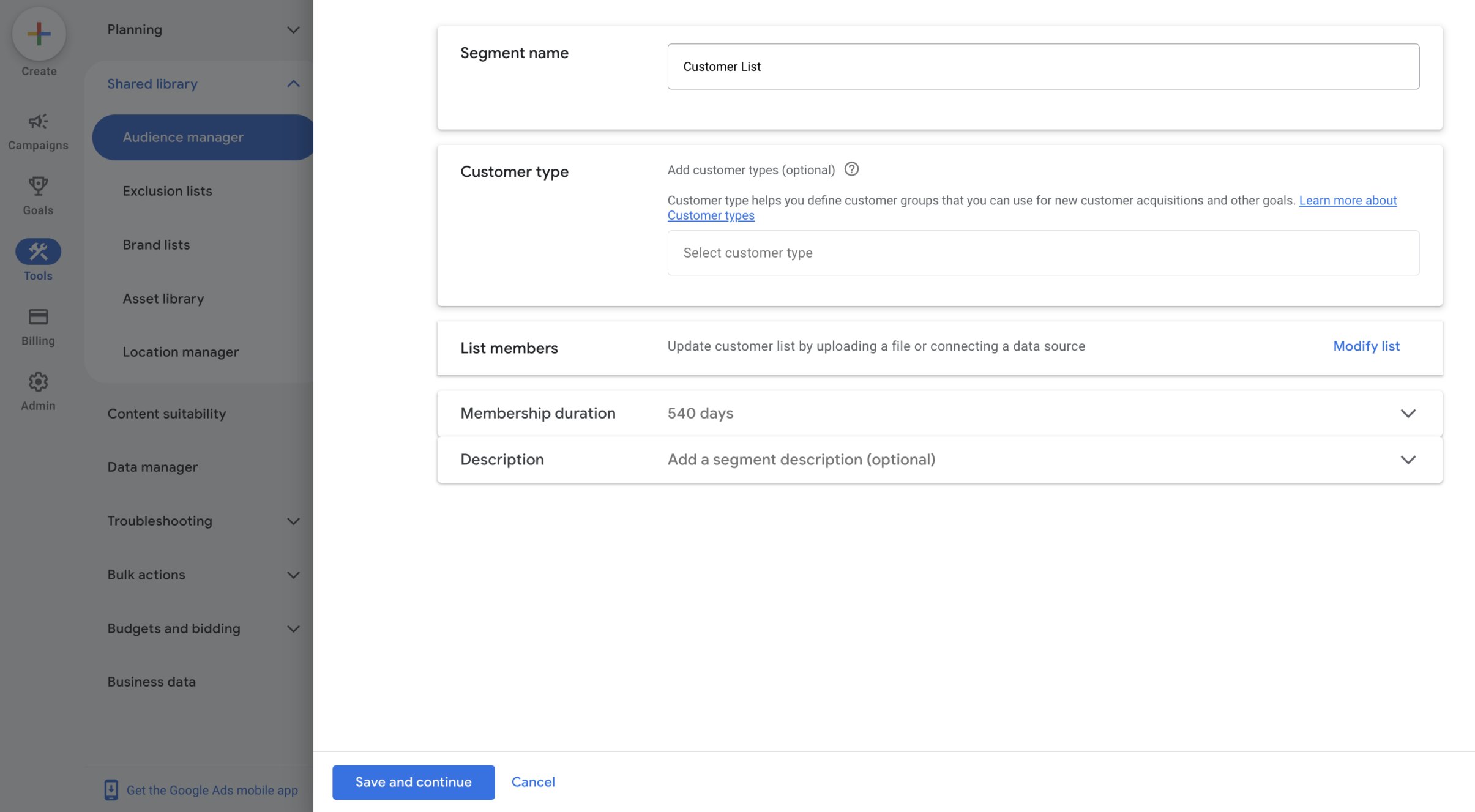
Hover over the list and click Edit.
3.
Select Modify List > Connect a new data source > SFTP.
4.
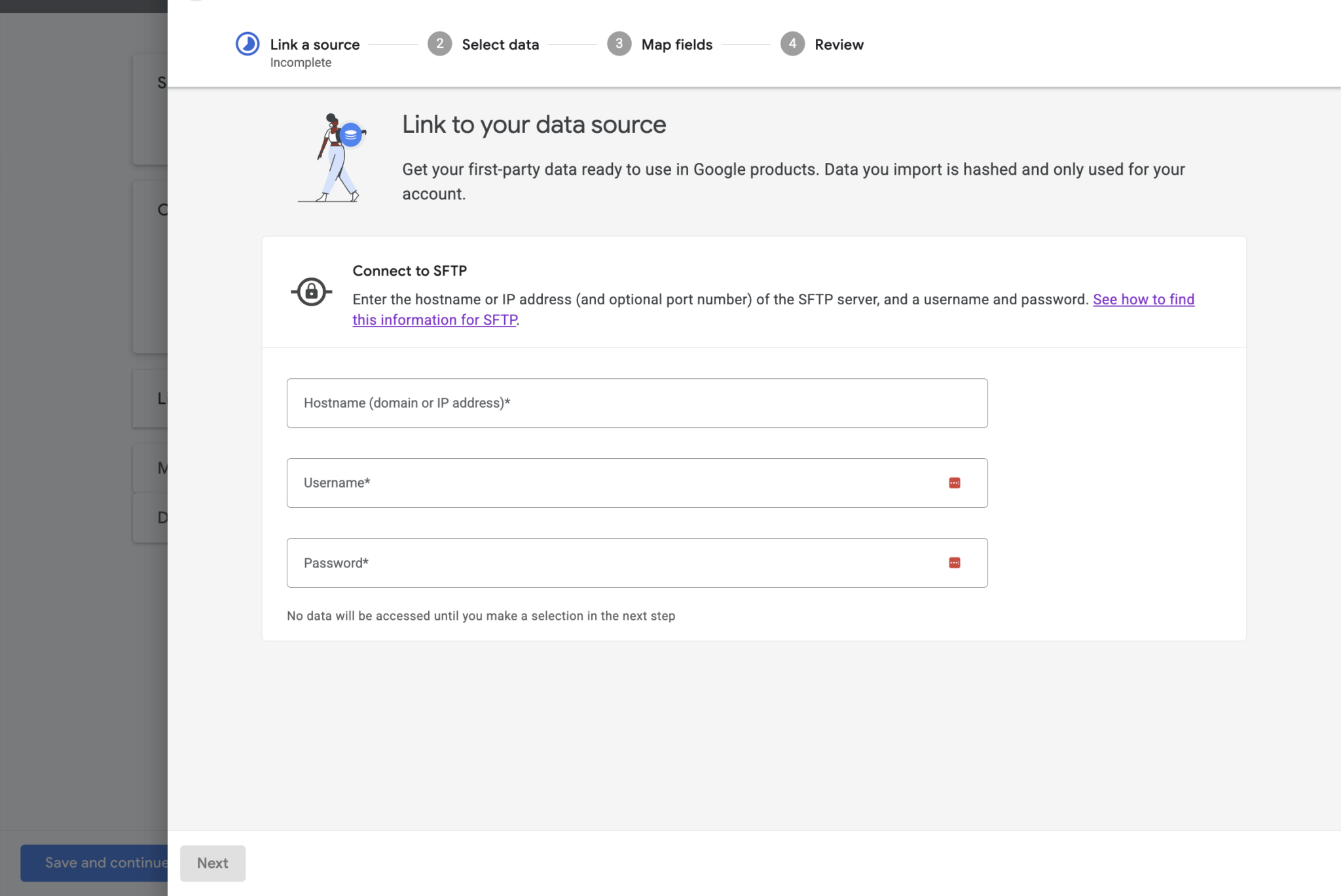
Enter the credentials for your SFTP server.
5.
Test the connection. If successful, you can specify the file path. (Tip: If issues occur, try specifying the port directly after the path, e.g., …/path.test:port).
6.
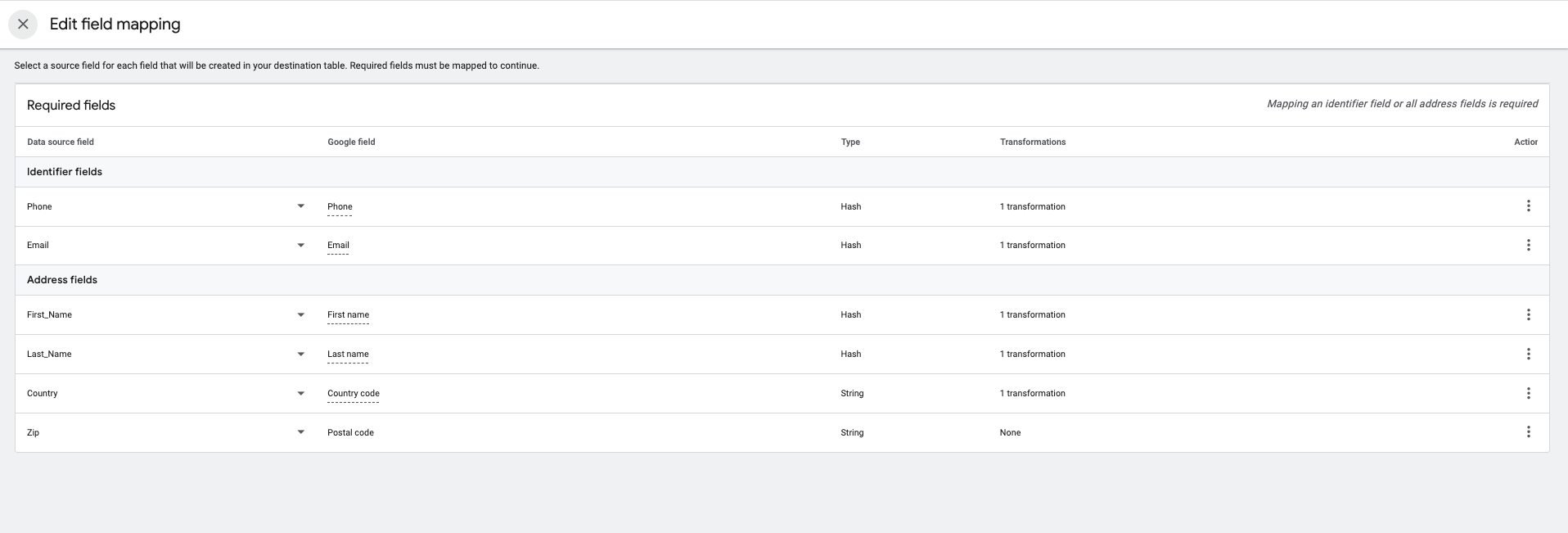
Map the fields from your file to the import fields (mapping).
7.
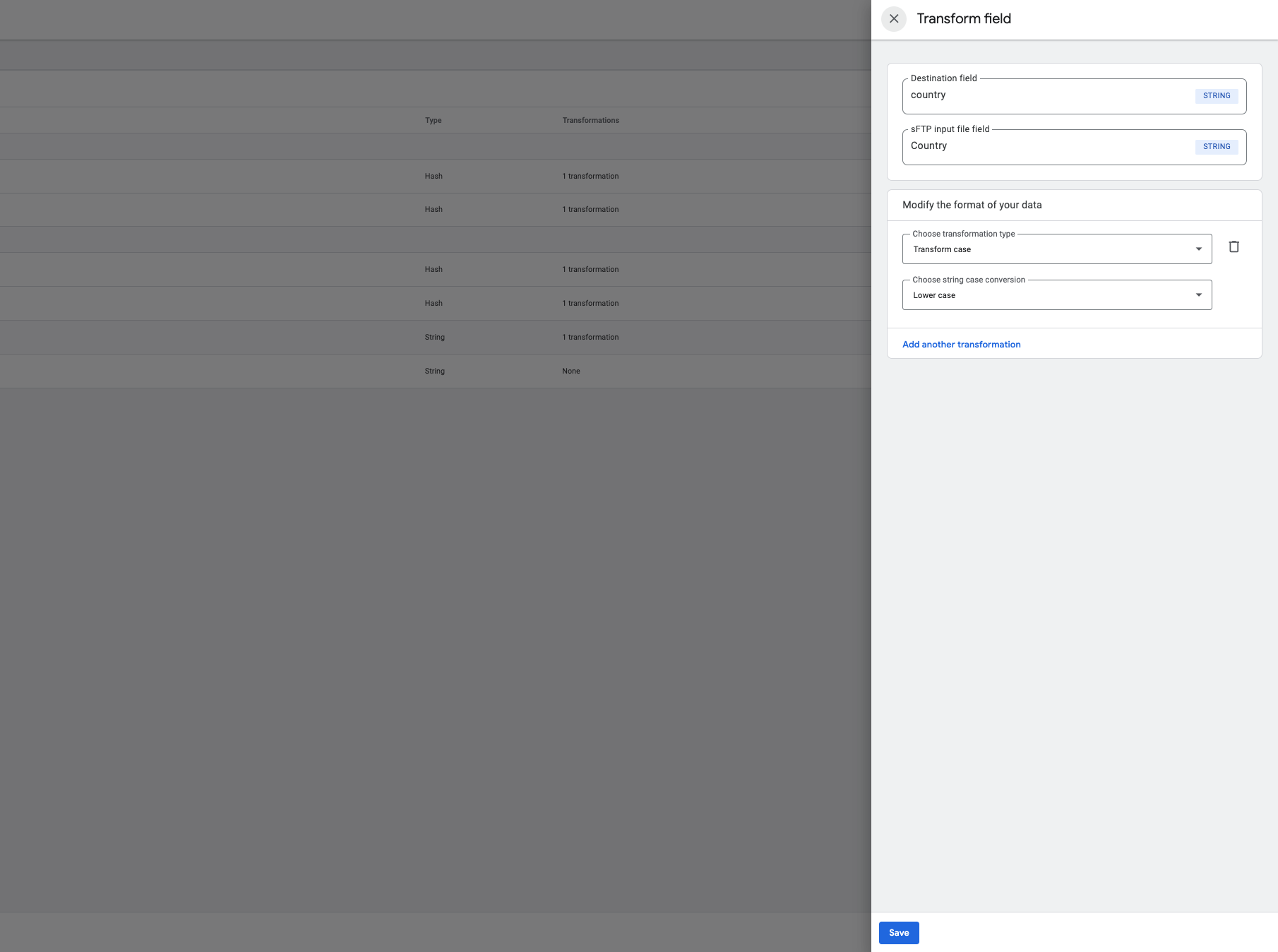
Apply transformations if needed (e.g., for data cleansing).
8.
Review everything and schedule the import according to your source’s update frequency (daily, weekly, or manual).
Tips for a Successful Upload
Under Tools > Data Manager > Connected Products, you can view your new data source. Regularly check the Run History: the status should not show “Failed” and all rows should have been imported without errors. If this issue occurs, review your import again.

-
01
Using Transformations
If the source format does not match, one option is to change the source. However, you can also use transformations as a quick fix. These allow you to convert uppercase to lowercase, split fields, or correct timestamps. All transformation options can be found here.
-
02
Applying Filters
If the source contains irrelevant rows, you can apply a filter (e.g., only customers from a specific country).
-
03
Time Window Considerations
Ensure that the uploaded conversions are not too far in the past (ideally less than 90, 63, or 14 days old), as they may otherwise be rejected.
Data Quality
When uploading to a customer list, the match rate is the key indicator of data quality. It shows how many of your customers could be matched to data known to Google. A high density of different data points per customer typically increases the match rate.
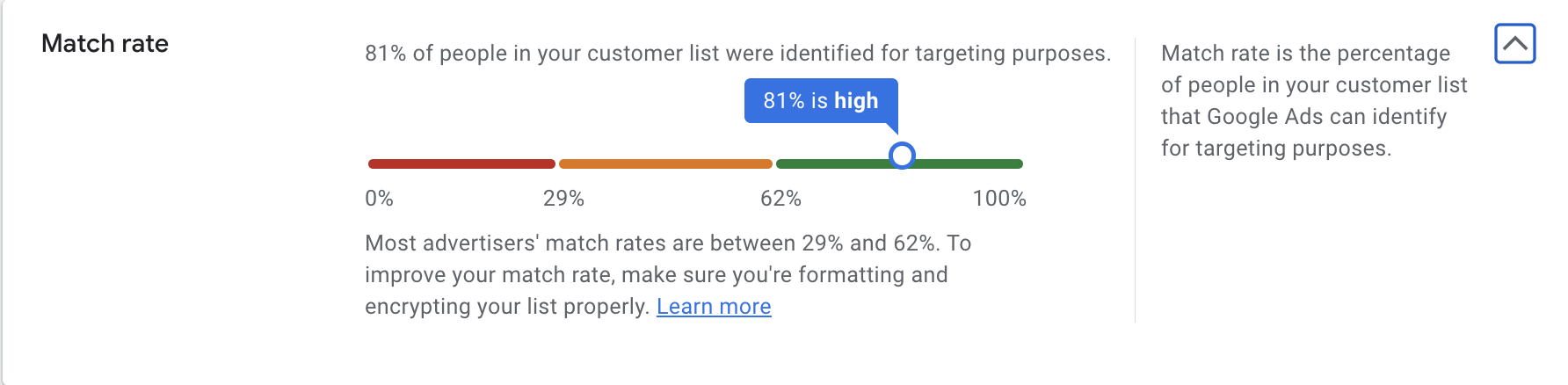
However, the absolute number of matches is important: a lower rate with a very large list can be more effective than a perfect rate with a very small niche list. We recommend uploading incomplete data sets on a trial basis to evaluate the effect on the total number of matches.
Conclusion
Google Ads Data Manager provides an intuitive way to seamlessly integrate customer and conversion data. If you need support setting up connections or require strategic consultation, we are happy to help you unlock the full potential of your data!




