Javascript Error Logging With The Google Tag Manager

Management Summary
Why do these errors occur and how can you prevent them?
The most common reason is a lack of testing. Errors often occur when the code is in acustom HTML taghas not been tested in all common browsers, there are sub-pages on the website that are based on a different technology and this has not been taken into account or the website is being adapted by IT and the code in the GTM no longer works as originally intended.
Two solution variants to prevent JavaScript errors – we’ll show you how it’s done!
First option – Google Tag Manager Trigger
The GTM itself provides a “JavaScript error trigger”. This reports errors if:
-
-
- the error is not caught by try/catch, and
- the GTM is finished loading.
-
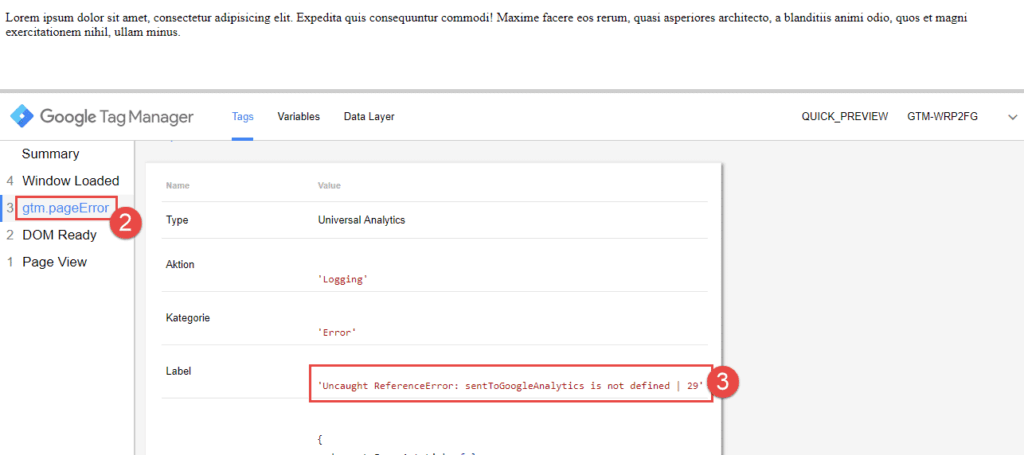
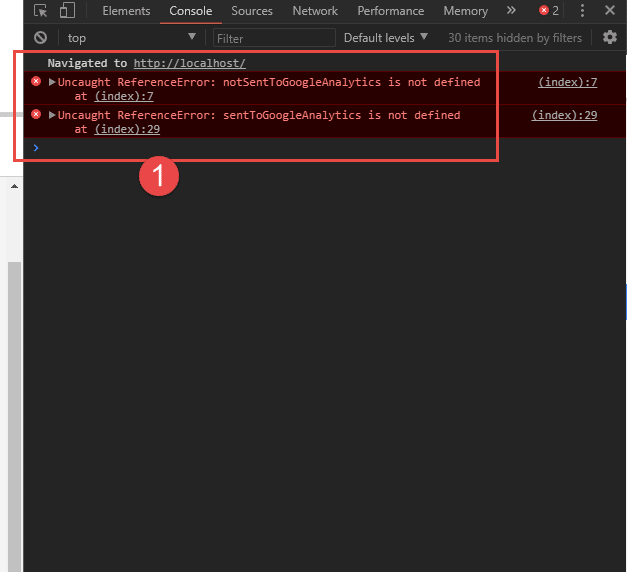
Of course, the GTM does not register any action that happened beforehand – see explanation in the screenshot below!
1) although the page shows two errors in the console
2) the GTM only triggers in the event of an error
3) The error message of the registered error can then be sent to Google Analytics using an event
If you want to measure all errors (both those caused by the page and those caused by the GTM) and accept that some of them will not be caught, that is the way to go.
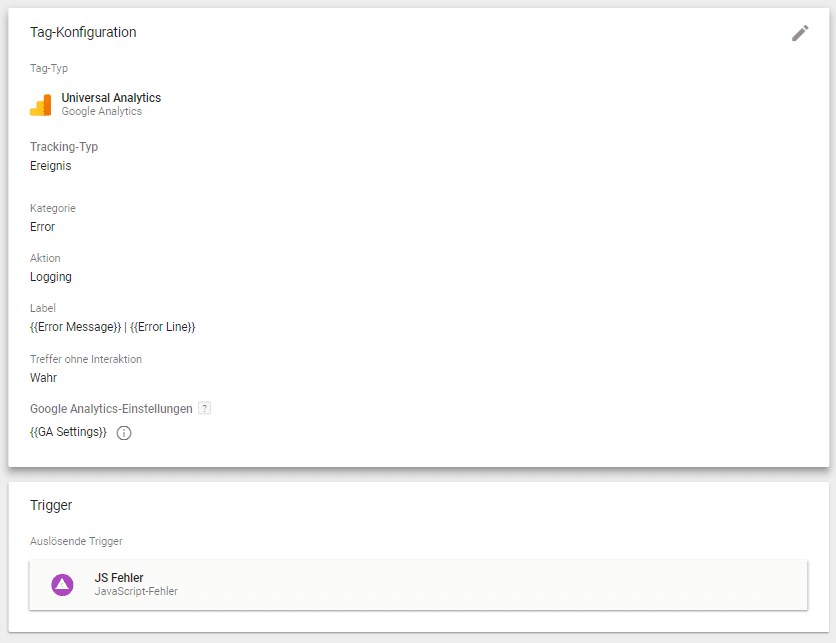
To do this, first create a trigger with the type “JavaScript error” created. As always, there is also the option of not triggering errors on all of them, but only on certain pages, for example.

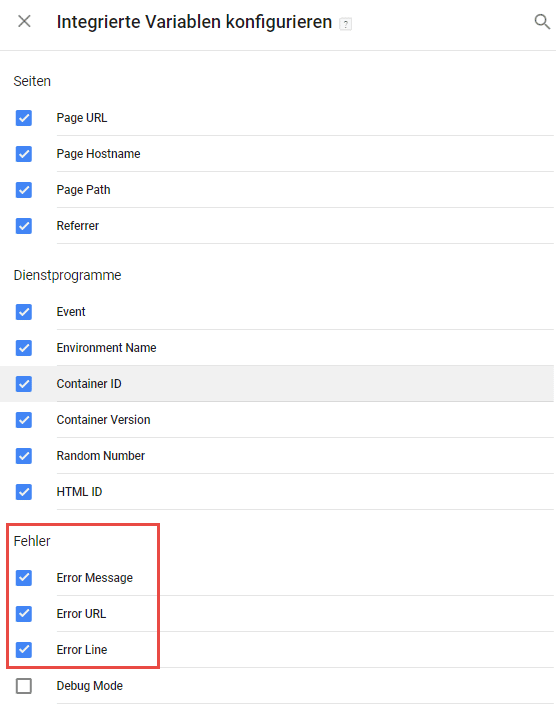
The previously created trigger then only needs oneGoogle Analytics event tagbe assigned. Ideally, the {{Error Message}} and the
{{Error Line}} passed on to Google Analytics. These two variables areintegrated GTM variablesand must first be activated under the Variables menu item.
Second option – own trigger
However, you would like toonly track the GTM errorsIn order to be able to adapt your code in the custom HTML tag, the following procedure is recommended:
You secure your code using a try/catch block and in the event of an error (in the example the myError function) the error message is sent to Google Analytics.
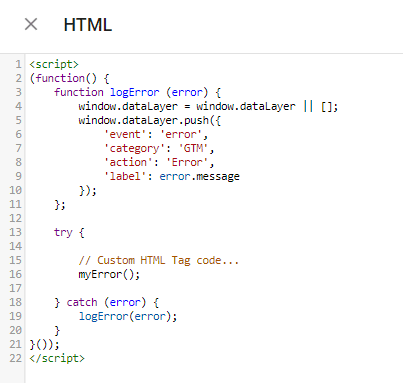
As usual you can do it in thedataLayerpushed information with oneGoogle Analytics Event Tagpick up and send.
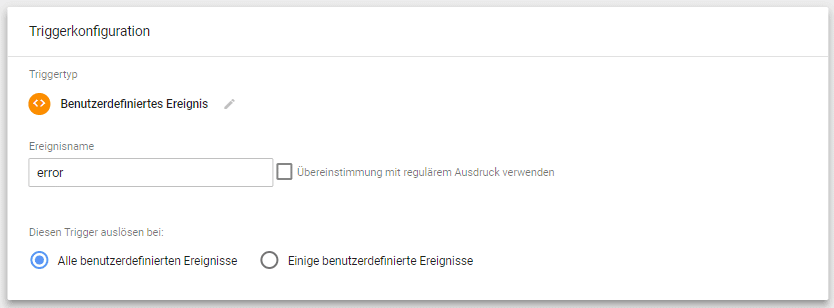
AsTrigger typea custom event must be selected.
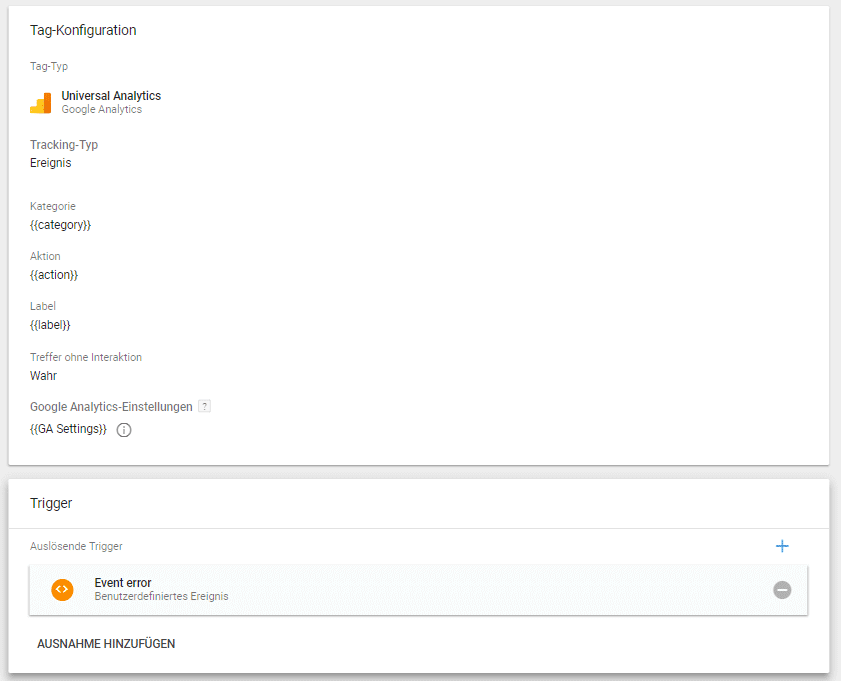
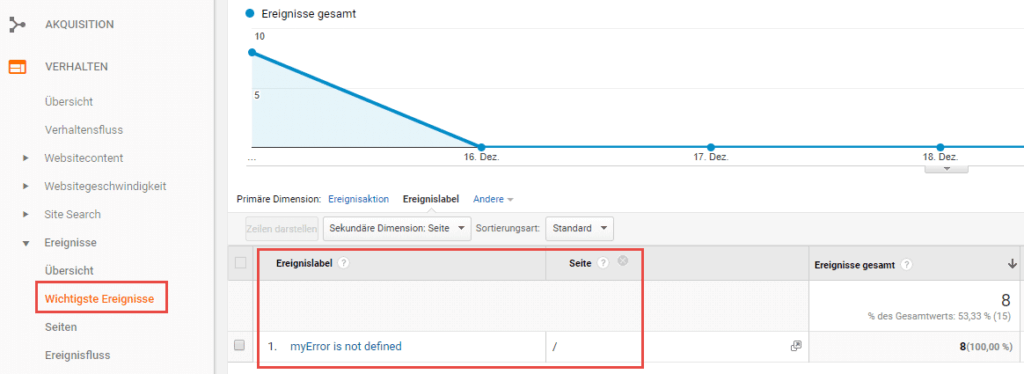
Then in Google Analytics you can filter on the events with the category “GTM” and both “Event label” as well as “Page” can be displayed as a secondary dimension. Here you can see which error occurs where and if necessary, improvements can be made.
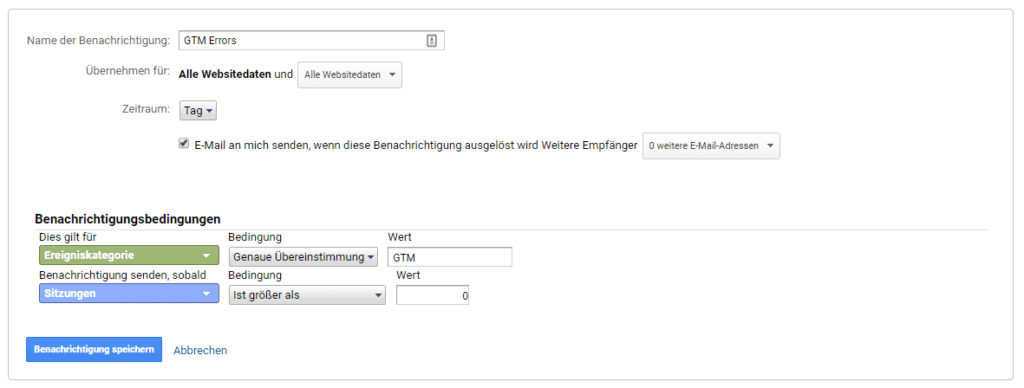
Optionally, based on this event in Google Analyticscustom notificationbe created. This will automatically notify you if errors occur.