
Server Side Gtm Setup Options

Management Summary
1 Automatic process
The first way to set up a Server Side GTM is the automatic process. When you create a new container of type “Server” within a GTM account, the selection window shown below appears.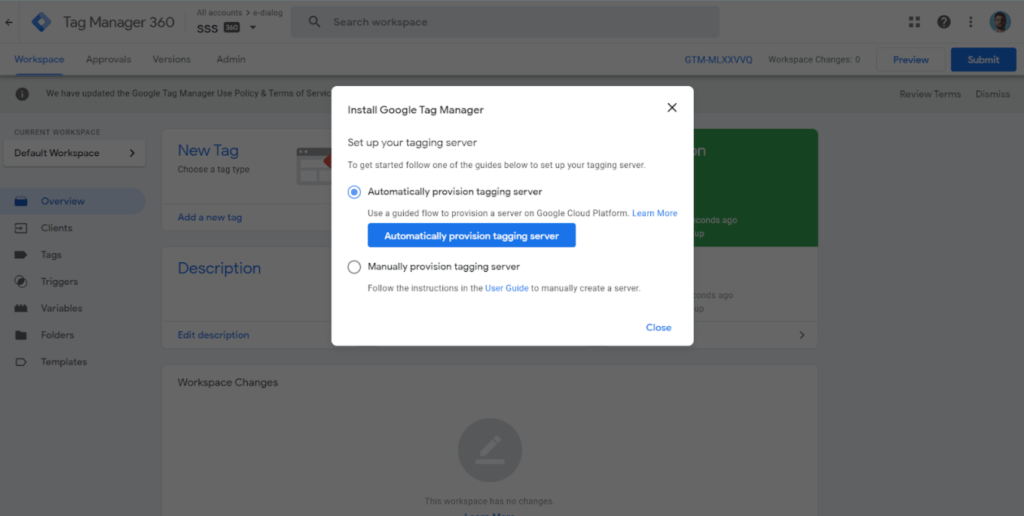
When you complete this process, the following happens in the background:
A new GCP project is created, which has the ID of the previously created GTM container as its name (e.g.: GTM-PF6F8LU). Within this project an App Engine application will be created – Attention: in the regionus-central-1 –created. The region of the App Engine application applies to all services contained therein and cannot be changed subsequently. The region primarily impacts costs and data protection.
A new service is created within the App Engine application, which contains the actual tagging server. This tagging server has two possible configurations:
- Testing configuration
- App Engine Standard Environment
- 1 instance F1
- Production configuration
- App Engine Flexible Environment
- 3-6 instances (default, can be changed)
As you can see, the difference is that the “Production Configuration” provides more computing power and therefore incurs more costs. In most cases, the “Testing Configuration” does not incur any costs.
The automatic process puts the tagging server in the “Testing Configuration”, which after a successful testing phase is done using a Bash scriptmust be changed manually to the “Production Configuration”..
It should also be mentioned that the automatic process leaves App Engine Logging active, which can lead to corresponding costs if there is a lot of traffic. Logging cancan be deactivated manually in the following way.
However, the instructions in the linked documentation only filter the POST request logs; in order to also filter GET request logs, this instruction must be added:
- NOT LOG_ID(“appengine.googleapis.com%2Fnginx.health_check”)
In order to filter the health checks logs, this instruction must also be added:
- NOT LOG_ID(“appengine.googleapis.com%2Fvm.events”)
What also has to be done manually is thisAssignment of a tracking subdomain.
2 Manual process
As you can see in the screenshot above, there is also a manual process for setting up the tagging server.
Thefollowing documentationdescribes the steps necessary for this. The advantages over the previous way are as follows:
- The region of the App Engine application can be freely chosen
- You can freely decide whether to create a new GCP project or use an existing one
- You can start the tagging server immediately in the “Production Configuration” if desired
- App Engine Logging can be disabled immediately during setup, but the two additional instructions described above may need to be added
The manual process is implemented using a bash script within the cloud shell. What is important to know here is thatThis script deletes possible existing App Engine Servicesand then created a new service, the tagging server.
As with the automatic process, theAssignment of a tracking subdomainbe made.
3 Outside GCP
There is also the option to host the tagging server outside of the Google Cloud Platform. More on this topic can be found belowBlog articlebe read.
4 tagging servers with Cloud Run
The automatic and manual processes rely on the App Engine within GCP. However, there is another GCP resource that can be used as the basis for the tagging server, namely Cloud Run. At the time the Server Side GTM was released, Cloud Run was still in beta and lacked essential features to use this resource as a tagging server. In the meantime, however, the beta phase is over.
TheAdvantagesfrom Cloud Run are:
- The region can be freely chosen
- An existing or a new GCP project can also be used here
- The costs are slightly lower than App Engine
- Easy setup possible via the GCP user interface
There is no distinction between “Test Configuration” and “Production Configuration” because these are default settings of the App Engine Bash script. If necessary, logging may also have to be restricted manually using this method.
The setup can be done via the GCP user interface, whereby here isofficial tagging server Docker imageis used. A second possibility is thisBash script by Simo Ahavawhich ultimately applies the settings of the App Engine Bash script to Cloud Run (e.g.: 3-6 instances (default)).
When it comes to assigning tracking subdomains in Cloud Run, all the usual use cases are possible (also applies to the App Engine):
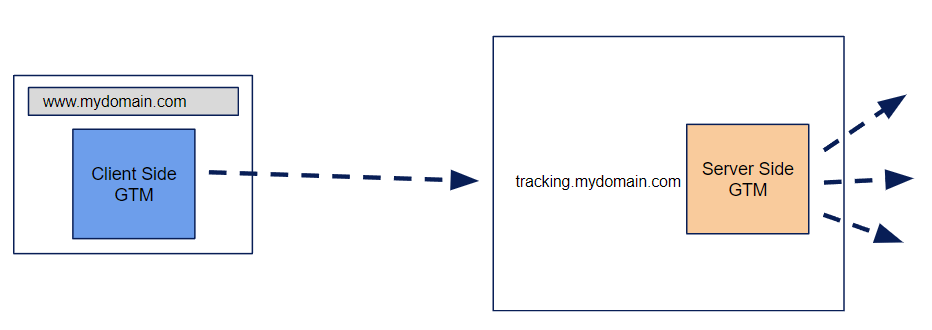
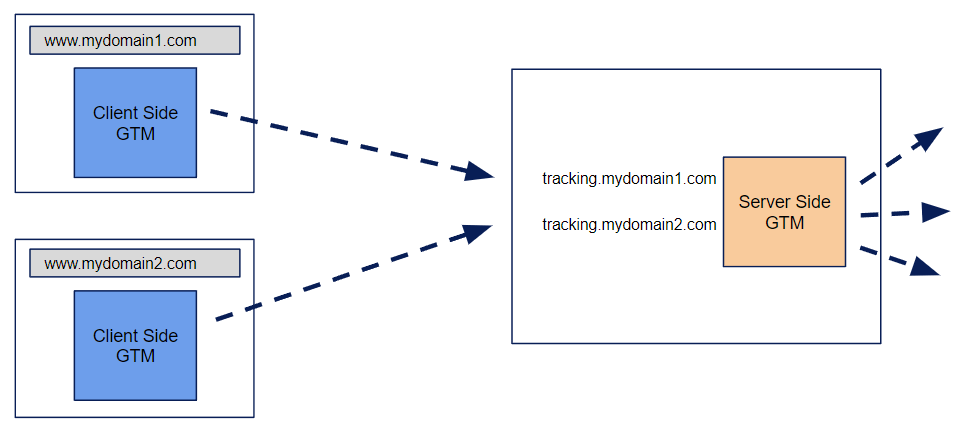
The first two scenarios can be implemented directly via the user interface in Cloud Run and App Engine, apart from the additional necessary DNS adjustments.
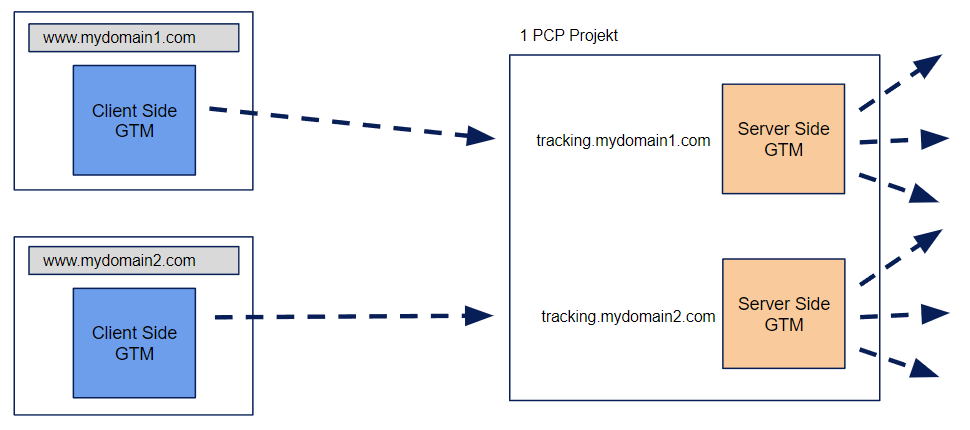 The third scenario can also be implemented with Cloud Run via the user interface in GCP, as a separate subdomain can be assigned for each service. If you want to implement this setup using App Engine, you must also use a dispatch.yaml file. Because with the App Engine, subdomains are always assigned for the entire App Engine application and therefore additional routing must be implemented using the dispatch.yaml file mentioned.
The only disadvantage with Cloud Run is that tracking subdomain assignment via the user interface is currently only possible for the following European GCP regions:
- Belgium europe-west1
- Netherlands europe-west4
- Finland europe-north1
However, if, for example, the requirement is to operate Cloud Run within the Frankfurt europe-west3 region, instead of the assignment in the user interface, aLoad balancers must be set up. However, the costs for this are manageable (around $30/month for 50 million GA hits) and do not increase in proportion to the hits (around $35/month for 100 million GA hits).
Was this article helpful to you? In our blog you will find many more articles on the topic of digital analytics and server-side tagging!




