
Small Note, Big Impact – Annotations in GA4 Are Finally Live!

Management Summary
It’s been a long time coming, but now it’s finally here: Annotations are available in Google Analytics 4! Anyone who regularly works with GA4 knows the feeling: suddenly you see a drop in traffic, an increase in bounce rate, or noticeable peaks in event tracking. And then the detective work begins:
- Was it due to the newsletter launch?
- Was the new cookie consent tool rolled out?
- Did the development team spontaneously push a hotfix live?
What exactly are Annotations?
Annotations are small, time-based notes that can be stored directly in reports. They help to make specific events, releases, or external influences visible within the data context – directly where the analyses are performed. Examples: Website Relaunch, Newsletter Dispatch, A/B Testing
What can the new Annotations feature in GA4 do?
Here is an overview of the features:
- Date and text: Set annotations for a specific date with a short description.
- Role-based visibility: Visible to users with appropriate permissions (e.g., analysts, admins).
- Property-specific: Annotations apply to the respective GA4 property.
- Visible in standard reports: Annotations are displayed, for example, in time-series charts – directly in the context of the data.
How to add an Annotation
Directly in the report:
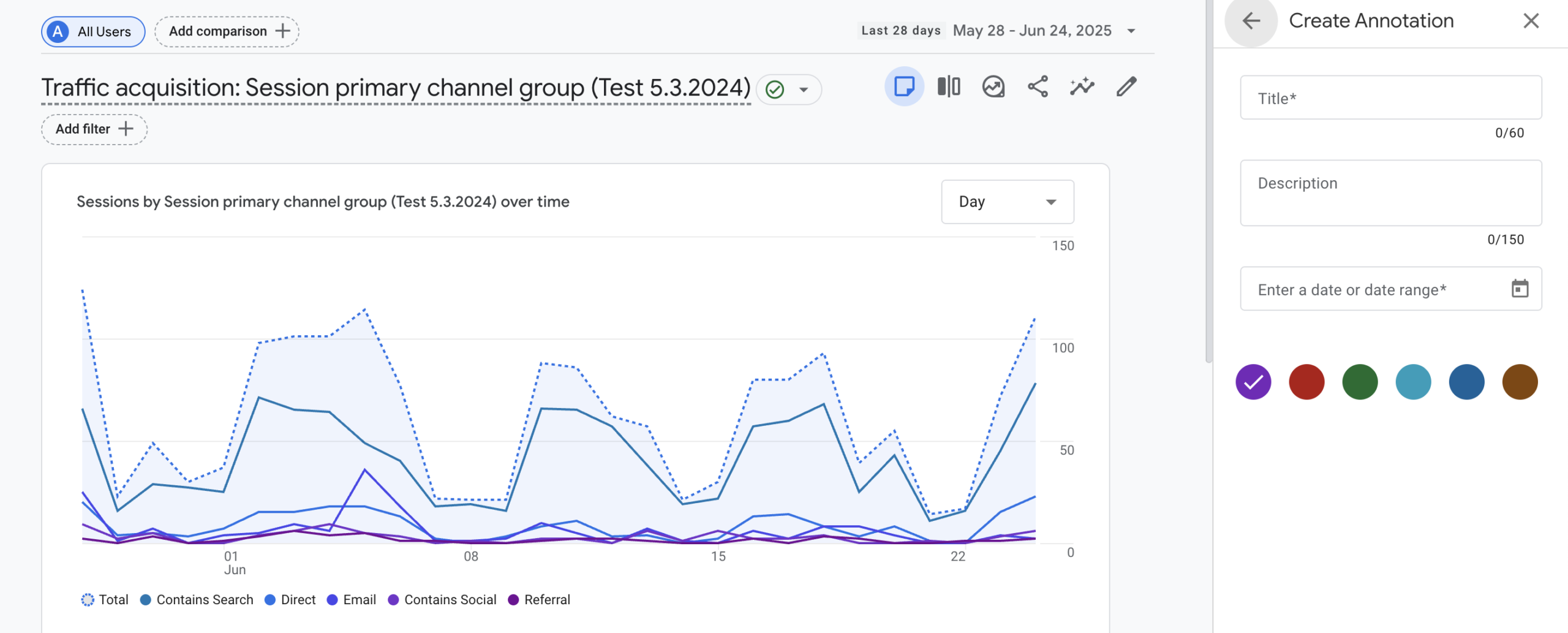
- Open a standard report, e.g., Traffic Acquisition
- Click on the notepad icon in the top right

- Enter the date and description text
- Select a desired color
- Save – done!
Or in the settings:
- Admin
- Data Display -> Annotations
- Create Annotation
- Enter the date and description text
- Select a desired color
- Save – done!
Best Practices for Annotations in GA4
-
01
Keep it short
Short, concise, and understandable for everyone on the team.
-
02
Use clear labels
For example, “Launch Price Calculator v2 – DE only” or “Consent Banner switched to Opt-in”.
-
03
Define team rules
Who is allowed to set annotations? Which events should be documented?
-
04
Regular maintenance
Annotations lose their value if they are incomplete or outdated.
-
05
Color system
Below is a suggestion on how the color system can be used for annotations so that analysts can quickly identify what type of events might have influenced the data in reports.
| Color | Category | Use Cases |
|---|---|---|
| Purple | Personal Notes | Internal news, tracking changes, other information |
| Red | Critical Issues | Downtime, tracking errors, PII issues, traffic anomalies |
| Green | Marketing Campaigns | Sales, campaign launches, influencer spikes, offline marketing |
| Light Blue | SEO & Organic Updates | Google updates, SEO changes, technical adjustments, backlinks |
| Dark Blue | Web & UX Updates | Redesigns, launches, bug fixes, A/B tests |
| Brown | External Factors | Competitor trends, politics, seasonal fluctuations |
| Orange | System-Generated | Used only for system-generated annotations (e.g., Google notifications) |
Conclusion
The Annotations feature in GA4 is a long-awaited feature that provides more context and clarity in analysis. Especially in a complex tracking setup with releases, tests, consent changes, and marketing campaigns, annotations are a real must-have.



