
The Big Google Tag Manager Quiz

Management Summary
Question 1:
Why should you install the GTM as high as possible?
This ensures that the GTM loads as quickly as possible.
This allows information to be sent immediately to the various tracking and marketing tools.
Question 2:
What is the difference between this and part?
The script part of the GTM is executed if the user has JavaScript activated.
And the noscriptPart is executed when JavaScript is disabled (which is now very rarely the case).
Question 3:
What does “async=true” mean in GTM container code?
This means that the GTM is loaded asynchronously.
This means that the GTM does not interrupt the structure of the page and the user does not notice that the GTM is loading in the background.
Question 4:
After the GTM transition, page views changed in the following ways. What could have happened?

Google Analytics continues to be measured directly on the site and now also via the GTM.
So they forgot to remove the native Google Analytics code from the site after the GTM was installed.
Question 5:
What do you have to consider with the “scroll depth” trigger in relation to Google Analytics?
It must be noted here that Google Analytics (Free as well as 360) has a hit limit of 500 hits / session. This means that if the scroll trigger is set very granularly – e.g. at every percent – this limit will be exceeded and all hits after the 500 limit will no longer be processed and displayed in Google Analytics.
Question 6:
How is that possible? The GTM’s preview mode indicates that Google Analytics tags are running. The Network tab within the Dev Tools, however, does not show any data sent to Google Analytics. Furthermore, the real-time report in Google Analytics does not show any incoming data.

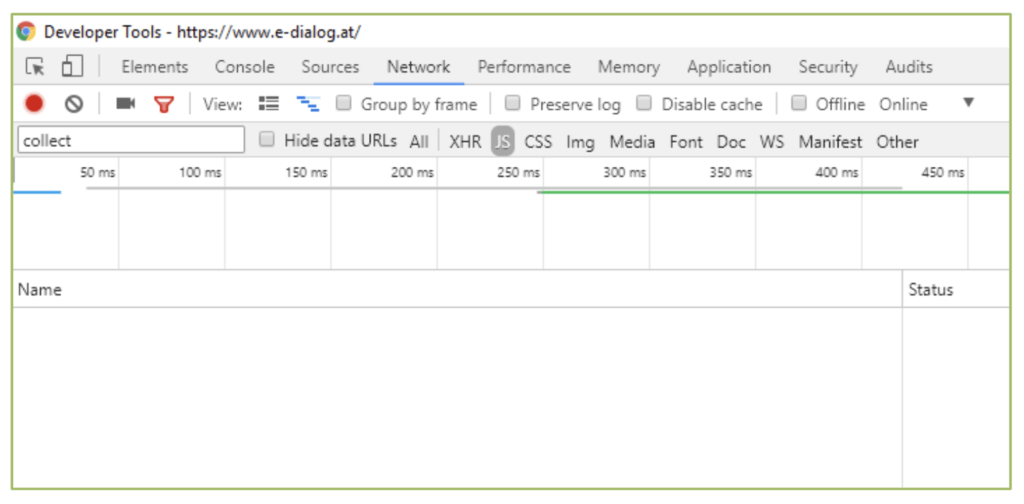
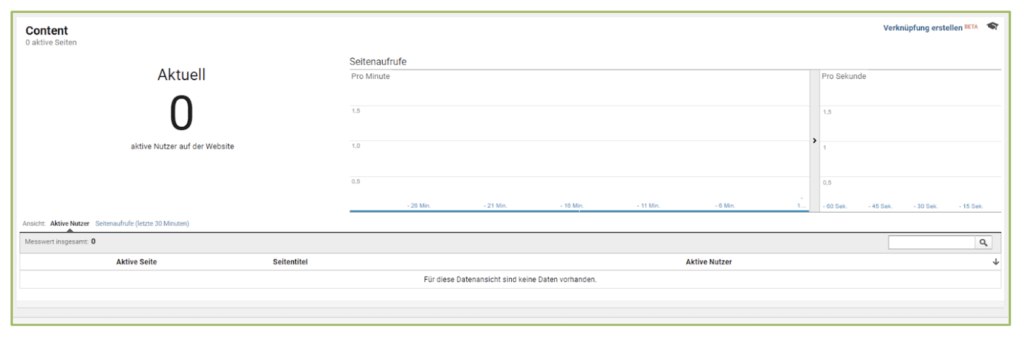
This picture appears when you forget to deactivate tools like Ghostery during testing. The GTM Preview Mode shows that the tag was triggered, but Ghostery then blocked the sending of the data and that is why you don’t see anything in the Dev Tools or in the real-time reports.




