
Track Webviews In Apps Via Google Tag Manager

Management Summary
In your app is web content loaded via web views? In this article you will find out what needs to be taken into account and how the tracking of web views in mobile apps can be implemented correctly.
What are Native Apps and Webviews?
Tracking interactions in mobile apps for iOS and Android can be complicated, especially when it comes to a so-called “hybrid app”. Apps can be developed in different programming languages. Hybrid apps are apps that, in addition to their own app functionality, also integrate web content into the app via a web view as if they were an integral part of the app. Users usually cannot tell at first glance whether a web view or the native part of an app is being displayed.
Now, when a user opens an app, they first end up in the so-called native part of the app. This is the program code that was written specifically for the platform (e.g. Swift on iOS or Java on Android – or even more specifically: Kotlin if it is a cross-platform app). The information about the attribution, how the app was accessed (for example from the App Store or a deep link with UTM parameters) reaches the native part of the app at this point. If web content (i.e. a real website) is subsequently accessed in a web view in the app and interactions are carried out there, a Google Tag Manager or Google Tag cannot simply be loaded and the user tracked via it. Technically this would be possible, but it would contaminate the data in GA4. A lot of new users would appear and there would be no connection to the screen views in the native app. The web area of the app would then be completely separate from the native app.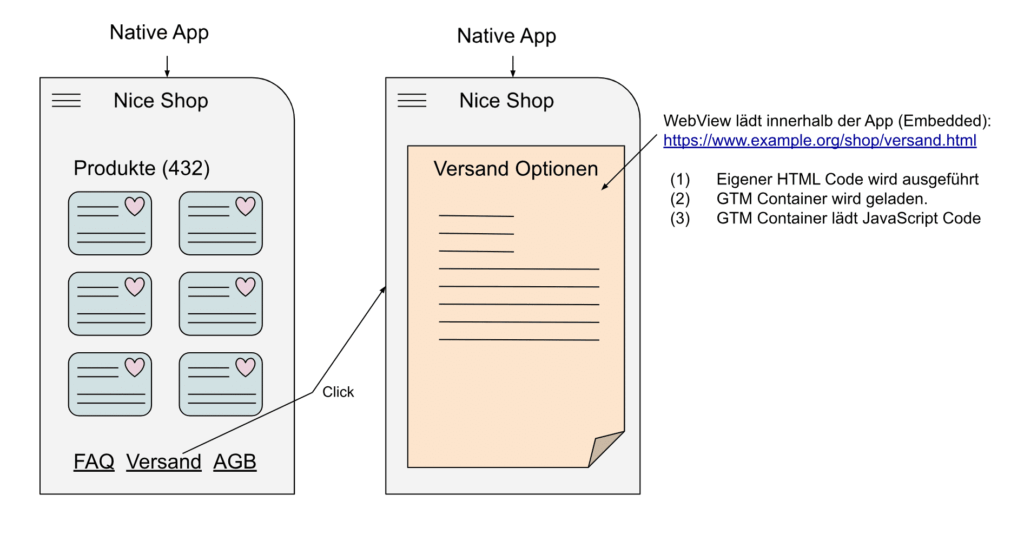 Web view in GTM, source: e-dialog
The interface
If you do not want to lose information about app user interactions in web views, it is recommended to create an interface for communication between the native app and web view. Without an interface between the two points, GA4 would see new users, or even record a new user for every event. It may be that cookies are not stored reliably in web views and therefore every event is assigned to a new user in GA4.
Technically, an interface needs to be established to transport event data between the webpage in the webview and GA4F (Google Analytics 4 for Firebase).
Thanks to the interface, the webpage can call a specific command in the webview to tell the native app that a GA4 event has happened. Thanks to the command, the event name and event parameters as well as ecommerce data can be transmitted to the native app.
When such information arrives in the native app, it catches the event and forwards it to Firebase (GA4) with the “logEvent” command.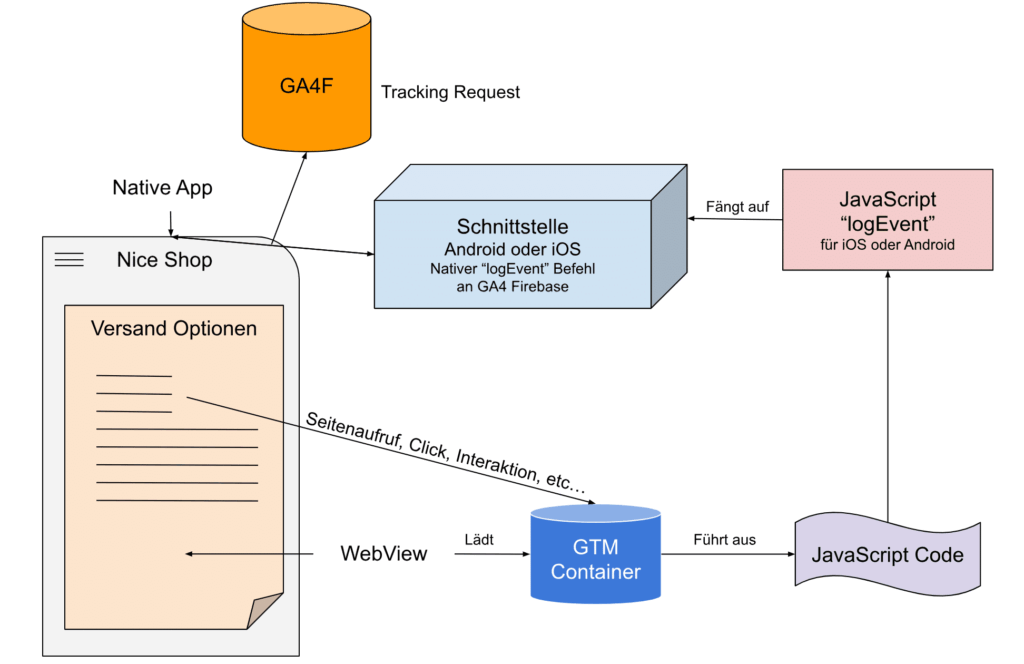 The interface – Source: e-dialog
The native part
In order to get the interface working, the basis must first be created. Functions must be added to the native source code of the iOS or Android app that “translate” the commands from the web view to the native app.
GA4 can process, among others, the following three commands, which are used in our following example:
- logEvent:Used to record an event that happened in the web view. These can be, for example, the following events: page_view, click, scroll, add_to_cart, purchase etc.
- setUserProperty: Used to set a user property. For example: Last Login, Gender, Age, Customer Preferences, Filter Settings etc.
- setUserId: Serves to set the unique user ID, which must be transmitted in encrypted form. Example: 938c2cc0dcc05f2b68c4287040cfcf71
Swift (for Apple / iOS App)
For iOS apps, the following interface must be provided in native code so that the three commands logEvent, setUserProperty and setUserId described above are captured via webkit and passed to GA4F:
Java (for Android apps)
For Android apps it works a little differently and we can inject ourselves directly into the JavaScript “window” object. The following code places an object in the JavaScript “window” object, which provides the functions logEvent, setUserProperty and setUserId. In the following example, the object is named “AnalyticsWebInterface”. As with Swift code, the following code must be integrated directly (natively) into the Android app so that the webview can access the “AnalyticsWebInterface” object:
Webview and Google Tag Manager
If the functions are available in the native app, the events must still be transferred in the other part, in the web view.
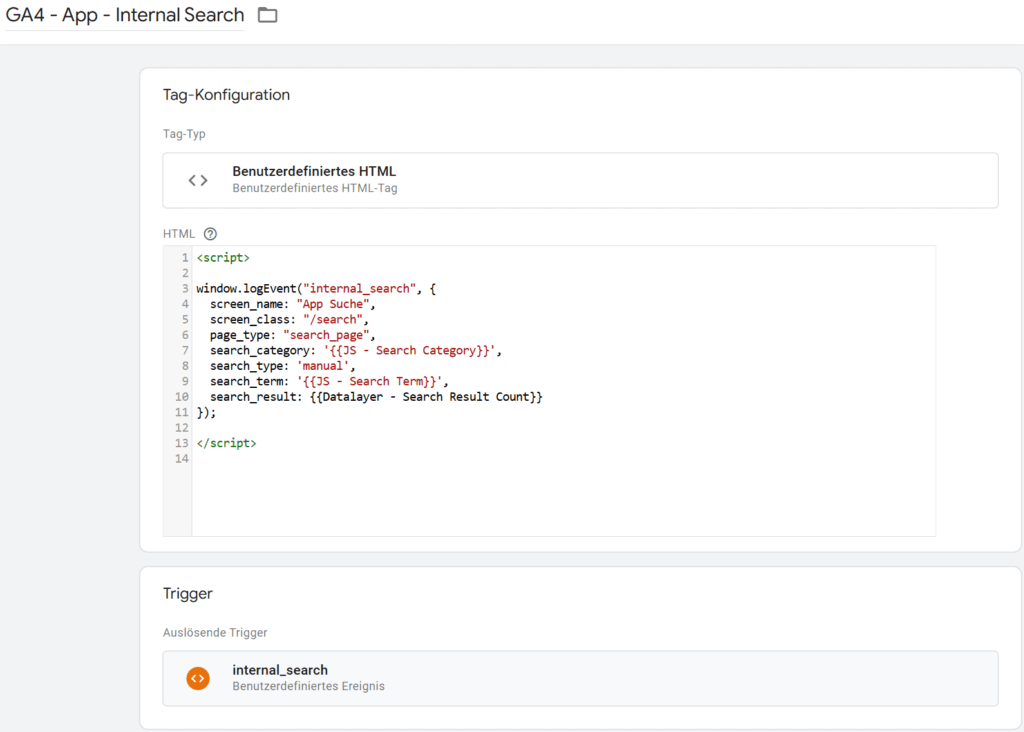
If a Google Tag Manager container is present in the web view, the following code can be inserted using a custom HTML tag type. To create the interface, it is not absolutely necessary to load this code via Google Tag Manager. It can also be installed directly in the source code of the website that is loaded by the webview.
As described above, the code provides the three most important functions for event capture in GA4:
- logEvent:Tracks an event in the web view
- Parameters “name”: The event name as a string
- Parameters “params”: A JSON object with key/value pairs.
- setUserProperty: Sets a user property
- Parameters “name”: The name of the property (User Level Attribute Name)
- Parameters “value”: The value of the property
- setUserId: Sets the unique user ID
- Parameters “userId”: The user ID value, e.g. “938c2cc0dcc05f2b68c4287040cfcf71”
Code to initialize the functions:
Setting a unique user ID
A unique user ID can be set in the web view with the following command once the code described above has been initialized.
Setting a user property
If the web view detects information about the user that is relevant for tracking, it can be captured using the following command (assuming the code described above has been initialized).
Event tracking
For every interaction in the web view that should be tracked, the following “logEvent” command can be executed with the event name and associated parameters. As with setUserId and setUserProperty, the prerequisite here is that the code for initializing the functions has previously been loaded in the webview on the displayed website.
Here is an example of a search query in the web view:
 Example in Google Tag Manager – Source: e-dialog
Conclusion
The right way to record app user interactions in native apps in combination with web views is via the interface described in this article, otherwise session breaks and attribution problems will occur and uniform or holistic tracking of the app will not be possible.




