
Ua To Ga4 How To Migrate To Looker Studio Dashboards

Management Summary
Easily migrate from UA (Universal Analytics) to GA4 (Google Analytics 4) in Looker Studio and optimize your marketing and sales activities with comprehensive guidance and valuable tips.
Looker Studio migration from UA to GA4
The migration from Universal Analytics (UA) to Google Analytics 4 (GA4) is an important step for companies that want to optimize their marketing and sales activities in a data-driven manner. With GA4, companies gain access to new data and features that give them a deeper understanding of their customers and their website usage.
Looker Studio is a powerful data visualization tool that allows companies to evaluate data from various sources and visualize it in a variety of ways. Migrating from UA to GA4 in Looker Studio is relatively easy, but there are a few things you should keep in mind to avoid mistakes.
In this blog post we will give you tips on how to carry out your migration successfully.
1. Plan your migration carefully
Small reminder: since July 2023, no data has been received in the UA Standard Properties. As of July 1, 2024, data will no longer be processed and there will no longer be access to the UA data for all UA properties (including 360 properties).
If you haven’t already, you can migrate your data from UA to GA4 manually or automatically. We would be happy to support you with this.
Before you begin the Looker Studio Dashboard migration, you should create a plan.
This includes the following steps:
- Identify your goals for migration. What do you want to achieve with GA4, what questions do you want to answer with your data?
- Determine what data you need from UA.
- Evaluate how you can represent the data with GA4 or whether you need to adjust dimensions and metrics due to the changed data structure.
- Identify which Looker Studio features are important to you, such as filters & Segments or audiences.
Knowing your goals and needs will help you create a migration plan that takes them into account.
2. Understand the differences between UA and GA4
GA4 has a different data model than UA.
Therefore, it is important to understand the differences before starting the migration.
Here are some of the key differences between UA and GA4:
- UA is session based. GA4 is based on events.
- UA uses dimensions and metrics. GA4 uses events, properties and metrics.
- UA uses segments. GA4 uses Audiences.
You can find more information about the differences between Universal Analytics and Google Analytics 4 here.Understanding the differences between UA and GA4 will help you successfully migrate your data and dashboards to GA4.
Danger!! Although the majority of GA4 dimensions and metrics are already available in Looker Studio, certain metrics may still be missing because they are not (yet) available in the Google Analytics Data API (GA4), e.g. Custom Channel Grouping, CM/DV/SA/Google Ads dimensions and metrics.You can find a good overview here.
3. Create your new dashboards
When creating new GA4 Looker Studio dashboards you have two options for which you need edit rights. You can find more information about how you can optimally set up and use Looker Studio (formerly Data Studio) across teamshere.
- Option A – Copy of the entire UA Dashboard:
These options offer the possibility of separating UA and GA4 from each other. However, new access must be managed for the copy of the new dashboard. - Option B – Copy of individual pages within the dashboard:
This option is recommended because the existing access remains and a direct comparison between UA and GA4 data in the dashboard is quickly possible. UA pages can be hidden or deleted afterwards. Since the UA data continues to be processed here, this can worsen dashboard performance. If the UA pages are no longer relevant, you can also delete them.
Our tip:When creating or adding GA4 reporting in Looker Studio, you should take advantage of the situation to tidy up the dashboard and its assets and clean up unused data sources, data blends and filters. This gives you a better overview of the data used and also has a positive effect on dashboard performance.
Data differences
We also recommend that you copy the charts & Replace graphics with the GA4 data source. Looker Studio can correctly map some dimensions and metrics from UA to GA4, automatically displaying the correct values. However, due to the data structure differences, there are also some incorrectly configured fields that require manual control and correction.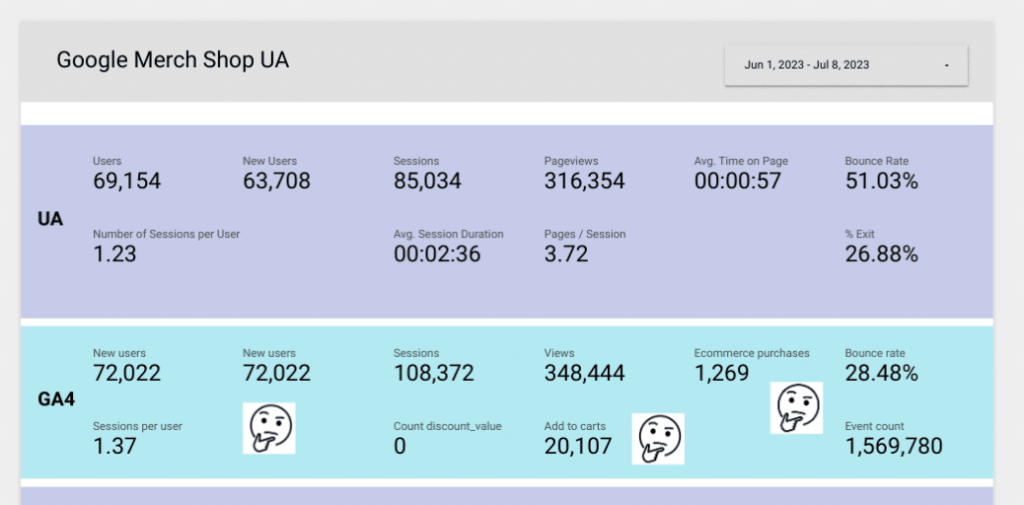 In the example, Looker Studio does not recognize the UA metric ‘Users’ because GA4 distinguishes between ‘Total Users’ and ‘Active Users’. Furthermore, other metrics such as ‘Average Session Duration’ and Pages per Session are not automatically detected and must be added manually or, as in the case of ‘Pages per Session’, replaced with the ‘Engagement’ metric.
| UA Metric | GA4 metric |
|---|---|
| Users | Total users / Active users |
| New Users | New users |
| No. of sessions per user | Sessions per user |
| Sessions | Sessions |
| Avg. Session Duration | Average session duration |
| Page views | Views |
| Pages / Sessions | Custom Solution (Audience triggersor GTM) |
| Avg. Time on page | Average engagement time |
| Bounce rate | Bounce Rate / 1-Engagement Rate |
Segments in GA4 Looker Studio
In addition to the changed event structure of Event Category, Event Action & Event label in UA to event name with event parameters in GA4, segments in the form we know from UA are no longer available in GA4. GA4 target groups (=audiences) have a similar function, with the important difference that the data is only assigned to the target groups after they have been created. It is therefore important to set up GA4 Audiences as quickly as possible in order to segment users as early as possible. These audiences can then be used as filters based on the audience name in the dashboard.Our tip:Use data control dropdowns in Looker Studio to let the dashboard user control which audience to apply in the dashboard.You can find more information about creating target groups here.
4. Check your data carefully
Once you have migrated your data, you should review it carefully to ensure it is correct.
Compare your data from UA with your data from GA4. Although certain differences are to be expected between the hit-based UA and event-based GA4 data models, larger deviations should be controlled in the Google Analytics setup. A comparison dashboard helps here, showing you unexpected differences.
We would be happy to support you with this.
5. Keep your dashboards up to date
GA4 is constantly evolving. Therefore, it is important to regularly update your dashboards to ensure they are compatible with the latest data and features.
Monitor changes inGA4andLooker Studioon the release note website and customize your dashboards accordingly.
Conclusion
Migrating from UA to GA4 in Looker Studio is relatively easy, but there are a few things you should keep in mind to avoid mistakes. If you follow the migration steps above, moving your Looker Studio dashboards from UA to GA4 should not cause any problems.




