Facebooks New Auto Tagging Gets Rid Of The 8222fbclid8220 Parameter

Management Summary
 Facebook attaches its own tracking parameter “fbclid” to every outgoing linkThe tracking parameter “fbclid” turns a pretty target URL into an unmanageable mess of characters. This doesn’t just bother aesthetes. Because for tracking e.g. In Google Analytics, for example, the fbclid parameter causes big problems. Suddenly, instead of the intended landing page, countless individual paths end up in the page report, which makes it massively difficult to evaluate the access to this landing page.
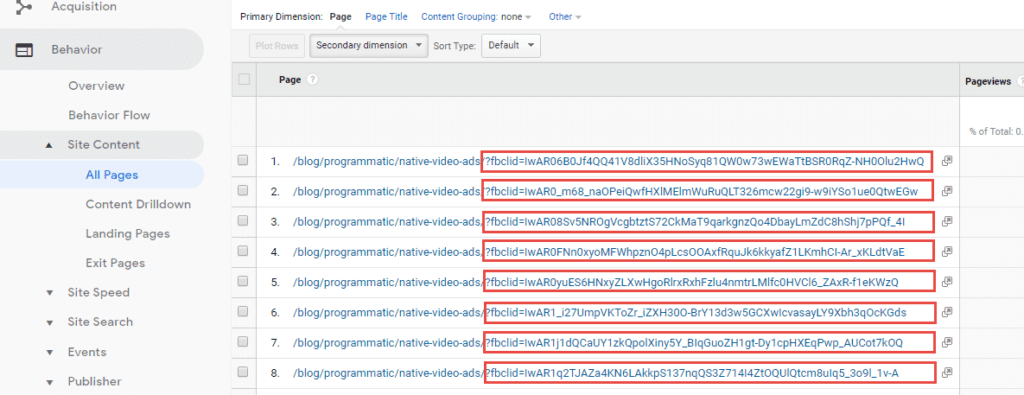 Auto-tagging creates countless page paths in Google Analytics for the same link click
Solution: Remove parameters from page path
Fortunately, we are not doomed to sit idly by and watch our page report be inflated ad infinitum. Here we present two options for getting this stowaway off board. The first variant is faster and easier, but it also has disadvantages. The second variant, on the other hand, requires a little more effort, but is more sustainable than the first variant.
1st variant: Exclude Url query parameters
For a quick solution, we use the Url Query Filter in Google Analytics. These are located in the settings for the respective data view. In the “Exclude URL Query Parameters” field we add the fbclid parameter or insert it as the first parameter.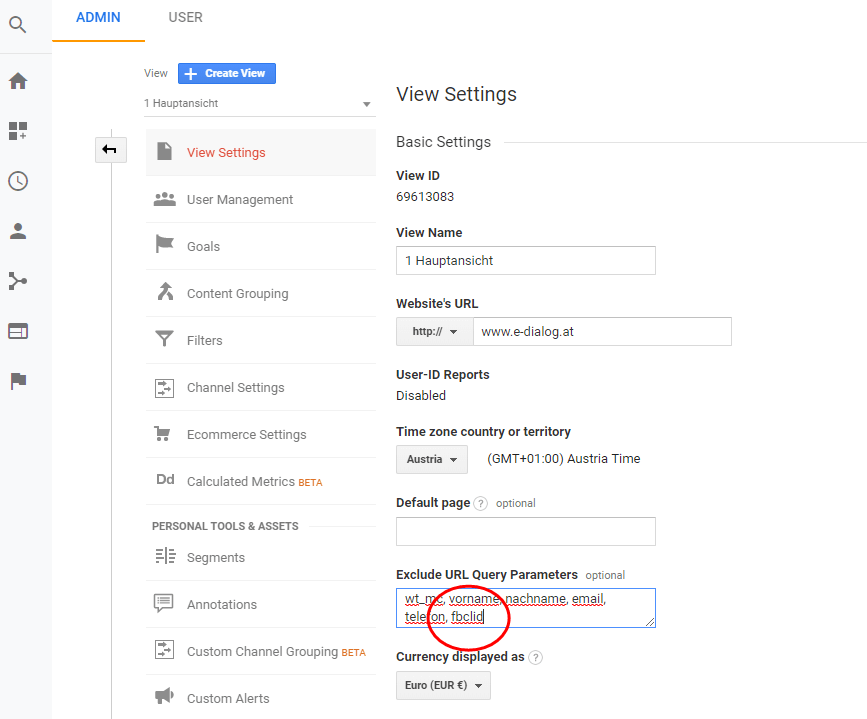 The fbclid parameter can be filtered from the page path in Google AnalyticsAfter saving the changes, the fbclid parameter in the data view for which the setting was made will be removed from the page paths in the future.
However, there are the following disadvantages with variant 1:
- The setting must be made individually for each data view, which means additional effort, especially for larger websites.
- The page paths first go into the Google Analytics property with the parameters and are only filtered for the view. This in turn destroys the page report in the backup view, where no filters are applied.
2nd variant: fbclid – remove parameters in GTM
Most of the time, Google Analytics is not run natively, but rather via a tag management system such as. B. have integrated the Google Tag Manager. A Google Analytics tag sends the page view to the Google Analytics property. This allows the fbclid parameter to be removed before the page view is sent. As a result, the cleaned page path in Google Analytics arrives in the same form in all data views used.
To implement this, we first create a variable of type “Custom Javascript” with which we remove the fbclid parameter from the page path or location.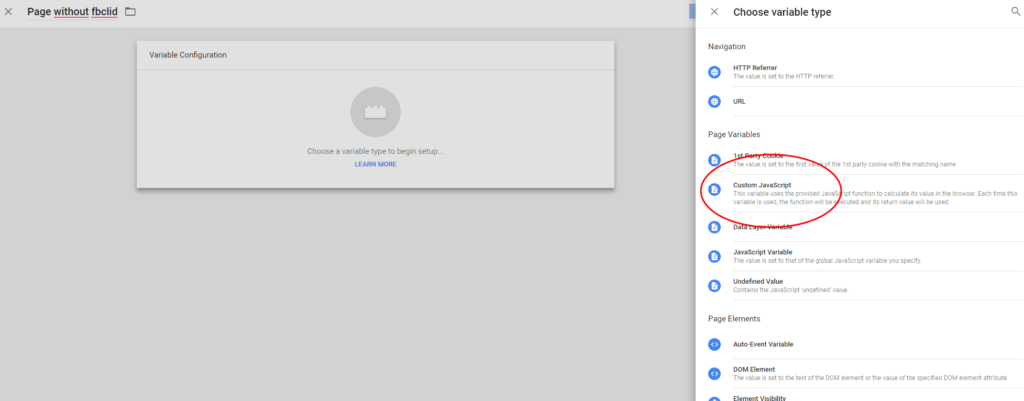 In the tag manager, the fbclid parameter is removed using JavaScriptWe call the variable e.g. B. “Location without fbclid” and fill it with the following anonymous function:
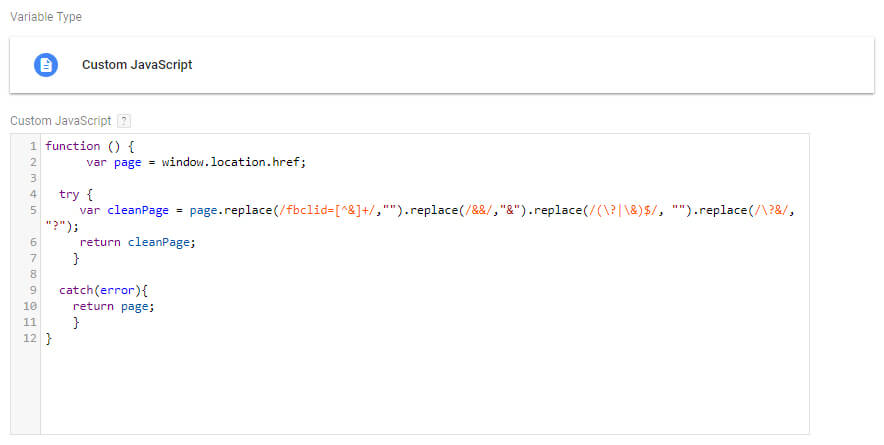 Here to copy:
function () {
      var page = window.location.href;
  try {
     var cleanPage = page.replace(/fbclid=[^&]+/,"").replace(/&&/,"&").replace(/(?|&)$/, "").replace(/?&/, "?");
     return cleanPage;
    }
  catch(error){
    return page;
    }
}
The function removes the fbclid parameter from both the beginning, middle and end of the parameters appended to the url. Although it is added to the end of the URL in all cases observed so far, to be on the safe side we include all possible variants here. After all, we only want to remove the fbclid parameter from the URL and not any Utm parameters.
We now use this variable to adjust the location. When the page is accessed, the Google Analytics tag uses this to obtain the page path, which is sent to the Google Analytics property. We can do this individually for each Google Analytics tag (as in the example here with the page view tag). However, it is also possible to make the setting only once in the Google Analytics Settings variable that is used for the Google Analytics tags. In both cases we want to fill the “location” field (More Settings > Fields to Set) with this variable.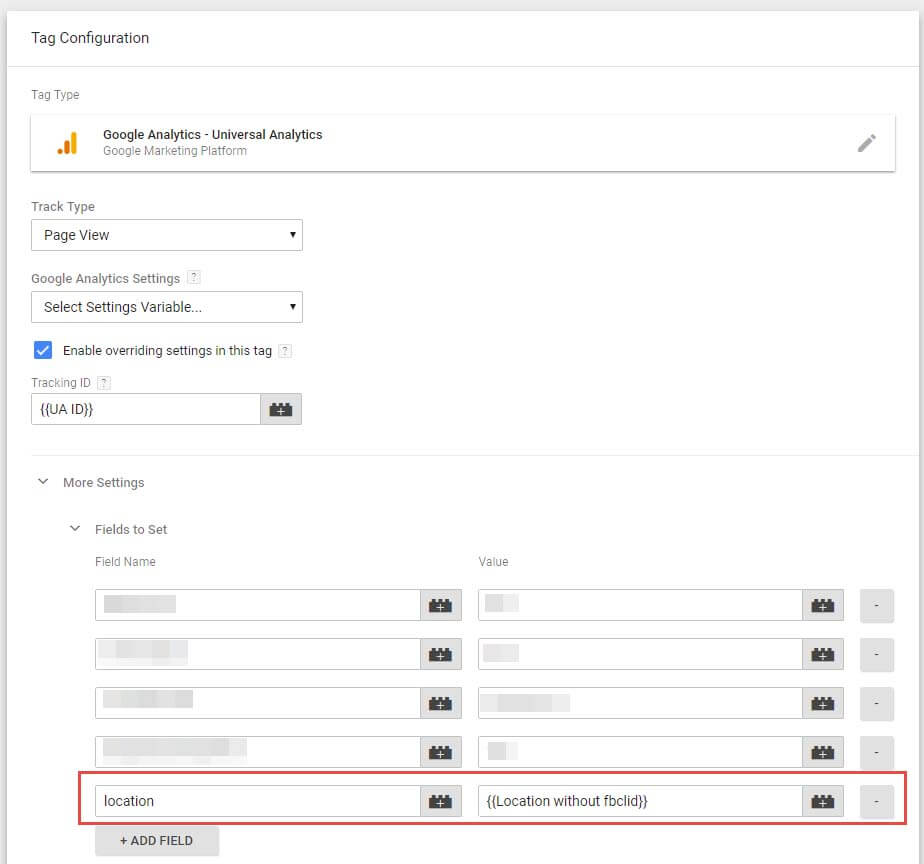 So we click on “+Add Field”, set “location” as the field name and our variable as the value (click on the block icon and select the previously created variable).
This will chase the location through our Javascript and free it from the burden of the fbclid parameter before sending the path to Google Analytics. If you now republish the Google Tag Manager container, the stowaway “fbclid” will be gone once and for all. Have fun trying it out!