Why Should I Use A Tag Management System

Management Summary
In the further course you will get a brief overview of tag management systems and how you can use them optimally:
What is a tag management system and which ones are there?
A tag management system is a tool with which you can manage tags on the website as well as regulate and control the display of them. This means that the website operator no longer has to implement all marketing pixels, tracking codes, etc. directly on the website, but can easily regulate them via the TMS.
Strictly speaking, no IT know-how is required and marketers can manage their tags independently.
To give you a better idea of a tag manager, I would like to compare it with a CMS (content management system). You have to set it up once and then content such as images, texts and videos can be managed independently and without much programming knowledge. Tag management systems also work according to the same principle.
There are now a number of tag management systems on the market and to list them all here and explain them individually would go beyond the scope. Therefore, in this article only one tag management system will be examined in more detail, namely the most used tool – theGoogle Tag Manager.
Google Tag Manager
The standard version of Google Tag Manager can be used free of charge and this free version is sufficient in most cases. Later in the article we will explain the differences between the free and paid versions (Google Tag Manager 360). Until then, we’ll stay in the universe of the free version.
Google Tag Manager can be viewed as a container that contains all the required code snippets, codes, additional information and trigger rules. This container is integrated into the page on every page (subpage) with a code snippet in the source code (in the area). You should make sure that the code is implemented as high as possible so that it is executed first. Short instructions for installing the container can also be found in Google Tag Manager (GTM for short). To do this, you have to click on the “Admin” tab and then you will find “Install Google Tag Manager” on the right-hand side. The code snippet contains a unique container ID that is used to identify and deploy the container. This ID can always be found in the upper right half of the screen.
Once the container has been implemented on the website, you can start working in GTM.
Why do I need tags, triggers, variables and folders?
The central elements in GTM are the tags, triggers and variables. I would like to address each element individually.
tags
The tags are basically the heart of Google Tag Manager. In principle, tags are nothing more than HTML code that would otherwise be integrated directly into the website. To be even more flexible, you can also use CSS and Javascript code in addition to HTML code. Since there are already templates for many tags or they are already predefined in the GTM, you usually no longer need any code, but simply fill out an input mask, as can be seen in the screenshots.
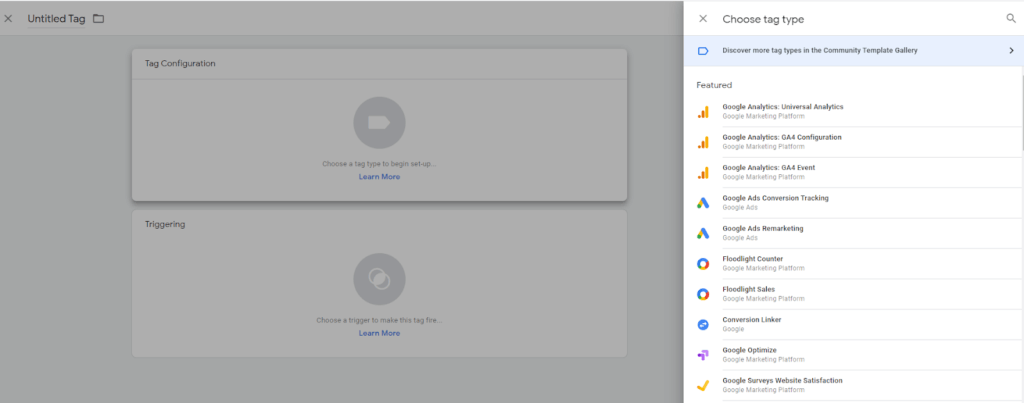
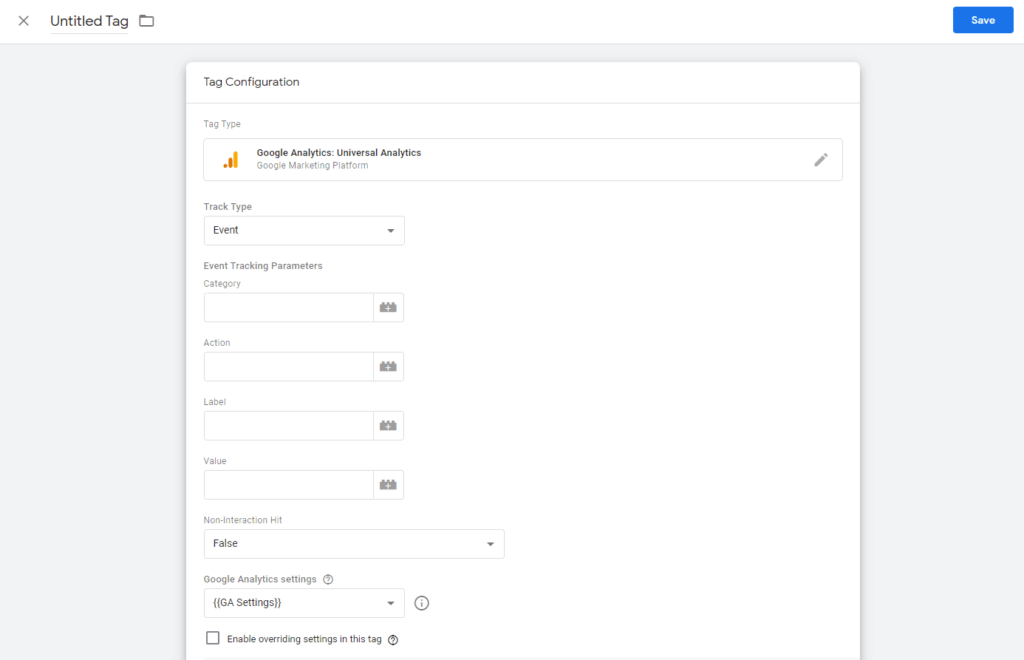
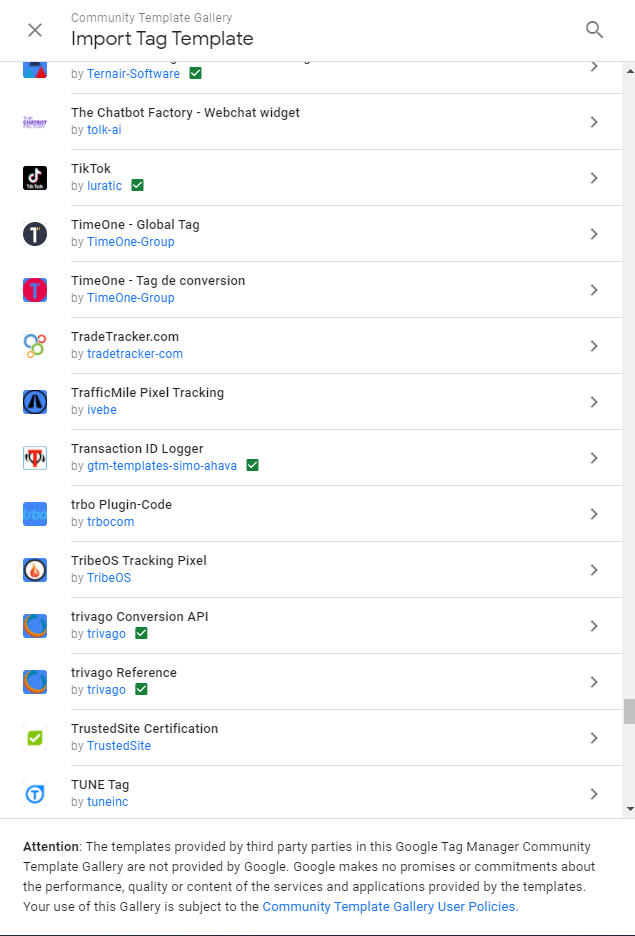
As you can see, there are no codes visible here and therefore no programming knowledge is required. If you can’t find what you’re looking for in the list of predefined tags, there are also so-called “community templates”. These are tags created by the community and then approved by Google. A large number of predefined tags can be found here. The search function can be very helpful here so that you don’t have to scroll through the entire list.
Triggers
Triggers indicate under what conditions a tag may be played or fired. So you define the rule as to whether and at what point in time a tag is executed or blocked.
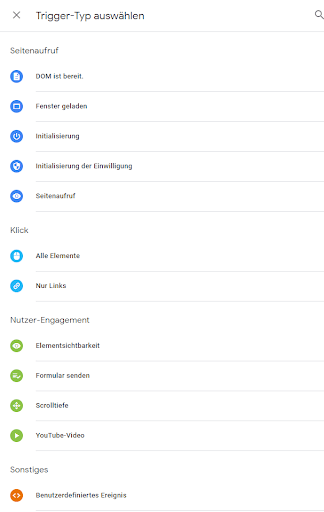
When it comes to triggers, there is also a list of different trigger types that is available in the GTM. After you have selected a trigger, further conditions for the trigger can be specified in the trigger itself. The most common trigger types include Page Views (Page View, DOM Ready and Window Loaded), Clicks (All Elements, Links Only), User Engagements (Element Visibility, Form Submit, YouTube Video) and Other (Custom Event, Trigger Groups, History Changes).
variables
Variables are values that can further refine tags and triggers. Dynamic values can be passed into the tags to obtain even more precise data. For example, if you want to pass on the exact price for e-commerce tracking, you do this with a variable, since the products usually have different prices.
You can create even more precise conditions for the triggers. For example, if you want to track a click on an exact link, you use the “Click Trigger” link and then write the exact URL of the desired link into the predefined “Click URL” variable. This means that the trigger only fires if the specified URL is actually clicked on. There are many other examples that will be explained in one of our workshops.
When it comes to variables, there are also predefined variables, so-called “integrated variables” and user-defined variables that you can or must configure further yourself.

More features
There are many other features in the GTM that I won’t go into here as they go into more detail and go beyond the scope of the article. Nevertheless, I’ll list some of the features with a brief description:
- Work areas: These are, as the name suggests, separate workspaces so that people working in the same container at the same time do not overwrite each other’s changes, tags, triggers or other work.
- User management: Here you can give people different rights, so that some people can only see the tags, triggers and variables (read permission) and other people have full rights and can publish workspaces (make created tags live).
- Versioning: The GTM offers versioning so that you can easily and conveniently go back to previous versions and also see what and by whom was published in the respective version.
- Folder: Folders can be created here to get more structures and a better overview.
- Debugging mode: With this feature you can test created tags and triggers directly on the website without publishing them. This helps enormously with testing and troubleshooting. In addition, all variables passed are shown precisely so that you can test whether the transfer is correct.
Differences between GTM and GTM 360
The paid version of Google Tag Manager, Google Tag Manager 360, offers a few more features that you should check to see whether the additional costs are worth it.
If you would like to read more about the differences, see thisArticle further information.
Do I really need a tag management system? What advantages do I have from this?
The answer is very simple. Es ist nicht zwingend erforderlich ein Tag Management System zu nutzen, jedoch vereinfacht es die Arbeit enorm. Daher empfehlen wir auch bei jeder noch so kleinen Webseite einen GTM zu implementieren.
Tag management systems offer the following advantages (if configured correctly):
- Central management of the tags (the marketing pixels), better overview of the tags
- more accurate data or improved data quality
- Increased agility (no IT required, every marketer can handle it, changes can be implemented immediately)
- Low susceptibility to errors (you don’t have to search in the source code first. The GTM also reduces some sources of error with error messages)
- Reduced costs (no IT required)
- No additional tool costs
- Improved loading times