Tips 038 Tricks For Gtm Version Conflicts

Management Summary
Fix Google Tag Manager Workspace problems the right way – made easy. We’ll show you how to choose the right settings to eliminate version conflicts.
Resolve GTM version conflicts – tips & tricks
When using a tag management tool such as Google Tag Manager, various situations and error messages can occur. Particularly when collaborating within a team when working on the same topic, conflicts can arise with different settings in tag management. These then have to be remedied in order to reach a common denominator. We would like to show you how.
Why workspaces?
To ensure efficient work, so-called workspaces were introduced in Google Tag Manager. In the standard version of GTM, up to 3 work areas can be used at the same time. In the GTM 360 version, however, Google offers an unlimited number of workspaces.
In addition to the workspaces, there are also container versions, which contain the final definition of theTag configurations for the websiteinclude. If a workspace is published, a new GTM container version is created and the changes or settings from the published workspace become active on the website. But publishing a workspace has another impact. She notices that all other workspaces are marked as “out of date”. This means that all workspaces must be synchronized with the latest GTM Container version.
If you work on a GTM container without a team, i.e. alone, the “default workspace” can be used, as there is no risk that the changes made will be overwritten or changed by other people.
When using a GTM container for 2 or more people, it is recommended to use workspaces to achieve a clean separation of work. With one exception: If everyone agrees on the changes and only one person makes the changes at the same time, then work can be done in a central workspace.
The following two case studies show which (solvable) problems can arise when working in a team in a Google Tag Manager container with workspaces.
Case study: “Workspace sync error”
If two people are working on a GA4 setup in a Google Tag Manager container at the same time, we recommend using separate workspaces:
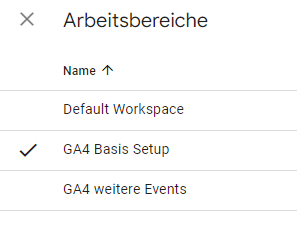
In principle, an agreement can be made before work on what basic settings a setup should have. In this example aGoogle Analytics 4 Config Tagcreated by both employees without prior agreement. Both employees call the tag “GA4 – Config” and set the settings almost identically:
Workspace “GA4 Basic Setup” GA4 – Config:
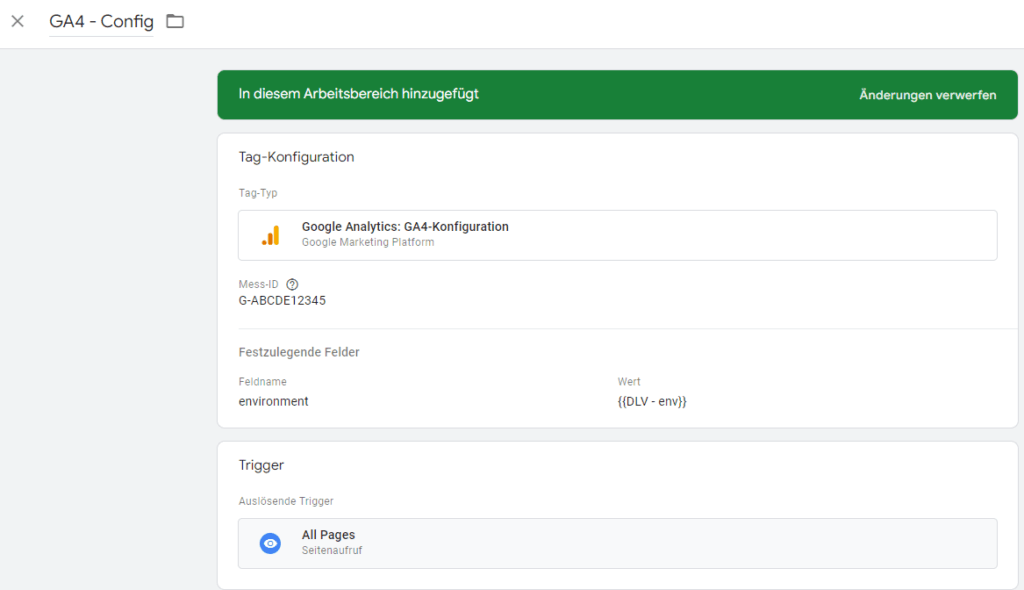
Workspace “GA4 additional events” GA4 – Config:
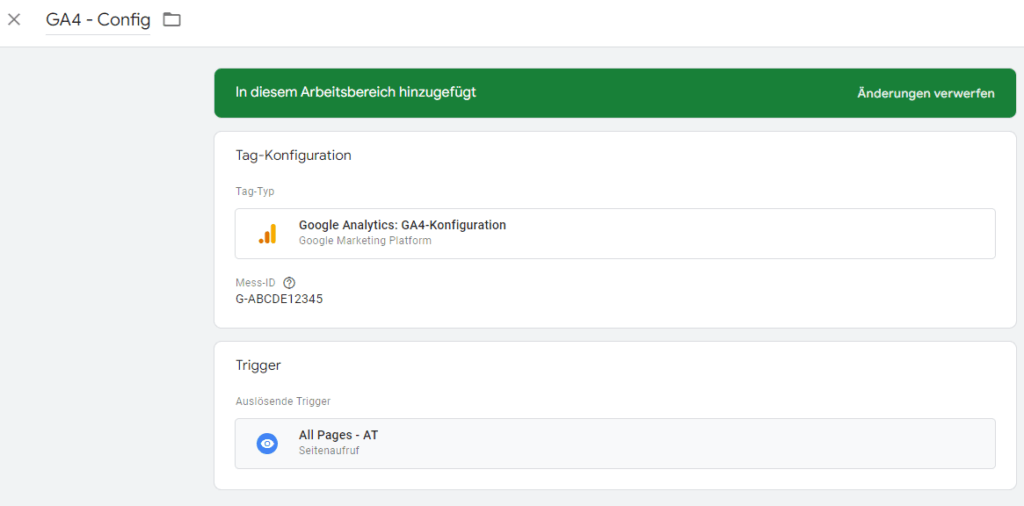
As you can see on both screenshots, it is almost the same setup, except that both employees have created the same day and have done a few little things differently:
- The env parameter is missing for the second workspace
- The trigger is different for the second workspace
Now finally one has toWorkspace must be published for the changes to take effect. So the workspace “GA4 Basic Setup” is published. The question is, how does the GTM behave and what hurdles does the employee of the “GA4 additional events” workspace now have to contend with?
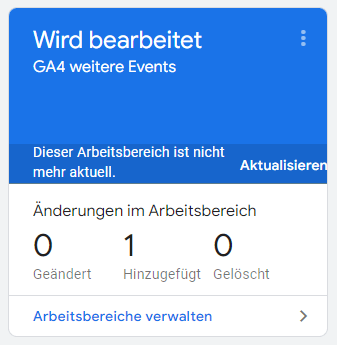
First, the information appears that the work area that is currently being worked on is no longer up to date. The workspace cannot be published until the “Update” link is clicked and the process of merging the current GTM Container version with the workspace is completed.
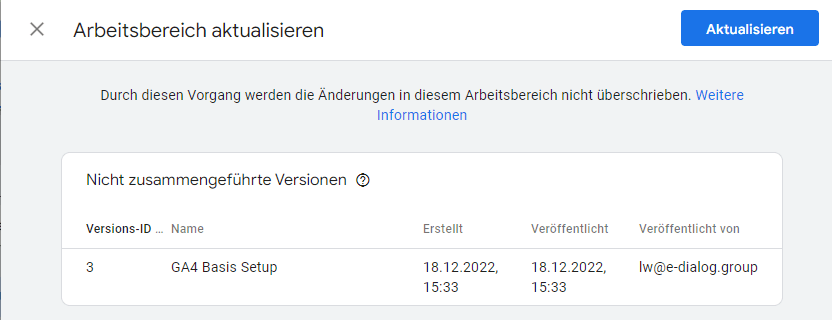
After clicking on the blue CTA button “Update”, the Google Tag Manager quickly shows a response saying that a tag like “GA4 – Config” already exists and we need to fix the problem:
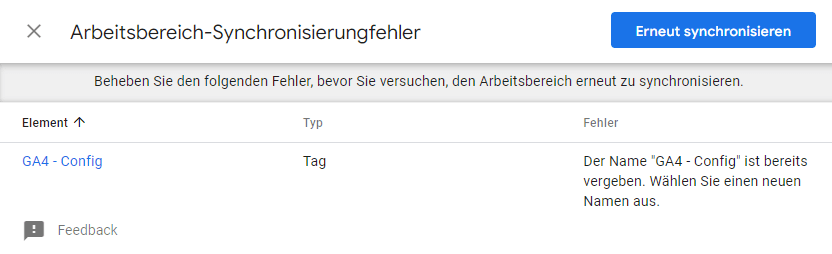
Specifically, the wording of the error message is: “The name “GA4 – Config” is already taken. Select a new name.”
The tag “GA4 – Config” would have to be called something different in the “GA4 additional events” workspace so that the synchronization can be completed successfully. In most cases, however, it would be advisable to keep the tag that was just edited.
So there istwo options:
- Delete the “GA4 – Config” tag in the current “GA4 additional events” workspace, make the update and paste the changes again into the already published “GA4 – Config” tag
- Rename the “GA4 – Config” tag to “GA4 – Config2” in the current “GA4 more events” workspace, make the update, and then delete the published “GA4 – Config” tag. The tag “GA4 – Config2” can then be renamed back and the problem can be circumvented.

The second option would be more flexible, as both tags in the container can be edited after updating the workspace and then a decision on the final tag “GA4 – Config” can be considered at leisure.

Case study: “Conflict detected” – discrepancy in details
The first example showed how the Tag Manager behaves when new tags are created for the same target – i.e. a GA4 Config tag that should actually only appear once in the container, but was created by two employees.
There is a second type of conflict in Google Tag Manager:Modifications to existing elements. These will produce the following warning message:
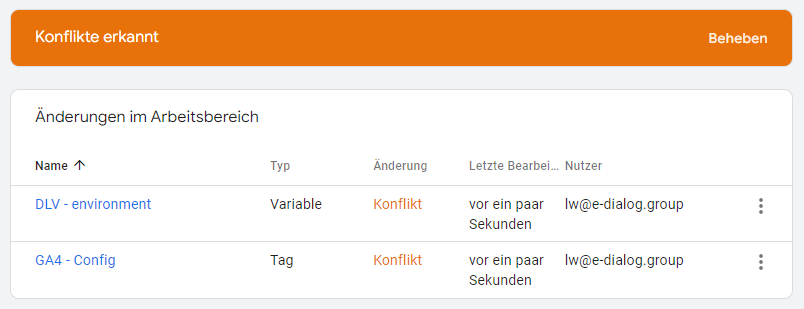
Such an error message usually appears when the workspace has already been updated. The update worked, but the GTM detected discrepancies between the live version and the current workspaceneed to be fixed before publication.
When you click on “Fix”, a kind of “fix wizard” appears where the problems can be checked one after the other. After the check has been completed, you can choose to keep the current changes from the current workspace or to restore the live version.
But this is where things get a little complicated and a wrong decision can result in your changes being overwritten and the work having to be done again.
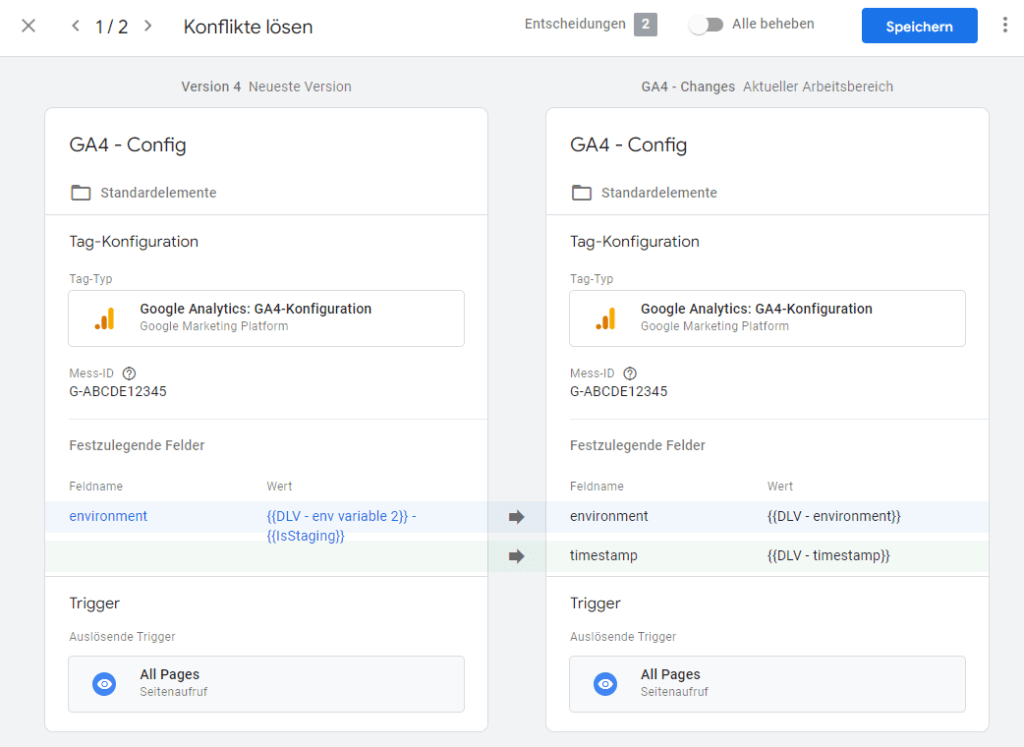
In this example there is again the GA4 config tag. However, this is displayed twice.
On the left side you can see the version of the tag as it is currently played on the live version. On the right is the version of the tag in the GTM workspace “GA4 – Changes” that is currently being edited and published.
In this example, on the right side (what is currently being edited) there is an out-of-date “environment” parameter. The “timestamp” parameter has just been added and should be retained.
Clicking on the thick arrow icon opens the options that can be selected:

In that case the left “Reject icon” ignore the live version and leave the version that is currently in the workspace.
But if you want the new updates that are already live to be adopted, this would be the right choiceblue arrow iconwhich we click on:

It immediately jumps to the next conflict and here again there is the “reject icon” on the left and a green icon with an arrow on the right.
If the left “Reject icon” is clicked, we have the following situation:

This would mean that the new parameter “timestamp” would be deleted from the current workspace. This would delete the work done in the workspace. We don’t want that.

The “Ignore changes” option here means that the current changes from the current workspace should be ignored. So that would delete our change with the timestamp.
If thatgreen arrow iconwas clicked, we get the desired result:

- The innovation in the “environment” parameter is adopted into the current workspace
- The new parameter “timestamp” from the current workspace is retained.
If everything fits, the decisions can be checked again and the Save button causes the workspace to be freed from conflicts and published.
Conclusion
Using a tag management system brings many advantages. In larger teams, however, care must be taken to ensure that your own and third-party content is not overwritten.
We are happy to support you in all matters relating to tagging and tag management systems (not just GTM)!