Workspaces In The Dv360 Interface 038 Useful Features For Campaign Management

Management Summary
In this article we describe which campaign management options are available in the DV360 interface and what can be quickly evaluated.
Custom Workspace in the Overview tab of the DV360 interface
As soon as you enter the tool, some badges are displayed that provide information about how the individual insertion orders are performing. Information on pacing, budget and creatives, among other things, is presented.
However, when working with multiple partners, this information can be confusing. Therefore it makes sense withCustom Workspacesto work. These can be created in the Overview tab under “System generated workspace” and “Creative new workspace”. When setting up the custom workspace, any name can be given and a partner or advertiser can be assigned. When working in this workspace, only the relevant IOs belonging to the partner/advertiser are displayed.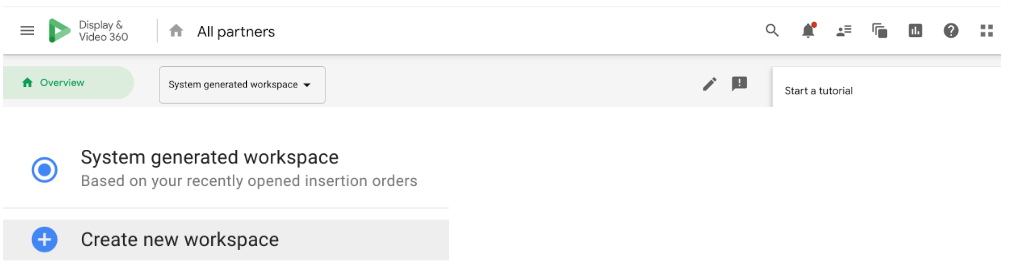
Custom views and segmentation
In addition to creating a custom workspace, different things can be doneCustom viewsare generated, which provide information about some important KPIs for campaign performance using segmentation. These views are available at multiple levels in DV360.
Advertiser level
If the goal is to get a cross-advertiser overview of the performance of individual insertion orders, the advertiser-level views should be selected under Insertion Orders.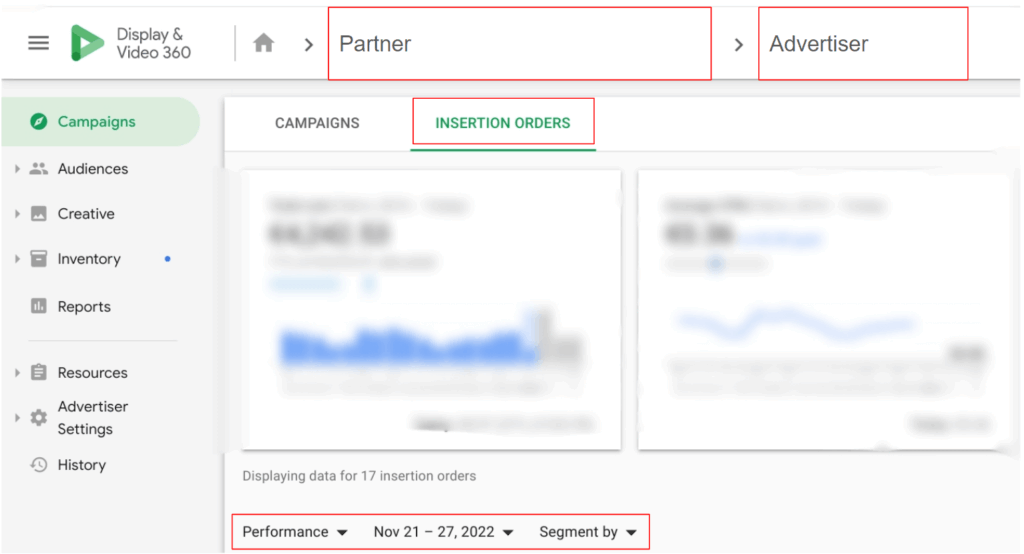 Under the first two graphics there are 3 drop-down menus (see screenshot), which can be adjusted as required:
By default thePerformance viewselected. The IOs are grouped according to goals (e.g. CPA, CPM, CTR) and this view shows information about the respective campaign goal, delivery (impressions and budget), interactions and conversions. If a period is selected in the date filter, small graphics about the development of the respective KPIs are even displayed here.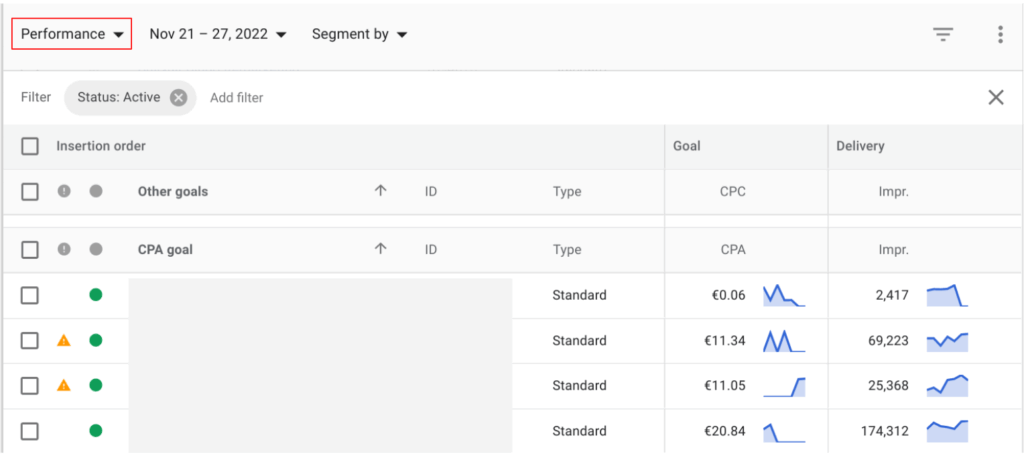 In addition to performance, other predefined views can be generated.
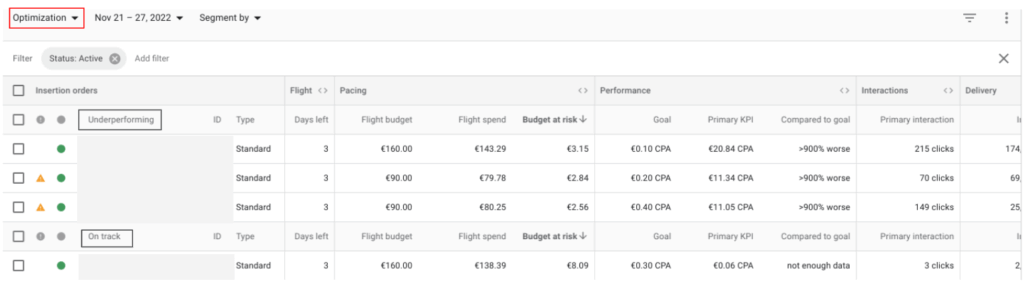
In thePacing View(and in the selected period) you receive prompt information about the current delivery status of the respective insertion order and can easily see how much budget is still left of the flight. This also helps in assessing whether the budget target can be achieved within the flight or not.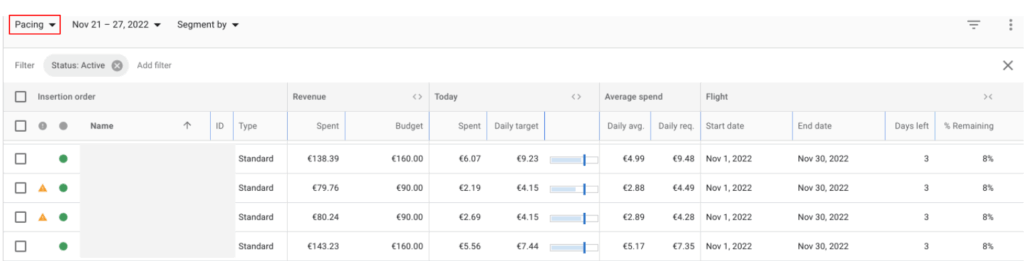 In theOptimization viewYou can check whether individual insertion orders are currently performing poorly (e.g. the target KPI is not being achieved), are “on track” with delivery or are currently “under-delivering” (underpacing).
 Additionally there is the “segment by” function – also with a drop-down menu where a distinction can be made between “Day of Week” and “Device Type”. This structure ensures a quick check of delivery, impressions and clicks on certain days of the week or on different device types. If the “Segment by” button is clicked, the three views mentioned above are no longer available. It is also important to note here that the date filter can no longer be set arbitrarily, but only between “Yesterday”, “Last 7 Days”, “Last 14 Days” or “Last 30 Days” can be selected.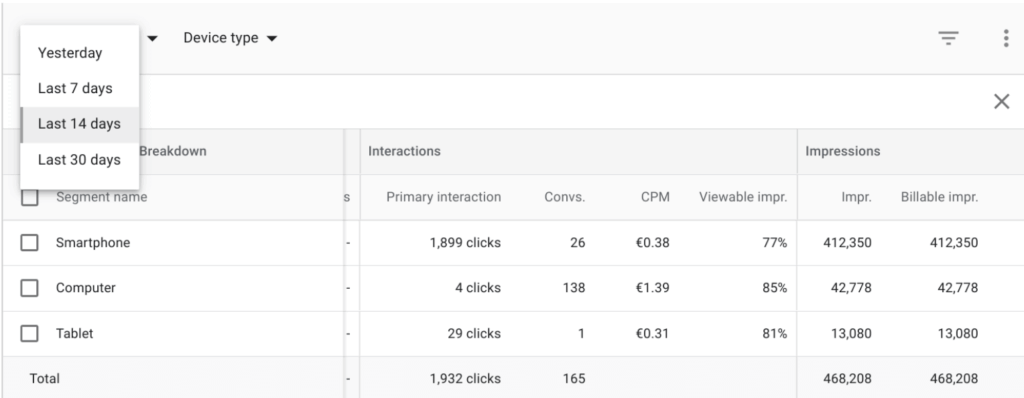
Campaign level
If the goal is to generate somewhat more detailed views for the campaign, more in-depth insights into the performance of individual insertion orders or line items can be gained at campaign level with just a few clicks. In addition to the 3 views mentioned above (Performance, Pacing, Optimization), there is also the one here (both at the IO and at the LI level).SummaryView available that reports current status on the same day. In the “Latest Activity (current hour)” part, the data is even updated in real time and impressions as well as interactions and budget changes are displayed immediately.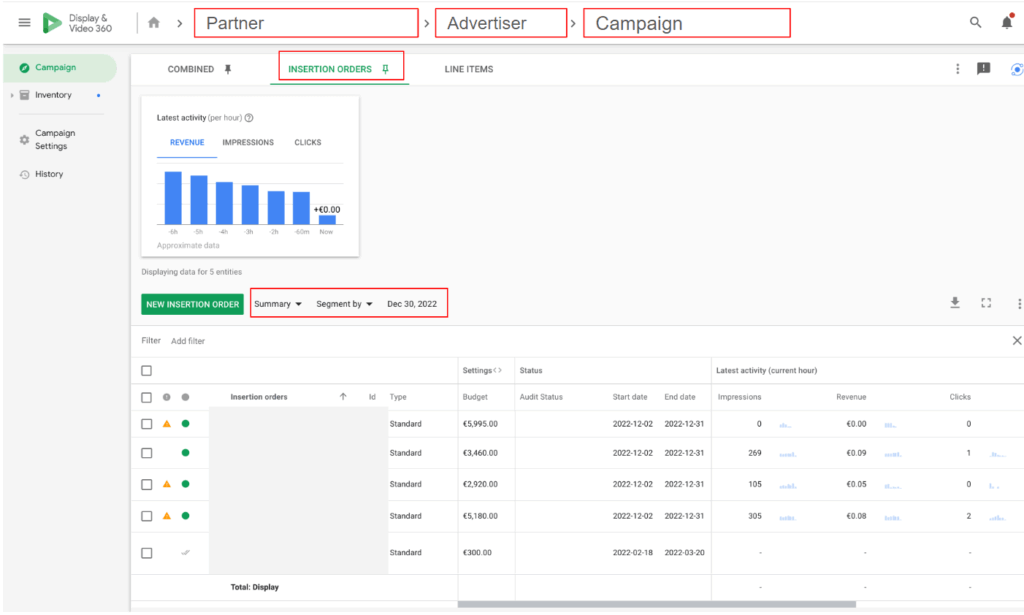 As you can see in the screenshot above, at the IO and LI level there is also the option “segment by” are available and several options are even displayed below that are very helpful. The following options can be selected:
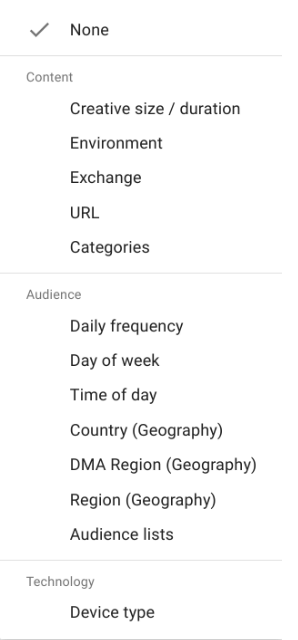 With these views you can get a meaningful and data-based display with just a few clicks without having to call up a report. However, it also applies that the views can only be accessed for certain times (“Yesterday”, “Last 7, 14 or 30 Days”).
The following functionalities are hidden behind the individual terms:
- Creative Size / duration: Impressions, clicks and cost metrics broken down to creative size level (e.g. 300×250 or 300×600 display banner)
- Environment: The web or app playout can be monitored here
- Exchange: provides information about which exchanges the campaign ran on, with how much budget, impressions and clicks (e.g. Xandr, Google Ad Manager, etc.)
- URL: the same applies to the URL view, where you can see which specific pages were displayed (e.g. bild.de)
- Categories: shows in which website categories the campaign ran (e.g.: /Games/Computer & Video Games, /Arts & Entertainment)
- Daily Frequency: is particularly helpful if you want to see how the frequency cap behaves
- Day of Week: looks the same as at advertiser level
- Time of Day: generates information about when exactly the most impressions, clicks are generated
- Country: in which country was the game played? Particularly helpful for checking the geo-targeting stored and ensuring that the campaign is only live in the countries stored
- region: provides further information about the specific regions (e.g. federal states) in which the game is being played.
- Audiences: this shows which of the Google Audiences the most budget is spent on (e.g. Display & Video 360 Audiences » Affinity Categories » Technology » Social Media Enthusiasts)
- Device Type: again provides information about whether the playout takes place primarily on a smartphone, desktop or tablet.
Conclusion
Custom Views & Workspaces are useful features in DV360 to simplify data display and to efficiently and easily view campaign performance and control campaign settings. We recommend actively using this integrated feature and getting to know it for yourself.