Sgtm Migrator 8211 Can It Do What It Promises

Management Summary
Setting up a server-side GTM container can be challenging. Google wants to take the complexity out with the sGTM Migrator tool. But is it really easier with the sGTM Migrator? We tested it.
GTM container to sGTM
Since the introduction of the server-side Google Tag Manager (sGTM), many questions have been asked about how it works and how to use it correctly. The functionality of the server-side GTM container is not immediately clear to beginners. The sGTM has many uses, but the main goal is that tracking pixels only run through the sGTM and no longer run in the end user’s browser.
The initial scenario is that a company has already installed many pixels on the website via the client-side (standard) Google Tag Manager container. These pixels should now be displayed via the server-side GTM instead of the client-side ones. Migration there must be carefully considered and thought through.
Google offers additional tools for its tools such as Google Tag Manager, such as the sGTM Migrator.
The sGTM Migrator
The sGTM Migrator is a tool developed by Google to simplify or even automate the process of migrating from client-side GTM to server-side GTM. Tags that affect the Google world can be automatically migrated on the server side. The tool is open source and available on Github:https://github.com/google/sgtm-migrator
installation
To repair the sGTM Migrator, the files on Github do not need to be downloaded or installed anywhere. The Google group is enoughsGTM Migrator Google GroupJoin and get the spreadsheetSGTM Migrator (v1.20) spreadsheetcopy to your own storage.
The process of setting up the migration then runs entirely via the Google Spreadsheet, which includes Apps Scripts. When copying the spreadsheet, you will be asked for the copy of the Apps Scripts. A confirmation must be made here for the sGTM Migrator to work (otherwise it is just a spreadsheet with no functions behind it).
A prerequisite for running the sGTM Migrator is that GTM containers must already exist. The migration cannot be started if, for example, the sGTM container does not exist. It is important at this point that the sGTM container does not have to be functional for migration with the sGTM Migrator. This means that the sGTM container does not have to be tied to a Cloud Run instance, for example. A simple sGTM container can be easily created and the server-side setup can also be done after the migration. However, it would be advisable to have a functioning sGTM container, otherwise the setup cannot be tested.
Structure of the sGTM Migrator
There are 5 tags in the sGTM Migrator spreadsheet.
- Read me: Here you will find a short documentation of how it works and instructions for use.
- Config: The URLs to the GTM containers (client & server side) must be specified in the Config tab. All information for a quick migration must be provided here and the button to start the process is also located here.
- Web Tags: This tab also has the heading “Advanced Configuration” and allows granular setting of what should happen with individual tags.
- Server Tags: The server tags are listed here once the process has been carried out.
- Logs: The “Logs” tab contains the feedback that the sGTM Migrator returns while carrying out the migration. If errors or problems occur, it’s worth taking a look here.
Our example container
So for the sGTM Migrator there must be a client-side and server-side GTM container. Our client-side container looks like this: Example container, source: Google
We have…
- A conversion linker
- Floodlight tags
- Google Universal Analytics Tags (GA3)
- Google Analytics Tags (GA4)
- Google Ads Remarketing Tag
For our test we use an empty server-side Google Tag Manager container.
Config
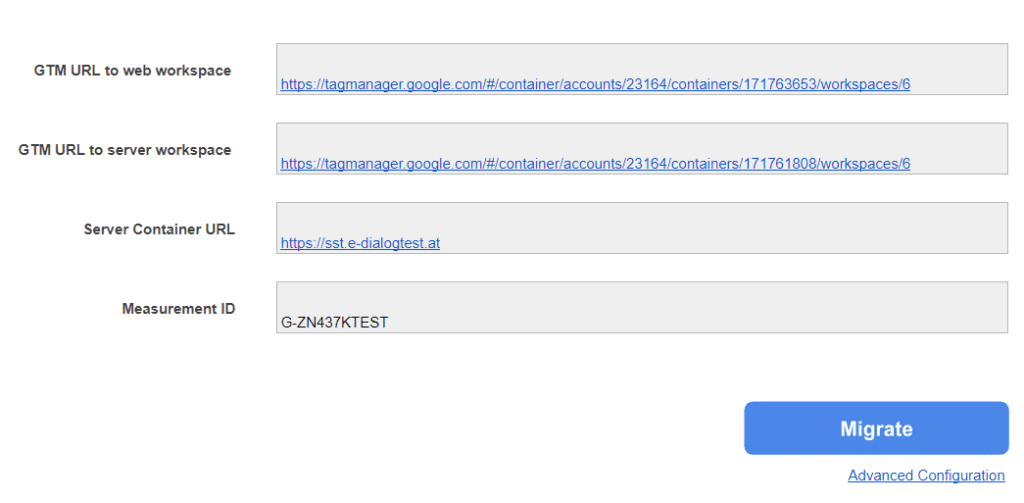 Configs, source: Google
There are four input fields before the migration can start.
- GTM URL to web workspace: The exact URL of the client-side (web) GTM container must be specified here.
 GTM URL, source: Google
- GTM URL to server workspace: Similar to the client-side GTM container, the URL of the server-side GTM container workspace must be specified here.
- Server Container URL: The URL under which the sGTM should be accessible must be specified here. This value is used in the client-side GTM in the “Transport URL” setting. Nowhere else.
- Measurement ID: If a GA4 property is present in the setup, the measurement ID should be entered here.
Start & pass
If everything has been entered correctly and the “Migrate” button has been clicked, the first run will ask for the access rights for the Apps Script. If agreed, nothing happens afterwards. The button must be clicked again.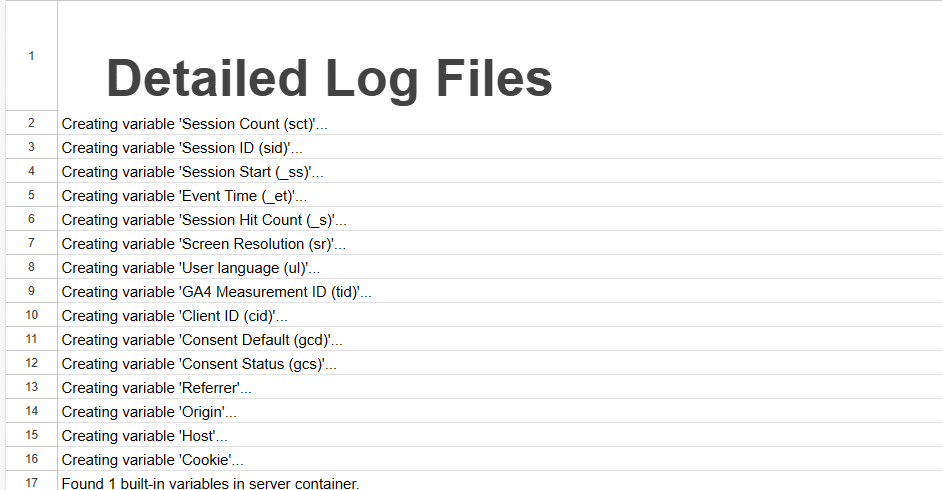 Detailed log files, source: e-dialog
After starting, you have to wait until the migration is completed. Insight into the processes can be obtained under the “Logs” tab.
Possible errors
1. Maximum execution time exceeded This error can occur for users who run the sGTM Migrator without a G Suite account. Here the maximum execution time is only 5 minutes, which may be too short for more complex GTM setups.
But none of that matters. The process should simply be initiated again without any changes and the sGTM Migrator will skip the tags, triggers and variables that have already been created and can thus use the remaining minutes for further execution.2. Maximum execution time exceeded This error appears if there are no access rights for the specified GTM containers. Here we would recommend checking the two URLs to the client-side and server-side container.3. Script “” is executed
 This is not an error, but a status message that the script is currently running.
The first log message also says: “Woohoo! We are migrating all possible Google tags to your server container. This can take a while. Sing like no one is listening.”
Result
The result of the sGTM migration can be checked in the containers themselves. The containers must be reloaded in the browser. Result, source: e-dialog
A quick look at the sGTM container is enough to see the tags that have been added. These are the tags that are also in the client container, but also appear here in the sGTM. Apparently the triggers are still missing; they have not been migrated. To do this, the Advanced Configuration in the “Web Tags” tab would have to be adjusted.
The sGTM Migratior also made adjustments in the client container, but not all of them that are necessary for a complete migration. The transport URL has not been adjusted. This also needs to be set “Web Tags” tag first.
We also received error messages when testing the migration with a more complex GA4 setup. Due to the recent Google Tag changeover, the sGTM Migrator Script cannot migrate Google Tags, but only the old GA4 Config Tags, which no longer exist. We would have to wait for an update from the developers.
Conclusion:
With the sGTM Migrator, simple setups can be migrated to the server-side GTM container. For larger setups, we would again recommend a manual migration. We are guaranteed to take the complexity out of it and are happy to support you in setting up your server-side Google Tag Manager container.