Segment And Comparison Seeing Through In Ga4

Management Summary
The article explains in detail tips and tricks for working faster with comparisons and segments in everyday analysis. A comparison can be transferred to a segment in the Explore report with just a few clicks.
Interesting facts about segment and comparison in GA4
As Google Analytics users, we have to accept that the segments we were used to in Universal Analytics no longer exist. Where we found the segments in Universal Analytics, we now find the comparison in the standard reports in GA4.
With the help of theComparisondata can be compared in the standard reports. Various dimensions can now be filtered using the standard options “exactly matches”, “contains”, “does not exactly match” and “does not contain”. Comparisons can now also be saved so that you can work more efficiently when used frequently. The historical data is available at any time with Comparisons. The comparison gets a minus point because unfortunately you cannot filter on individual events.
Anyone who asks themselves whether the…Segmentscompletely disappeared in GA4, you can rest assured. There are still segments. In order to work with segments, you must work in the Explore reports. And for anyone wondering what a segment is: A segment is a part of the total analytics data. Which part that is can be filtered using conditions. Segments can be created by clicking on the plus under the first column “Variables” and the heading Segments. There are three segment types: User Segment, Session Segment and Event Segment. User segments are subsets of users, session segments are subsets of sessions, and event segments are subsets of events. Users can also choose from suggested segments. Examples of this are “Recently active users” or “Non-purchasers”. As an analyst you can have fun with a wide variety of conditions. Historical data is also available in the segments. Segments can only be found in the exploratory reports. As well as comparisons are only available in the standard reports.
Top features segments
As already mentioned, you can have fun creating segments. Classic conditions such as including or excluding groups are possible. You can also choose whether the conditions should be met in a specific session, across several sessions or within an event. In English the setting is called condition scoping, with the choices “Across all sessions”, “Within the same session” or “Within the same event”.
But what definitely has to be mentioned as a top feature for advanced analyzes is the possibility of sequences. This function can be used to define steps that a user must follow in order to be included in the segment. A granular decision can even be made as to whether the step was taken directly or indirectly and in what time frame.
Note: The feature is only available in the user segment.

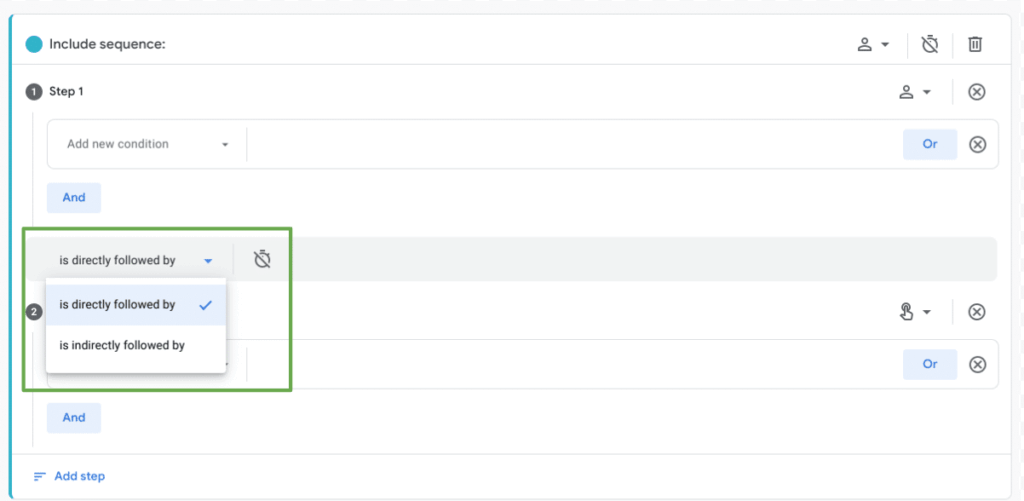
User Segment Feature, Source: e-dialog
Tips and tricks on how to save time when working with Segment and Comparison
From comparison to segment
You often start with the analysis in the standard reports. Data is broken down and compared using comparisons. If you then want to look at more than two dimensions, the limit of the standard report has been reached, as only a maximum of one column can be added. This is the moment when many users switch to the Explore report and laboriously re-apply the previously filtered dimensions of the comparison. But stop! This can also be done with one click. For the standard reports you will find the button “Export this report to analysis” at the top right. This opens the report in the Explore area and the comparison is automatically included in the segments.
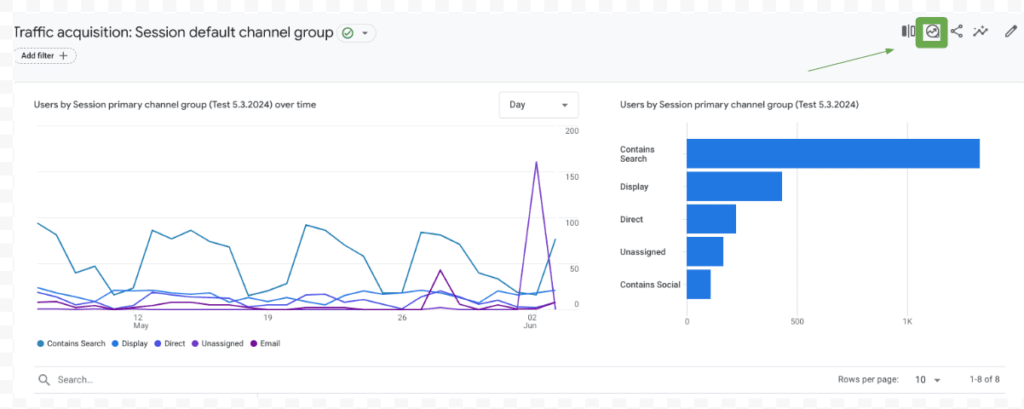
From comparison to segment, source: e-dialog
From the segment to the audience to the comparison
If you are in an Explore report and find an exciting segment, unfortunately it cannot simply be used in the standard reports. But with a little subtlety you can work your way there. In the segment settings there is a tick “Build an audience” in the top right corner. This means that an audience (in German: target group) is automatically created when the segment is created. And anyone who has already worked a lot with the comparisons knows that audiences can be selected in the comparisons. That’s why this is a way to recreate a segment in the comparison.
Attention: It should be noted here that audiences do not have any historical data and therefore only collect data when they are created. That’s why you first have to wait for the audience to be filled before it can be used meaningfully in the comparisons.

From the segment to the audience to the comparison, source: e-dialog
Overview – Audience Segment and Comparsion
The following comparison provides a summary overview of Audience, Segment and Camparison. It lists where these features are available or not available and whether historical data is available.
Audience
Audience name available as a dimension in Explore reports
available at Comparisons
available for Google Ads
Data is only available upon creation
segment
available in Explore reports
not available in standard reports
not available for Google Ads
historical data available (backfill)
Comparison
not available in Explore Ber.(can be converted into a segment)
available in standard reports
not available for Google Ads
historical data available (backfill)
Overview – Audience Segment and Comparsion, Source: e-dialog
Conclusion:
With the necessary information and a few clicks, comparisons can become a segment. Using a workaround, it can also be done the other way around, from segment to comparison, but this is a little more complex and requires an audience. It is important to note that audiences only collect data once they are created and no historical data is available. Furthermore, it is clear that segments have the highest functionality. The segments can be used to define very granularly which characteristics a user or a session should have. There are fewer limits to the analysis of creativity here.