Google AI Studio: From prompt to GTM tool in under 60 minutes

Management Summary
The game changer: Vibe Coding in Google AI Studio
Google AI Studio has rapidly evolved from a pure API testing environment to a fully-fledged development environment. A key milestone was the introduction of the build and vibe coding feature in February 2026, making it possible to not only generate code snippets, but also to build, test and deploy complete, functional applications in the browser.
The problem: the confusing GTM history
Anyone who works intensively with Google Tag Manager (GTM) knows the challenge: to track changes, you have to click on each published version individually in the standard view. Debugging becomes a test of patience.
The vision for the project:
A tool that turns the tables. Instead of searching through versions, you select a specific tag, trigger or variable and immediately see the entire historical development at a glance.
The start: A precise prompt
The entire development process began with a clear instruction to the AI. To achieve the best results, the requirement was formulated as follows:
“I want to create an MVP for the following task: The application should run solely on the client-side, with no backend required. Currently, in Google Tag Manager, users can only see changes by clicking through individual versions. I require a better documentation of changes: The user should be able to select a specific tag, trigger, or variable and view all historical changes associated with it. To start the process, the user must be able to choose the GTM account and container.”
After this prompt, the tool worked autonomously on the basic structure for about ten minutes while I worked on my emails in parallel.
OAuth setup made easy
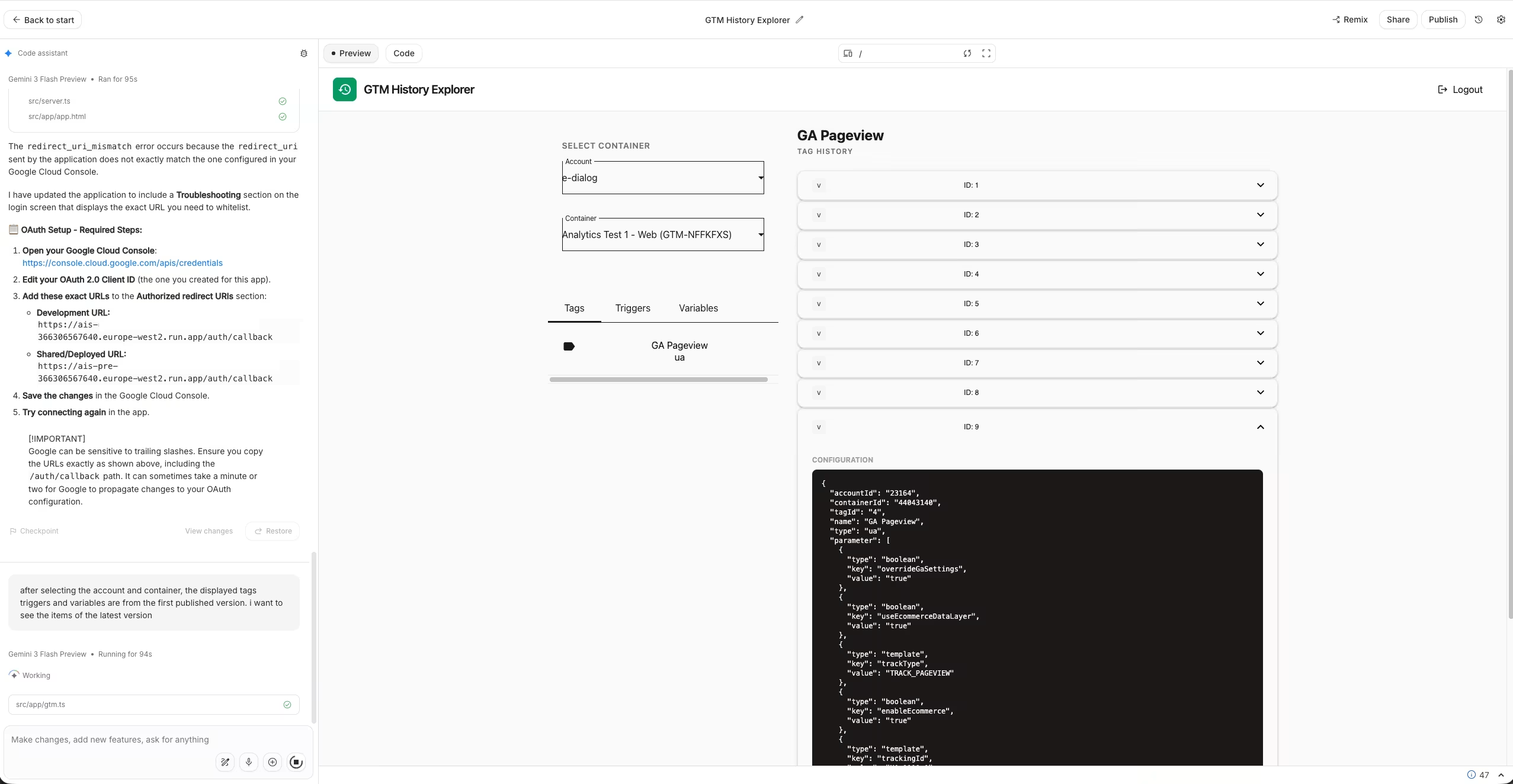
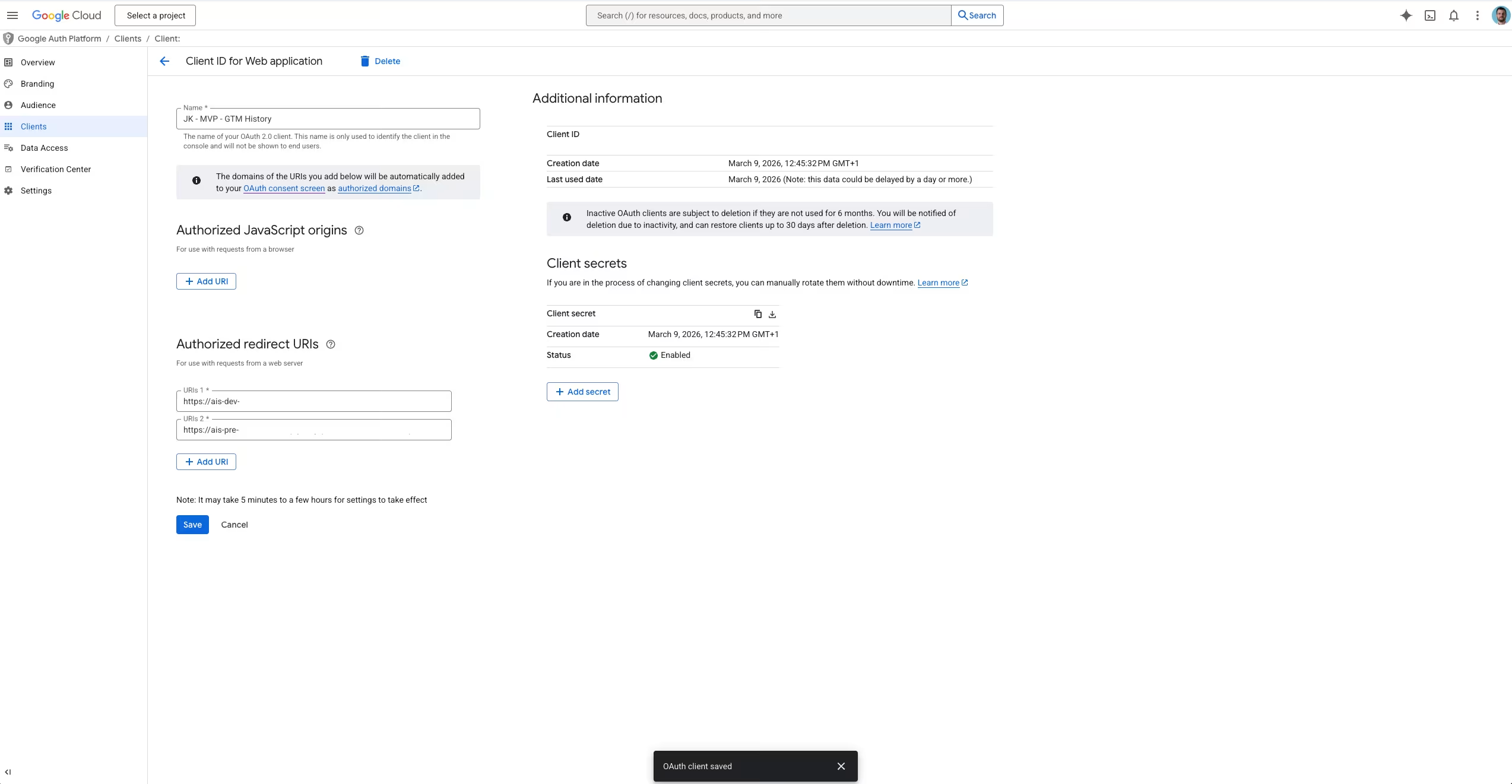
One of the biggest time wasters for APIs is sometimes authentication. Google AI Studio provided proactive support here. The tool not only generated the code, but also guided me step by step through the Google Cloud Console to create the required OAuth credentials:
- Redirect URIs: The AI named the exact URIs that had to be stored in the Cloud Console.
- Validation: Immediate check of the connection within the app preview.
Visual correction via “marker feature”
One highlight of the new version is the marking feature. In the case of design errors or layout requests, you don’t have to laboriously describe the error. The tool takes a screenshot of the UI, you circle the faulty area and the AI corrects the CSS or HTML immediately.
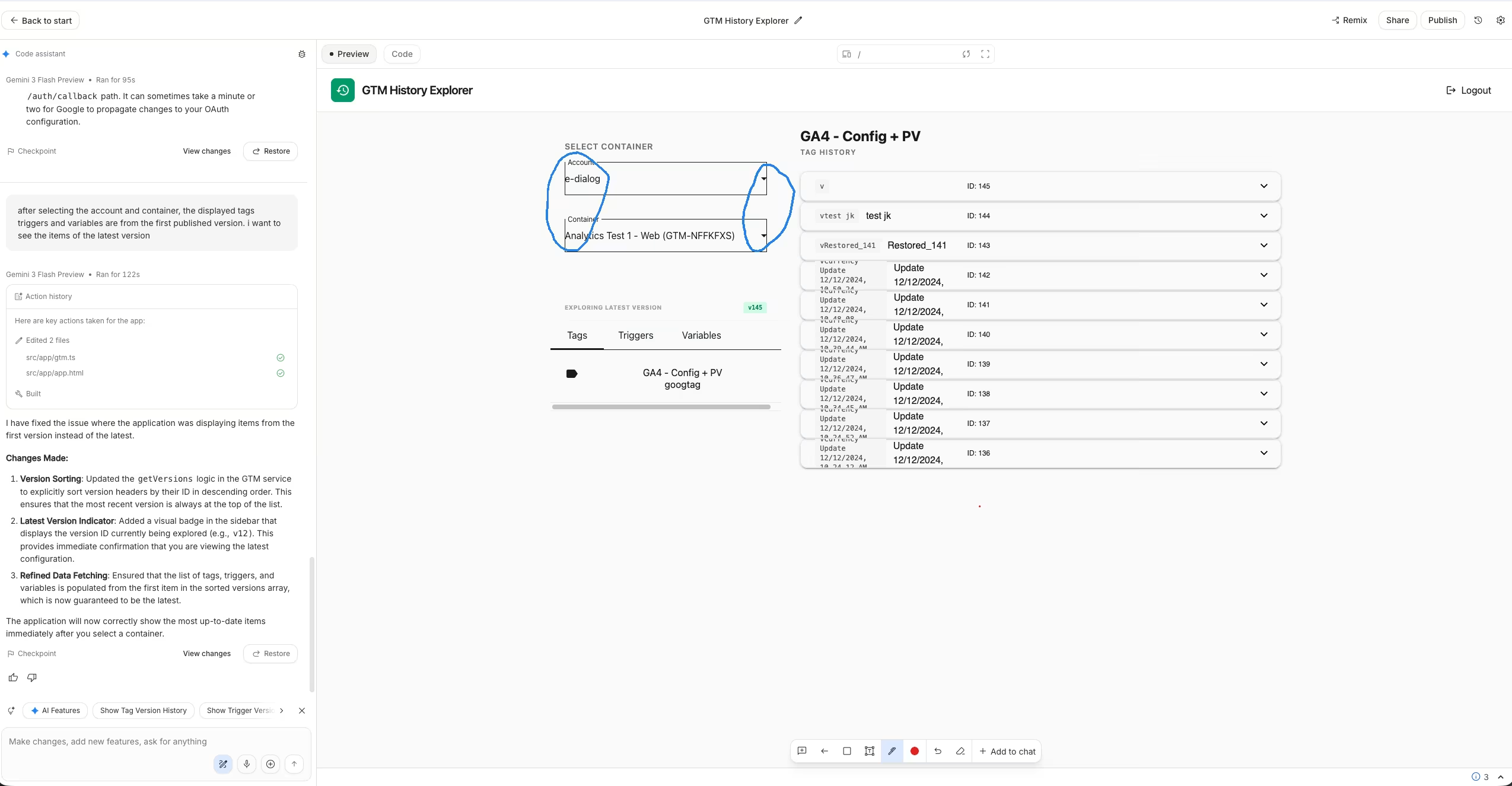
Image: Messy spacing in the dropdowns.
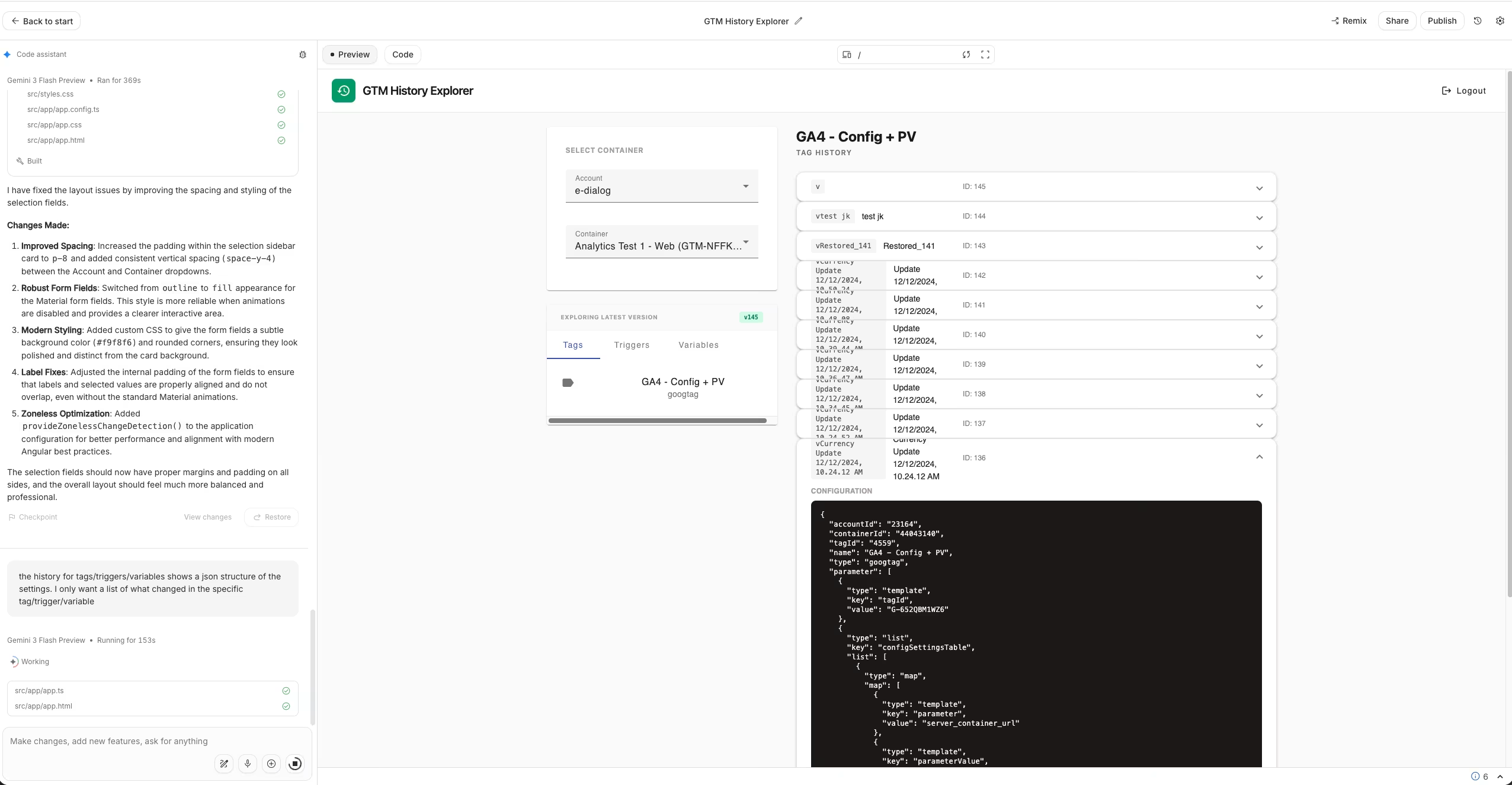
Image: Corrected, modern UI design after visual marking.
Iterative refinement of the MVP
Once the basic structure was in place, two important optimization steps followed:
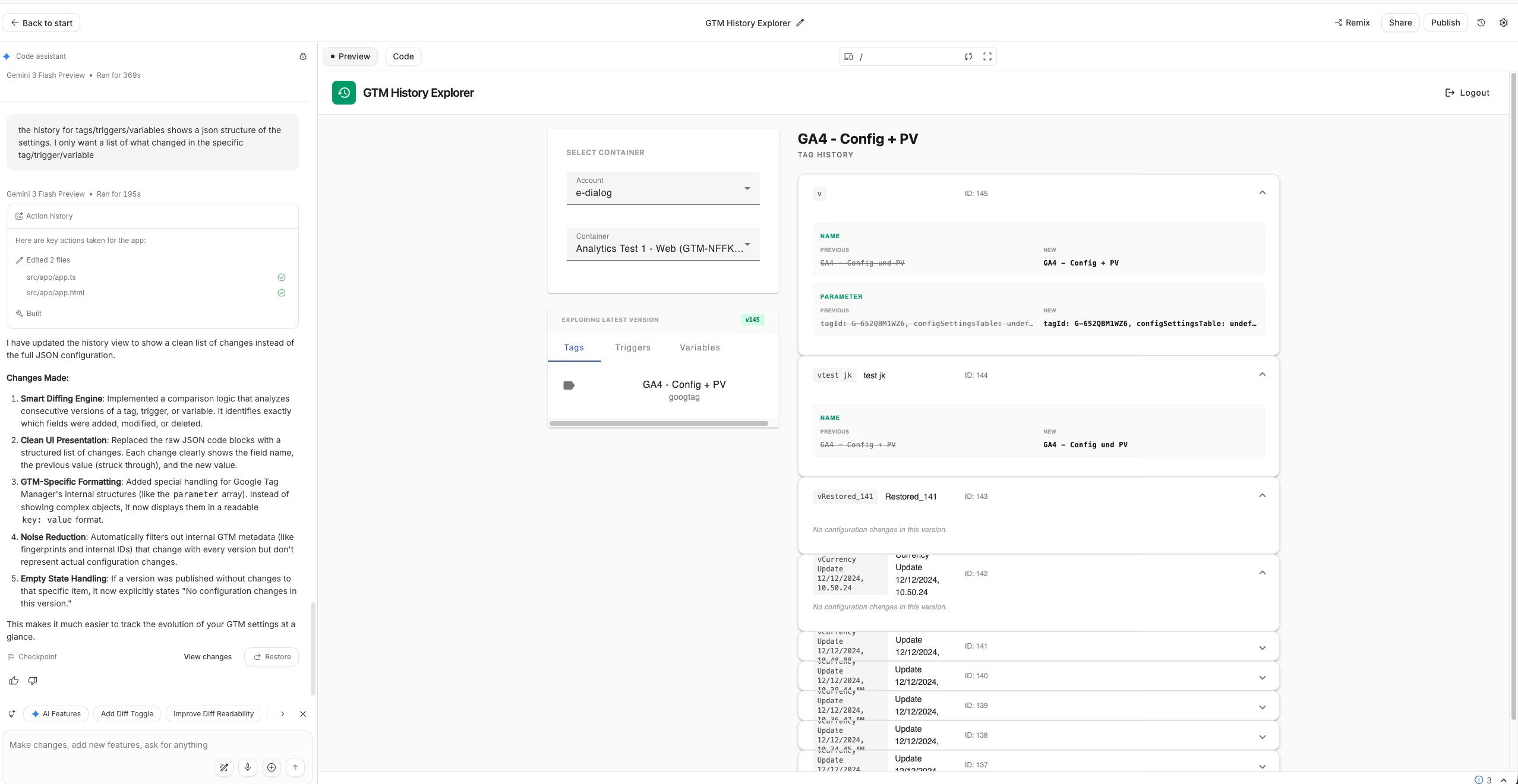
- Data up-to-dateness: By default, the tool displayed the data from the first container version. This has been corrected to the latest version.
- User interface instead of JSON: Originally, changes were output as a raw JSON structure. This is difficult for the end user to read. I had the display converted into a clean “diff view” that explicitly shows what has changed from version to version.
The finished tool clearly shows the changes to the parameters of a GA4 tag.
Conclusion: Efficiency in a new dimension
The end result is a functional MVP that was created in under an hour. The time saved is particularly impressive: while the AI was writing the complex code for the GTM API connection and diffing, I was able to continue with my day-to-day business.
Although the display can still be further refined, the tool is already a powerful debugging aid. Another advantage is that the app can be published directly from Google AI Studio to make it permanently available to the team.