
Ga4 Create Event Feature 8211 Replacement For Creating Goals In The Interface

Management Summary
In this article, we’ll explore how the Create Event feature works and what types of goals from Universal Analytics can be replicated in Google Analytics 4.
What is the Create Event Feature in GA4?
The Create Event feature can be found in the admin area of the property under “Events”. Users with editing rights for the property can use it to create events based on events and parameters that have already occurred. The events can be created for both web and app data. After clicking on “Create Event” the corresponding data stream for which the new event should be created must be selected.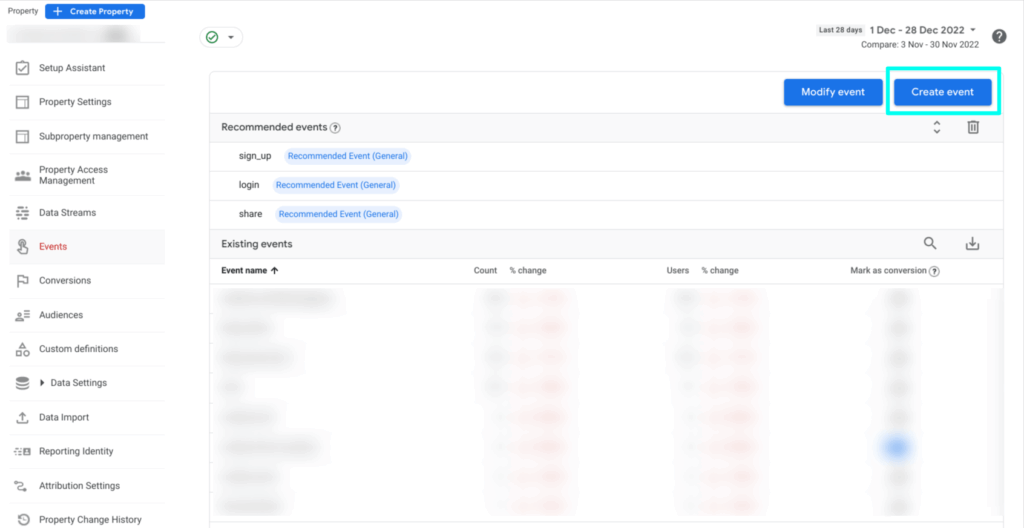 The Create Event feature in the admin area of the GA4 Property, source: e-dialog
When creating an event using this feature, an event name must be set according to certain specifications. Only letters, numbers and underscores may be used when naming. The name must start with a letter and be case sensitive. Apart from the event name, the conditions for triggering the new event must be defined. To do this, the exact event name of the existing event must be entered as well as any parameters that restrict the original event. Assuming we want to create our own event called “page_view_blog”, which is triggered when our blog page is visited, this can be configured as shown in the following screenshot: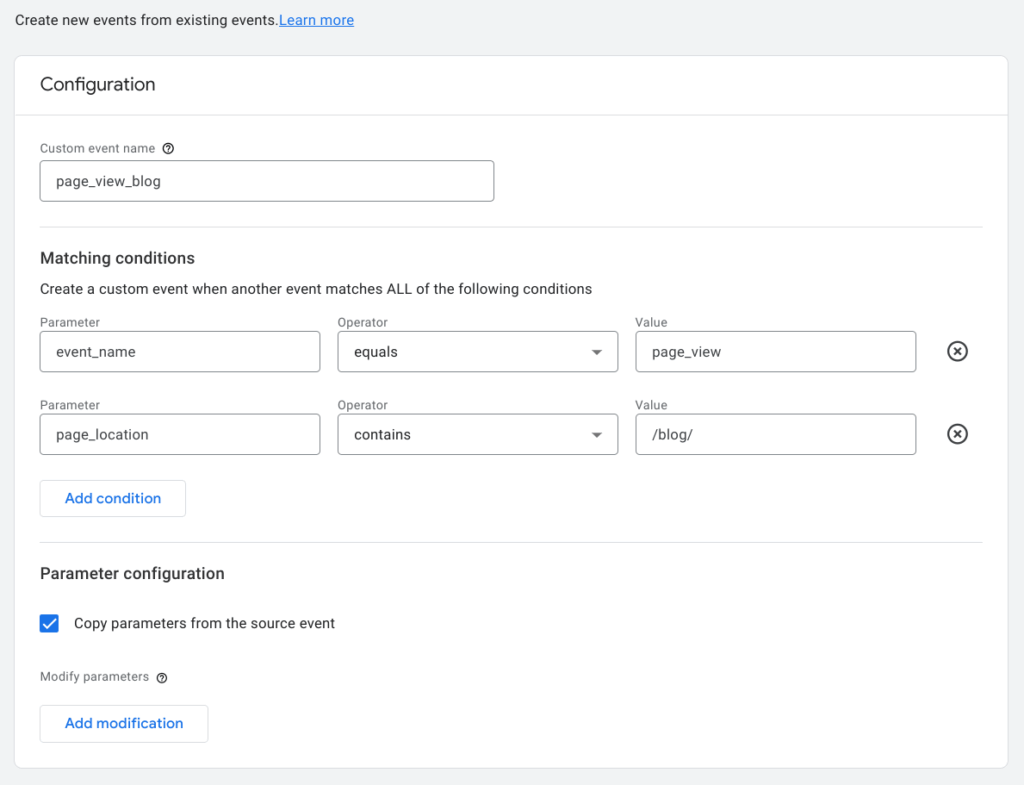 The Create Event feature in the admin area of the GA4 Property, source: e-dialog
The parameters of the original event can be easily adopted. It is also possible to adapt these or define new parameters with additional information.
Which Universal Analytics goals can I recreate with the Create Event feature?
In Universal Analytics, goals can be created based on four different “goal types”: Goal, Duration, Event, and Pages/Screens per Session. There is no dedicated goal creation feature in Google Analytics. However, that doesn’t mean you can’t define your own conversions. With the “Create Event” tool, for example, all Universal Analytics goals that are based on events or a target URL can be recreated. Provided that the same data also flows into Google Analytics 4. For example, you can trigger a “generate_lead” event when users reach the thank you page of your contact form on your website. This event can then easily be marked as a conversion or goal by activating the toggle in the admin area under “Events”.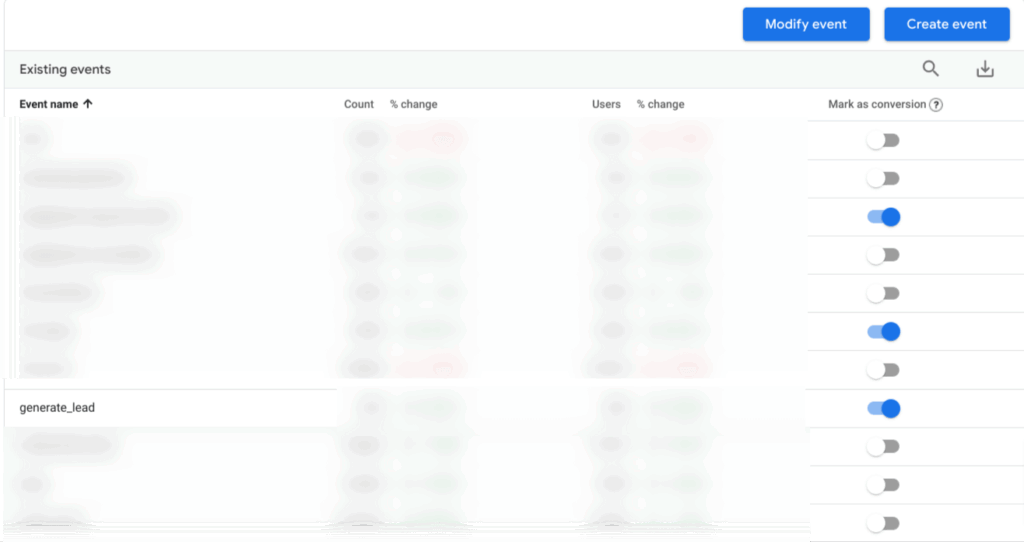 Mark an incoming event as a conversion, source: e-dialog
Conclusion
This Google Analytics 4 feature is easy to use and offers many options for creating specific events based on incoming data. With this tool, not all types of Universal Analytics goals can be recreated in the interface, but the majority can. But don’t despair at this point – there are also alternatives in the GA4 interface for the other goal types, such as the use ofAudience triggering.




