App Tracking with GTM: How it Works Compared to Web Tracking

Management Summary
Learn how tagging for app tracking works and the differences compared to web tracking.
Differences Between Web and (Native) App Tracking
Are you used to performing web tracking with a tag management system that uses a dataLayer? Then you need to think a bit differently when it comes to app tracking with Google Analytics for Firebase (GA4 for apps).
In this article, we look at app tracking for the native parts of your app. These are the screens built directly into an app. Some apps also use so-called webviews. This means: although it looks like you are still in the app, the content technically comes directly from a website and is simply displayed via the app.

One of the main differences between app and web tracking is how event information is passed from the app or browser to Google Tag Manager (GTM) and then to Google Analytics.
Web tracking
The data flow for a web setup with GTM can be described as follows:
- Visitor performs an action on the website
- dataLayer event is pushed
- Information is captured by GTM in the dataLayer
- Tags are triggered and events are sent to various marketing or analytics tools based on the information from the dataLayer.
This means that when an event is pushed into the dataLayer, it only makes the information available to the client so that your tag manager system can read it. Without tagging, nothing else happens.
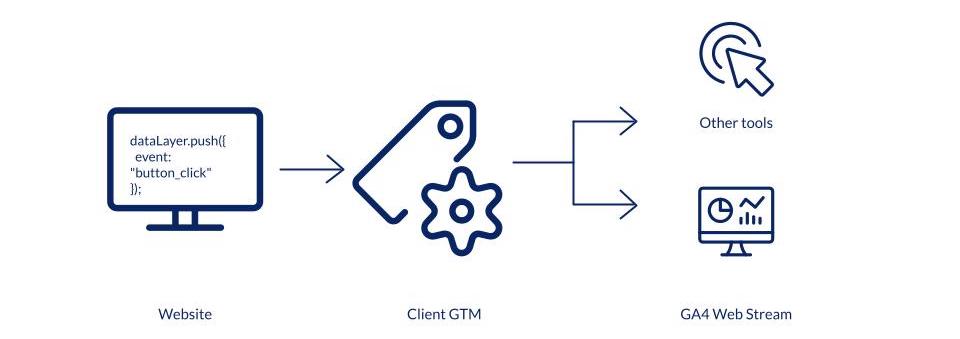
Visualization of the data flow for web tracking. Source: e-dialog
App tracking
Google Analytics for Firebase has a different logic, and your app Google Tag Manager container (App GTM) has fewer functions and responsibilities.
Instead of making event information available in the browser, the equivalent of a dataLayer event is sent directly to the GA4 property installed in the app.
Events are not pushed into the dataLayer array. Instead, they are sent using the logEvent method of the Firebase SDK. Some events must be actively sent by developers who have access to the app code. Other events are tracked automatically as soon as the SDK is installed.
This means: if you simply install Google Analytics for Firebase in your app, several out-of-the-box events are sent directly to the GA4 property connected to the app. You don’t need to do anything else.
This is the equivalent of setting up a Google tag for the web that sends page_views, session_starts, and user_engagement to the measurement ID you provide. It is worth noting that there are many more automatically captured events for app tracking than for web tracking. You can find all of them here in the event reference.
The big difference is this: when app developers send custom events, such as an add_to_cart, the event will appear directly in the GA4 property without any tagging required. And if you only have Google Analytics for Firebase installed in your app, you must have the correct data in the original event. There is no way to manipulate the data as you might be used to with a client-side GTM container on the web, for example.
However, there is also the option to add a GTM container for your app tracking. This is how it works: you first install the GTM container in the app along with the Google Analytics for Firebase installation. Further details on installation for different app types can be found in the official documentation:
Android: https://developers.google.com/tag-platform/tag-manager/android/v5
iOS: https://developers.google.com/tag-platform/tag-manager/ios/v5
The data flow for an app set up with GTM can be described as follows:
- Visitor performs an action in the app
- Event is logged in the Firebase SDK
- Event information is forwarded via GTM
- If there are no tags in GTM, the event is forwarded to GA4
- If tags are present in GTM, the event can be prevented from reaching GA4; it can be modified, duplicated, or also sent to Google Ads, for example.
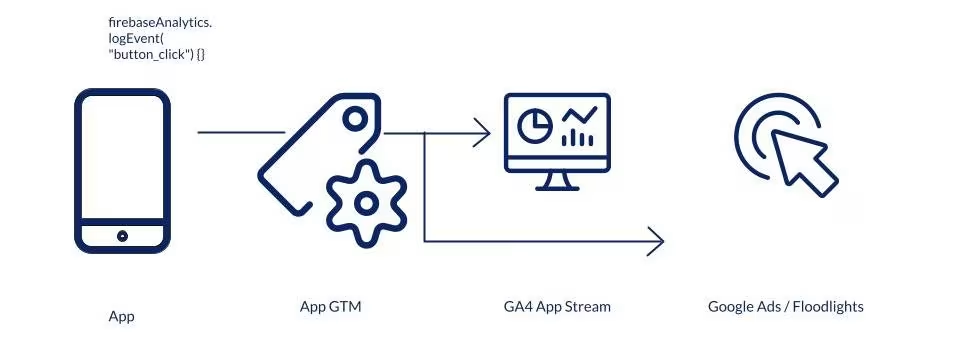
Visualization of the data flow for app tracking. Source: e-dialog
Your events, for example the add_to_cart, will still be sent with the final destination of your GA4 property, but they will take the route via the GTM app container. By default, the event will not stay in the GTM container; it will only pass by on its way to the final destination, your GA4 property.
This means you do not need to set up tagging in GTM to forward the events coming from your app to the GA4 property. In fact, if you do so, you could end up tracking the same event twice.
Want to know what you need to consider when setting up tagging in App GTM? Read our article on use cases for native app tagging here.
Conclusion
App tracking in GA4 is similar to web tracking, but there are some fundamental differences you should know before planning your app tracking project. The most important takeaway is that native app events are sent directly to GA4. Although they can pass through the GTM container on the way, they will end up in GA4 even without tags in GTM.