Exclude Bot Traffic In A Sensible Way

Management Summary
In our previousBlog post “Bot Traffic in GA4”explained how to identify bot traffic. The following article explains how to exclude previously identified bot traffic using Google Tag Manager (client-side and server-side).
Filter bot traffic in GA4
There is currently no automatic filter that can exclude bot traffic. For this reason, we need to create our own filter that excludes all traffic except the traffic we flag. How we mark traffic using Google Tag Manager and how the filter is created in GA4 is explained in the following instructions.
There is currently no automatic way to completely exclude bot traffic in Google Analytics 4 (GA4). Therefore, it is necessary to create your own filter that only takes into account the desired traffic and excludes all other data from the reports. To implement this, the relevant traffic is first marked in the Google Tag Manager (GTM). The parameter “traffic_type” is very important here, as it is necessary for the GA4 filter. A suitable filter is then set up in GA4. The following steps explain in detail how to carry out this process.
Implementation with the client side GTM
Implementation in client side GTM is very simple and takes just a few steps. All traffic from the GTM is stored with any “traffic_type” and then permitted with a suitable GA4 filter.
Adjustment in GTM
First, the GA4 config tag in Google Tag Manager is expanded to include the “traffic_type” parameter. It is not relevant which value is entered.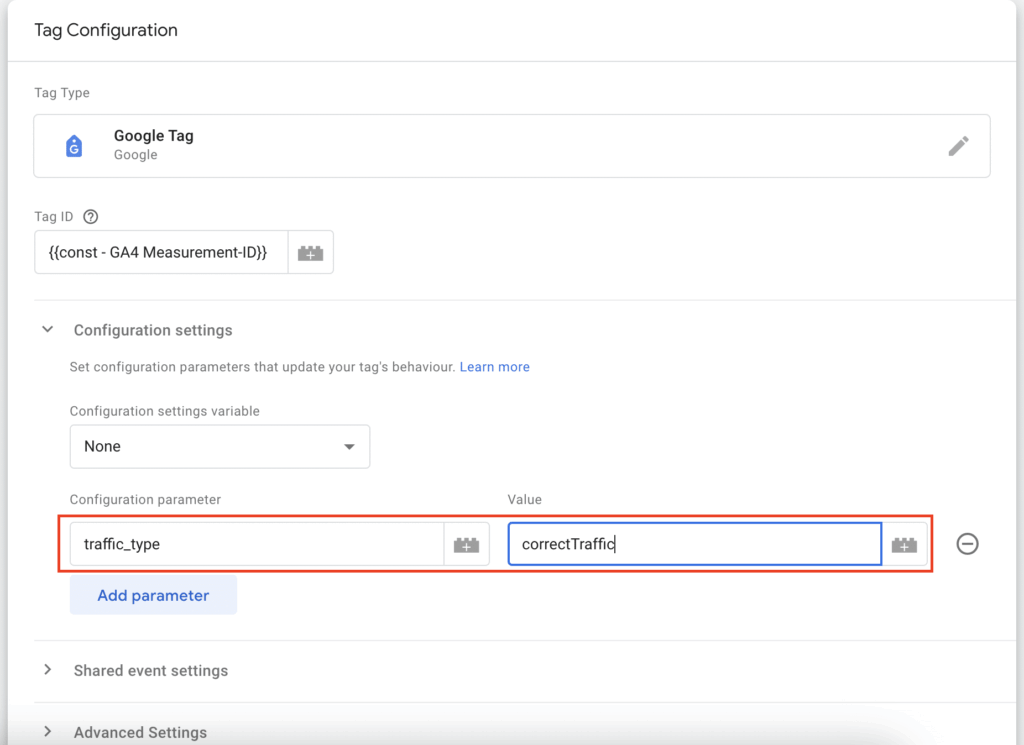
Adjustment in GA4
In the second step, a filter must be created in GA4 to determine which data should be collected. All other data is automatically excluded.
To do this, the settings must be opened in GA4.
Then under the property settings, under the sub-item “Data collection and modification”, click on the item “Data filters”.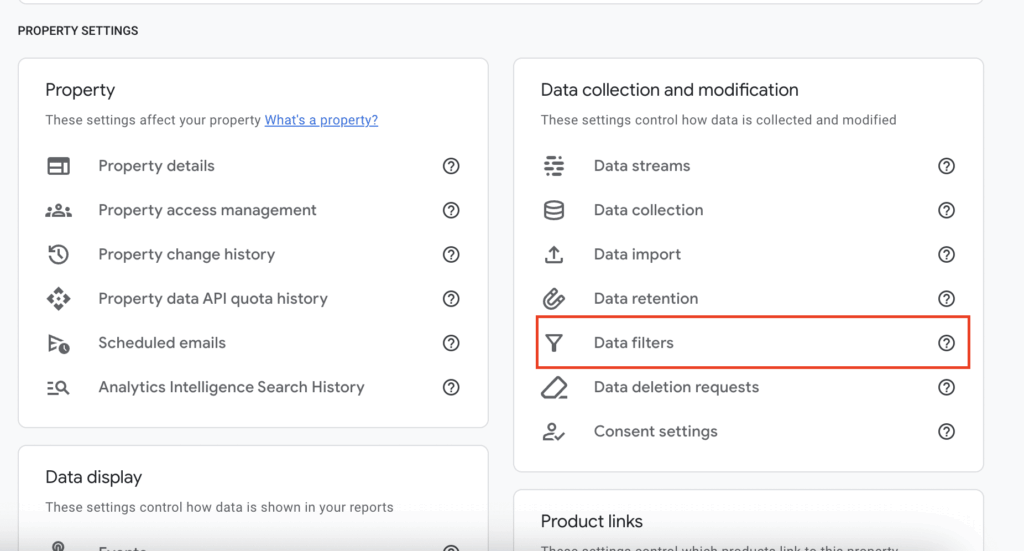 In this mask you now create a new filter with the filter type “Internal Traffic” and adjust the following details:
- Name of the data filter: Include correctTraffic
- Filtering process: Include only
- traffic_type: correctTraffic –> (the value that was previously stored in the GTM)
- Filter status: Test
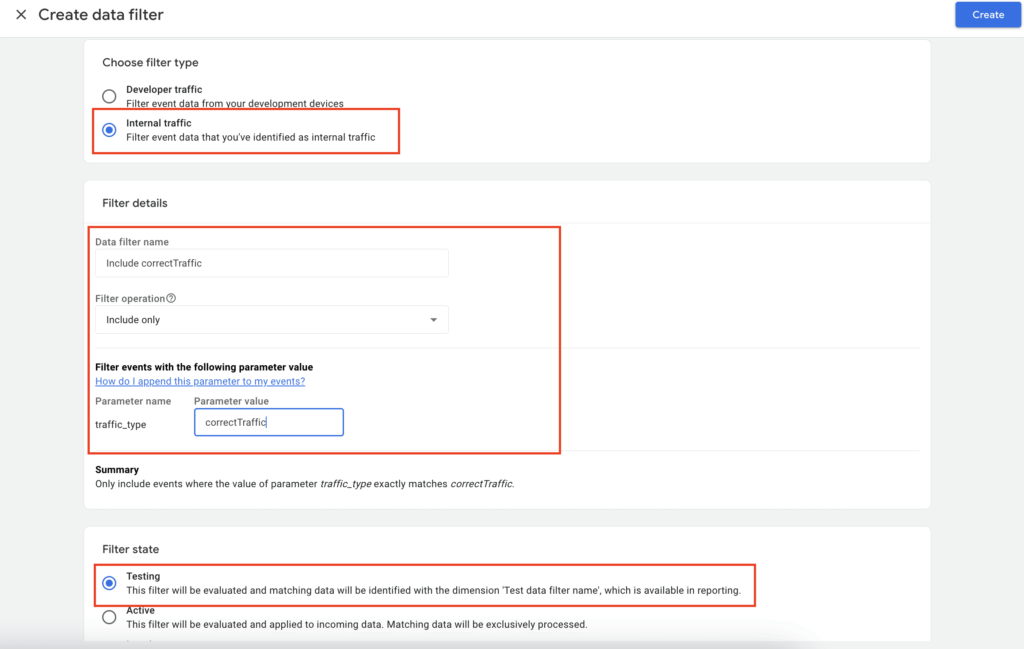 Setting the filter status to “Test” is only a recommendation so that you can first test how much bot traffic is actually coming in.
This will still capture the bot traffic in GA4, but will mark it as “Include correctTraffic”. This enables precise checking without the filter actively excluding data traffic.
If all data arrives correctly and the reports have been sufficiently checked, the filter status can be set to “active”.
Implementation with the server side GTM
The more effective solution to avoid bot traffic is via server side GTM. The prerequisite for this is of course an existing setup.
The principle works similarly to the first method: For every GA4 event, the “traffic_type” parameter is transmitted and set to “correctTraffic”.
The difference: With server-side tracking, events that are recognized as spam are filtered out immediately before they are forwarded to GA4. This means that this data does not even reach Google Analytics. This saves the additional setup of the filter from the previously explained method.
The following step by step instructions show how the implementation works in server side GTM.
Create variables
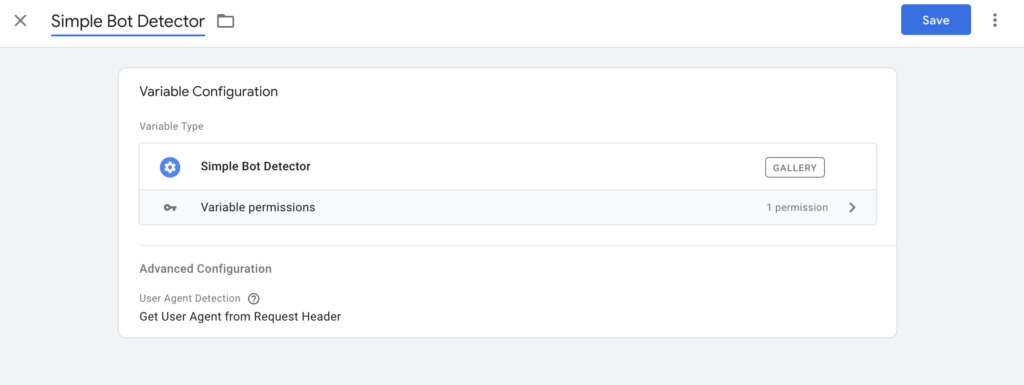
Community Template Variable “Simple Bot Detector”
Markus Bärsch’s variable aims to identify known bots based on their user agent string.
The variable contains an extensive list of user agent strings typically used by bots. If an incoming request has one of these strings in the user agent, it is classified as a bot.
In addition, the variable searches for general terms such as “bot”, “crawler” or “spider” in the user agent. If it finds such terms, the traffic is classified as potentially suspicious.
Users can also add their own strings to identify additional bots that are not included in the standard list.
To use the template, proceed as follows:
- Open the areaTemplatesin Google Tag Manager.
- Choose thereVariable templatesout of.
- Click onSearch Galleryto open the template gallery.
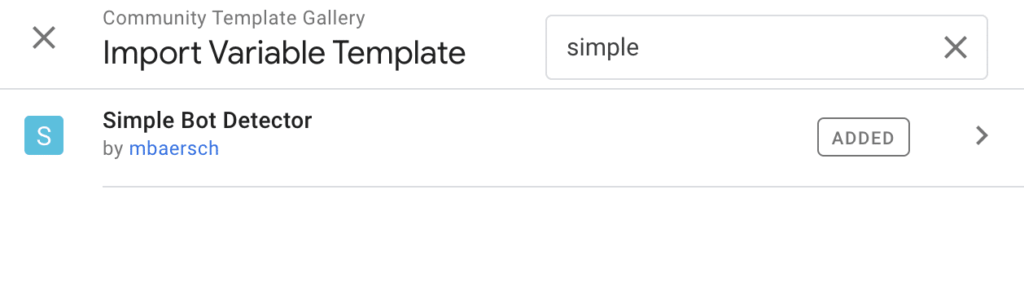
- Search for “Simple Bot Detector“.
- Select the template and clickAdd to Workspaceto add it to your workspace.
- Open the areavariables
- New variable and select the template as the variable type and give it a name (e.g.: Simple Bot Detector)
Community Template Variable “Advanced Lookup Table”
stape.io’s variable enables a more flexible and powerful implementation of lookup tables that can work with more complex conditions and dynamic data. This function is often used to assign values based on multiple input criteria or to make decisions before sending data to GA4.
The procedure is similar to the previous variable, but creating the variable is a little more complex. To do this, proceed as follows:
- Open the areaTemplatesin Google Tag Manager.
- Choose thereVariable templatesout of.
- Click onSearch Galleryto open the template gallery.
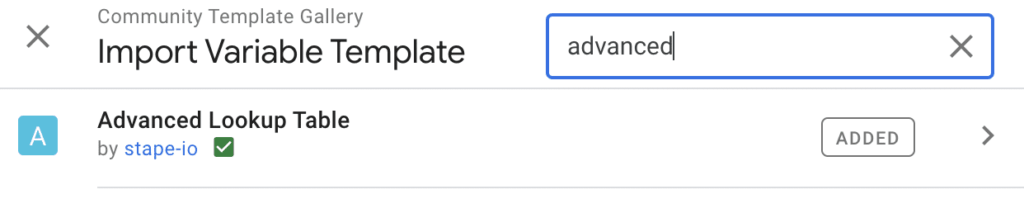
- Search for “Advanced Lookup Table“.
- Select the template and click Add to Workspace to add it to your workspace.
- Open the areavariables
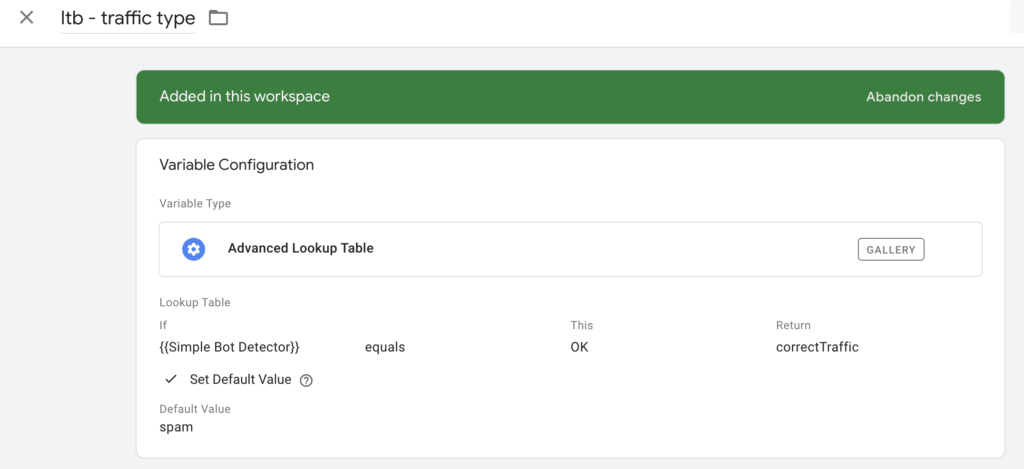
- New variable and select the template “Advanced Lookup Table” as the variable type and give it a name
- Now you have the option to set different conditions and thereby mark the traffic. The most important condition is to mark the correct traffic and declare the rest as spam.
- If variable “{{Simple Bot Detector}}” equals “OK” return “correctTraffic”
- Set default value “spam”
Customization of triggers
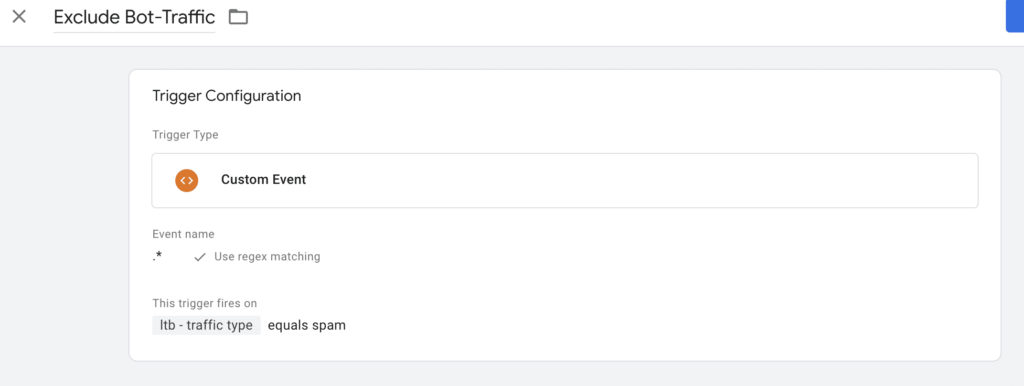
To prevent spam traffic from ending up in GA4, an “exception” trigger must be added to the GA4 tags. The trigger contains the following settings:
- name: Exclude bot traffic
- type: Custom event
- Event name: .* (Use regex matching)
- Condition: “ltb – traffic type” equals spam
Customization GA4 tags
In order for spam traffic to be blocked, the previously created trigger must be added to all GA4 tags.
Additionally, the “traffic-type” parameter is added with the value of the previously created variable. This value serves as an additional control and could be used as an additional filtering option in GA4.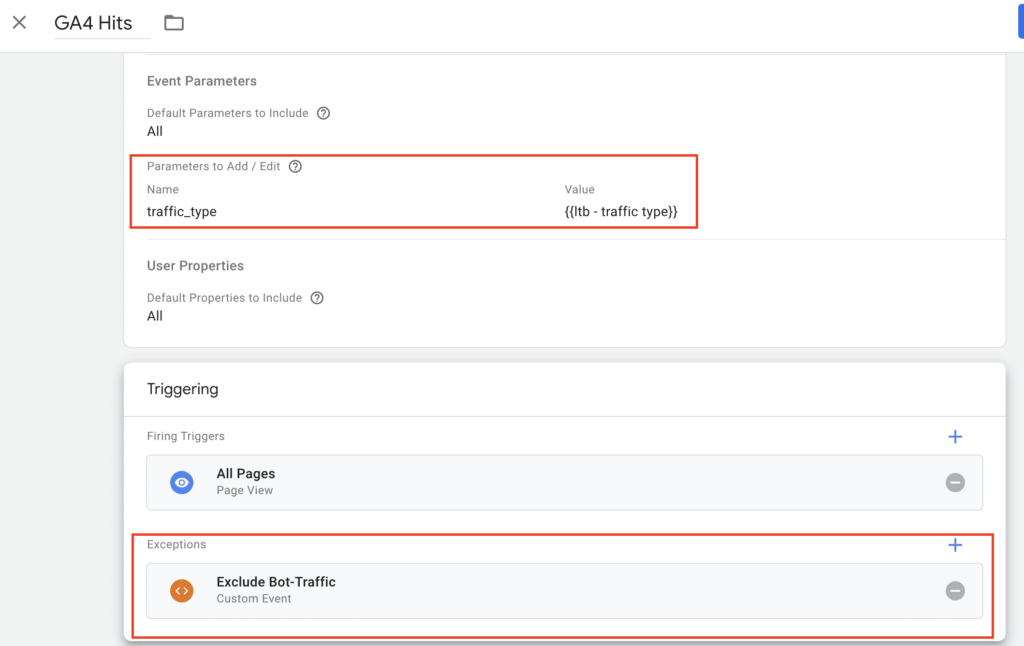 The setup is now fully set up and ready to be published.
In the coming weeks, GA4 should be carefully monitored in order to identify possible errors in the setup at an early stage and make adjustments if necessary.
In the best case scenario, no more bot traffic should end up in GA4.
Conclusion
In Google Analytics 4 (GA4) there is no automatic way to exclude bot traffic. Using Google Tag Manager (GTM), traffic can be tagged by adding the “traffic_type” parameter. This can be done via clientside GTM or, more efficiently, via serverside GTM, where spam events are blocked directly. Once established, the setup should be tested and monitored to ensure data quality.
Interest? Contact us:kontakt@e-dialog.group
All graphics – Source: e-dialog