Brand Controls Replace Verification 8211 Rebranding In Campaign Manager 360

Management Summary
For qualitative campaign insights – for both programmatic and classically booked campaigns – the “Verification” area in CM360 was previously the best place to go. Here you can see clearly and with the desired granularity (from partner to placement level) whether there are problems with brand safety or geo-targeting, for example. An introduction to verification reports is provided in this blog article.
The rebranding in Campaign Manager 360 from Verification to Brand Controls has some effects for users, but at the same time allows for more individualization of reports. In this blog article we will examine whether even more has changed.
The following workflows are affected
The set of separate reports is eliminated.
Performance reports are no longer displayed in the Verification UI. Instead, the user is redirected to the instant reports.
The following settings will be removed:
- Email Alerts
- Related to monitor-only settings
- Monitoring sensitive categories
- Monitoring custom sensitive categories
- Monitoring geography
New structure in detail
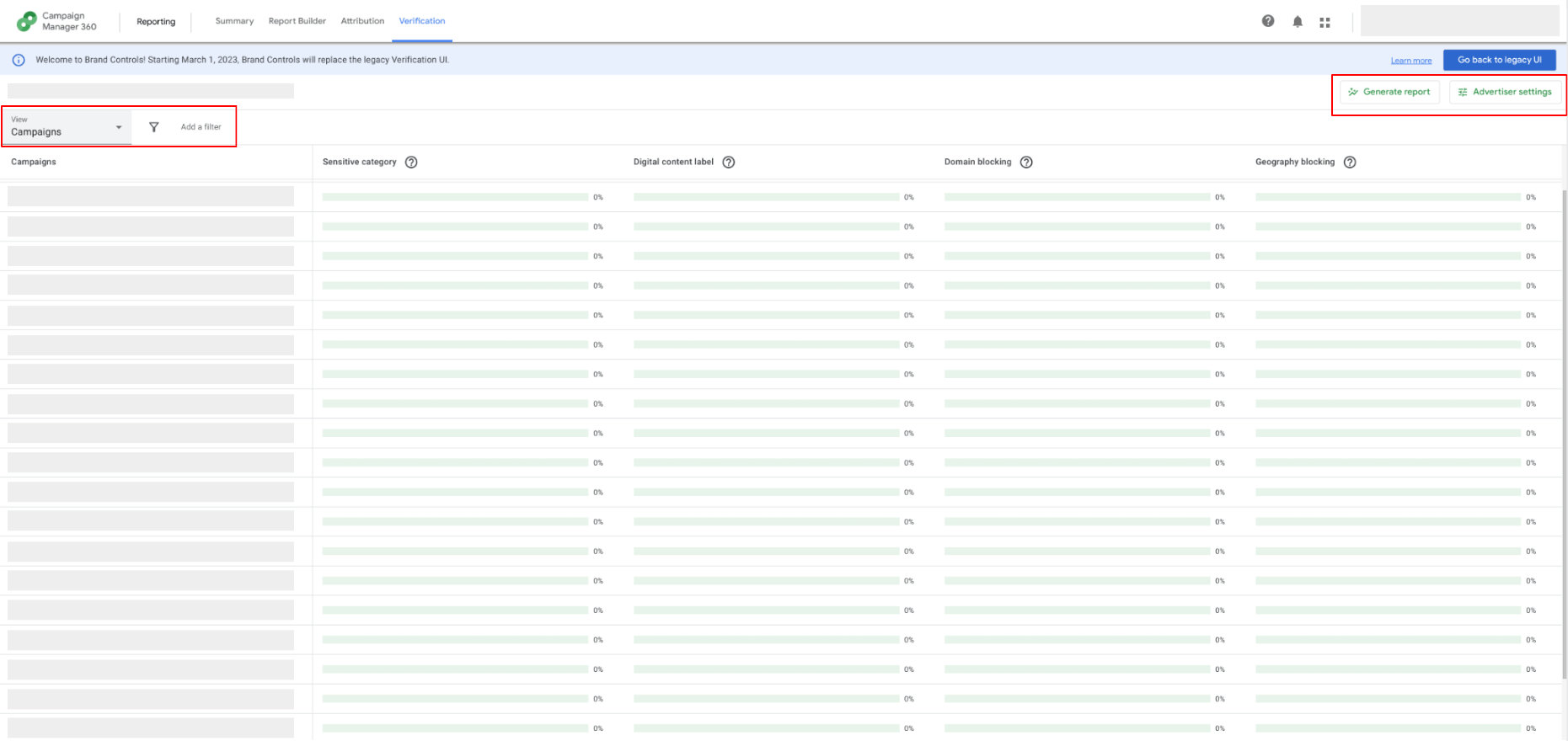
If you click into the area, you will first come to an overview of brand safety. This view can be broken down from advertiser to placement and filtered as desired.
Under “Advertiser Settings” you get direct access to the brand safety settings: Sensitive Categories, Digital Content Labels, Domain Lists and Geography.
For all other reports, click on “Generate Report” and you will be redirected to instant reporting. By default, the user is shown the following metrics:
1. Blocked impressions
2. Classified Impressions
3. Publisher Problems
4. Reporting Problems
5. Serving Problems
6. Impressions
7. Warnings
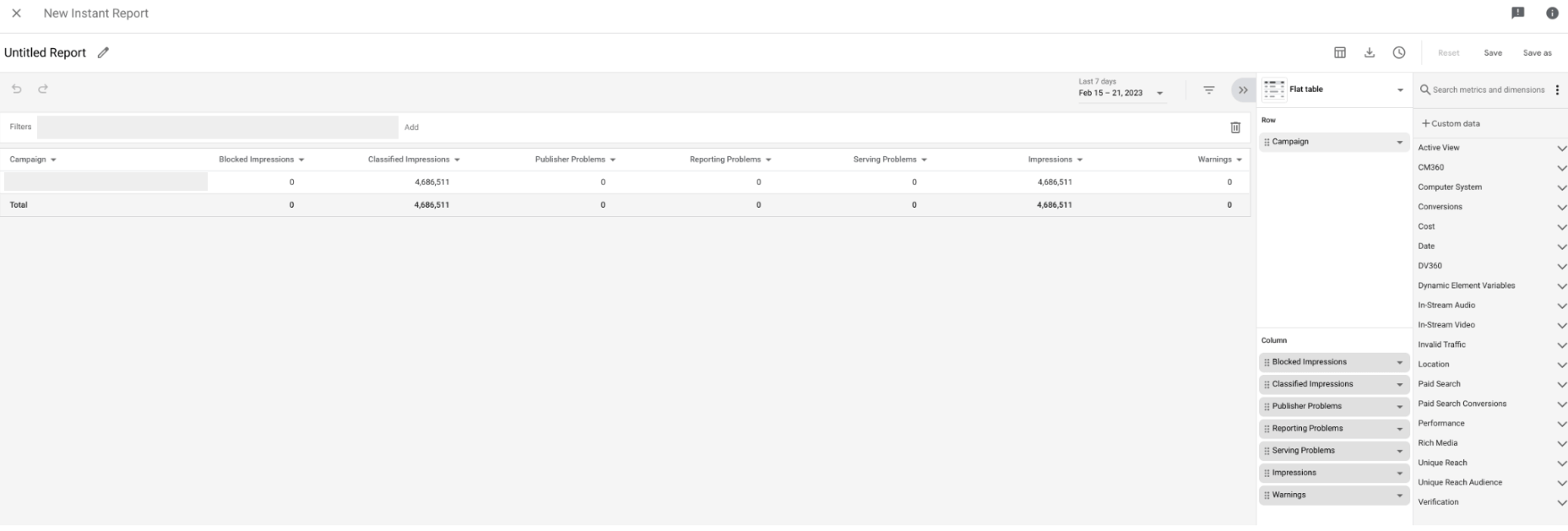
Additional metrics and dimensions can of course be added here, and the report can also be saved or downloaded. If you would rather see a timeline rather than a table, you can easily change the type of display with just 2 clicks.
Conclusion:
At first glance, the new interface obviously takes some getting used to, but it is now possible to put together the reports yourself, for example on blocked impressions or publisher problems.