Scheduled Emails 8211 Now Also For Ga4 Reports

Management Summary
Until recently, there was no way in Google Analytics 4 (GA4) to automatically send customized reports to a defined group of recipients at regular intervals. This has now changed with the introduction of scheduled emails in GA4. We’ll see why it may be important to use this feature and how to set it up.
Why should you use the Scheduled Reports feature in GA4?
The functionSchedule reports(Scheduled Reports) in Google Analytics 4 makes it possible to automatically send reports via email on a scheduled basis. This makes it easier to communicate with teammates, stakeholders or customers, saves time and supports informed decisions based on up-to-date analysis.
Standard and custom reports can be sent regularly via scheduled emails, e.g. E.g. daily, weekly or monthly, can be sent automatically. The feature also helps monitor performance without having to manually generate reports and provides regular updates via a website or app.
The emailed reports contain data for the specified time period with filters or comparisons applied. This function is only not available for real-time or advertising reports.
Scheduled emails can be managed, edited and deleted by administrators. With the appropriate rights, they can schedule and email up to 50 reports, identify and resolve errors in scheduled reports.
Step by step: Setting up scheduled reports in GA4
1. Access the report to be shared:
Navigate to the Reports section on the left and open the report you want to schedule.
2. Schedule the email:
Click “Share this report” in the top right, then select “Schedule Email.” If this option is not visible, you may not have the required administrative rights.
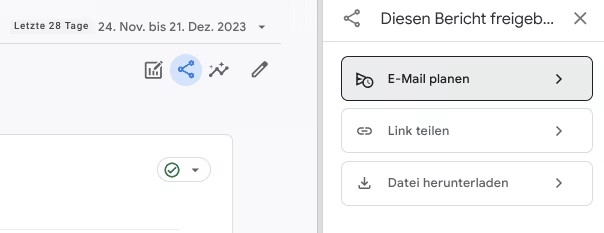
‘Schedule email’ function in GA4 ‘Reports’ section
3. Customize the email:
You can customize the report name, description, recipient list (up to 50 recipients), frequency (daily, weekly, monthly, quarterly), duration (up to 12 months), report format (PDF, CSV) and language.
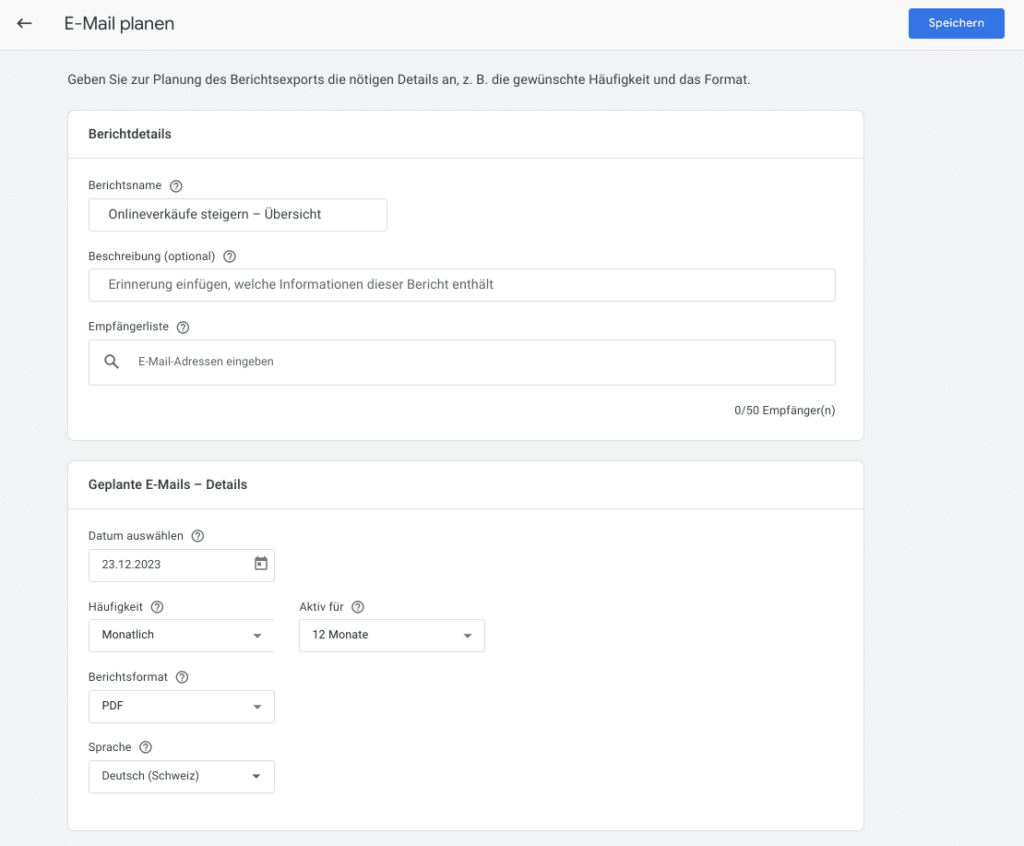
Customizing the email report in GA4
Administration: Management of scheduled reports in GA4
Manage Scheduled Reports:
You can find an overview of your scheduled reports, their frequency, format and status in the administration areaProperty Settings >> Property>> Scheduled emails.There you can manage, edit and delete the scheduled reports.
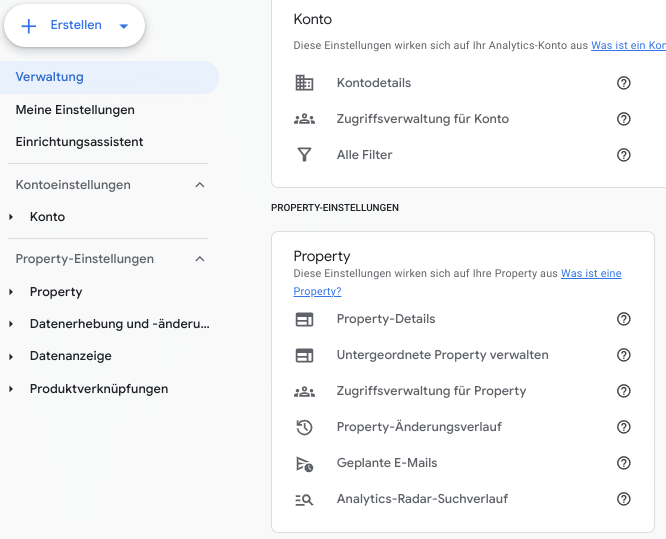
Manage Scheduled Emails in GA4 Property Settings
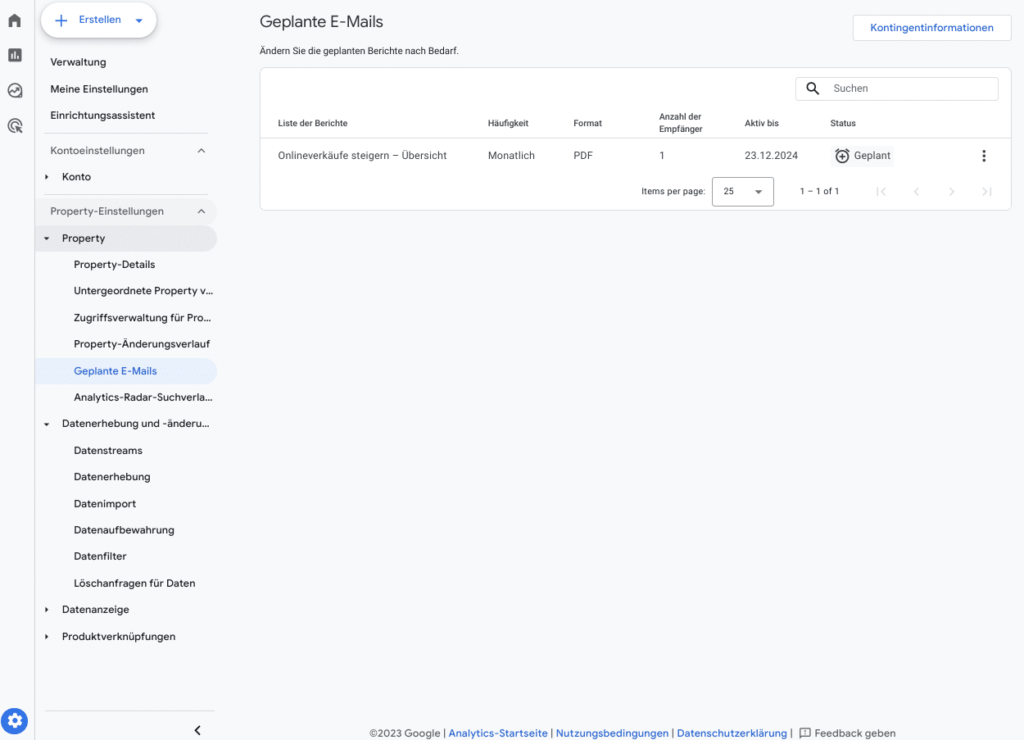
Administration and overview of scheduled emails in GA4
Alternatives to scheduled emails or other options for recurring notifications from GA4
- Recurring automated insight alerts
In Google Analytics 4 (GA4) you can schedule both emails and insights to be sent to a list of recipients at regular intervals. Scheduled emails allow you to send standard and custom reports to a list of recipients on a daily, weekly, monthly, or quarterly basis. Using recurring email alerts for your automated insights, you can highlight significant changes and trends in your GA4 property.
- Visualization of GA4 data in Looker Studio
You can visualize the data in Looker Studio and email the reports on a set schedule.
- BigQuery Alerts
Alerts can also be sent from BigQuery. The data quality checks or conditions for the alert can be defined using SQL queries and, depending on the results, messages can be sent via email, SMS or messaging service.
- Use of Third Party Tools
Third-party tools allow you to automatically extract data from GA4 data and push it to reporting platforms. This allows you to create customized reports and dashboards that can be emailed to relevant stakeholders.
Conclusion
The introduction of planned email functionality marks a long-awaited feature in Google Analytics 4 (GA4). The function and its easy setup not only enable efficient communication, but also help you keep an eye on important reports and key figures and be able to react in a timely manner to deviations or anomalies. A good (further) step towards data automation in GA4.