Data Access Central Control User Groups In The Gmp

Management Summary
Manage access efficiently: With user groups in the Google Marketing Platform, roles and permissions can be set centrally for teams and companies. Optimize collaboration, save time and ensure overview of permissions. Try it now!
No longer manage users individually – control access centrally through user groups
In GMP, access rights can be managed centrally via user groups. By setting up user groups, specific roles and permissions can be assigned to ensure smooth collaboration and data security. Specifically, access rights can be assigned in the GMP for the linked accounts.
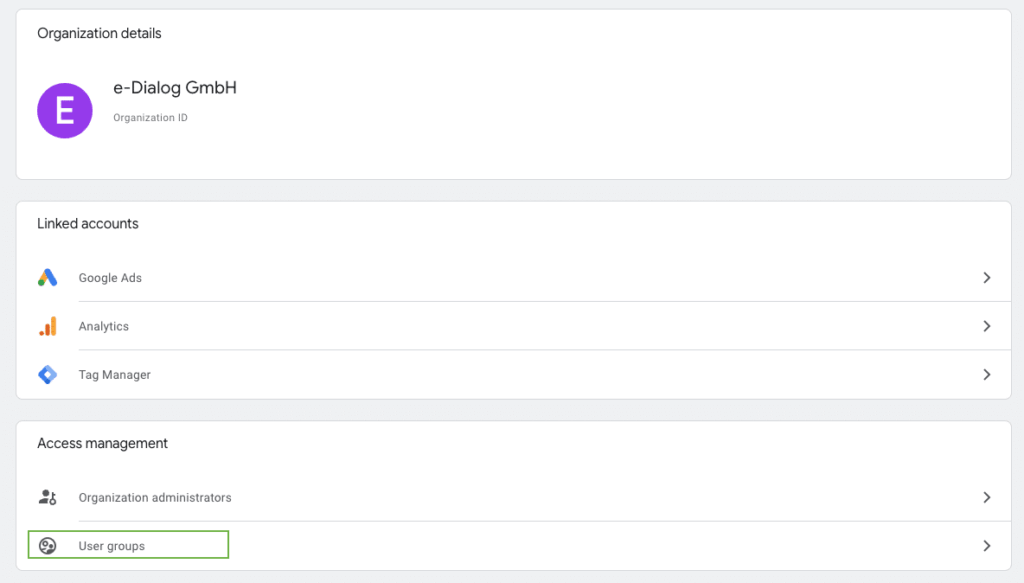
Manage user groups at GMP organizational level
Advantages of user groups
- Access control: By defining user groups, companies can precisely control who can access which data and tools. This minimizes the risk of data leaks and ensures that only authorized people have access to information. An example of this is: If access has been granted via user groups at organizational levels, the cancellation of access can be quickly and uniformly resolved. If an employee leaves, access can be revoked at the organizational level and no one has to access the individual tools.
- Efficient collaboration: Teams can work better together by organizing them into groups that have permissions tailored to their specific tasks and responsibilities. Depending on the group, the access rights required to complete the tasks are granted. This means that each group member does not have to request separate access.
- Role-based permissions: Each user group can be given specific roles and permissions that meet the needs of the group. For example, analysts can have access to detailed reports while creative teams can access advertising assets.
Practical application examples
- Manage internal access:Different teams within a company, such as marketing, analytics, and data science, can be divided into separate groups to fulfill their specific tasks. For example, departments that only view data are given read rights. Editing rights can be granted to those responsible for data collection and conception. To ensure that unwanted or unauthorized changes do not occur, only selected groups of people are given editing rights.
- Working with agencies:Marketing agencies may need access to the company’s Google Analytics property to view campaign data there. These external people may receive different access rights than internal employees. Therefore, a separate group can be created for agencies and the group members receive analysis or editor access. For example, the group for internal employees receives admin rights.
Instructions for creating a user group in the Google Marketing Platform
- Registration: Sign in to the Google Marketing Platform. (https://marketingplatform.google.com/home)
- Navigate: Go to Administrative Settings, select Administration, then click your organization.
- User groups: Select the “User groups” option.
- Create new group: Click on the plus in the top right to create a new group.
- Enter details: Enter a name and description for the group.
- Add members: Add users to the group under “Add members”.
- Set permissions: Assign appropriate permissions to the group.
- Save: Save the settings.
The user group is now created and ready for use. Please note that changes may take up to 24 hours.
Creating a user group in GMP – Steps 1-3

Creating a user group in GMP – Step 4
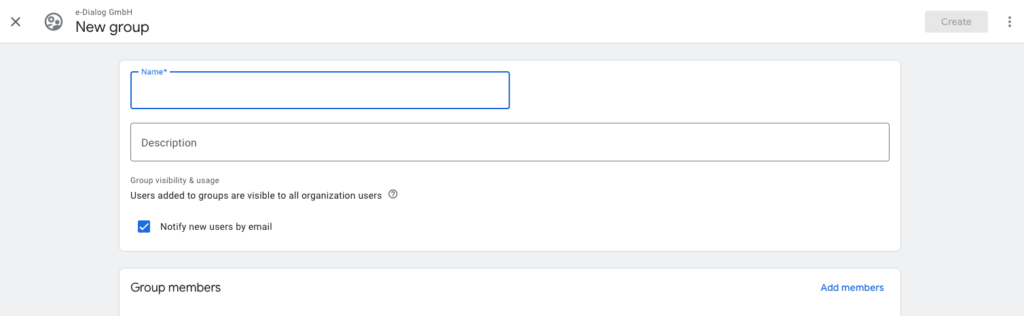
Creating a user group in GMP – Step 5
Interesting facts
- By default, organization permissions are set to None. However, org administrators can assign direct admin, user and/or billing rights to the user group. If the creator does not have organization permissions, he or she cannot edit it.
- By default, user groups have no permissions when assigned to new product accounts.
- Changes to roles can take up to 24 hours.
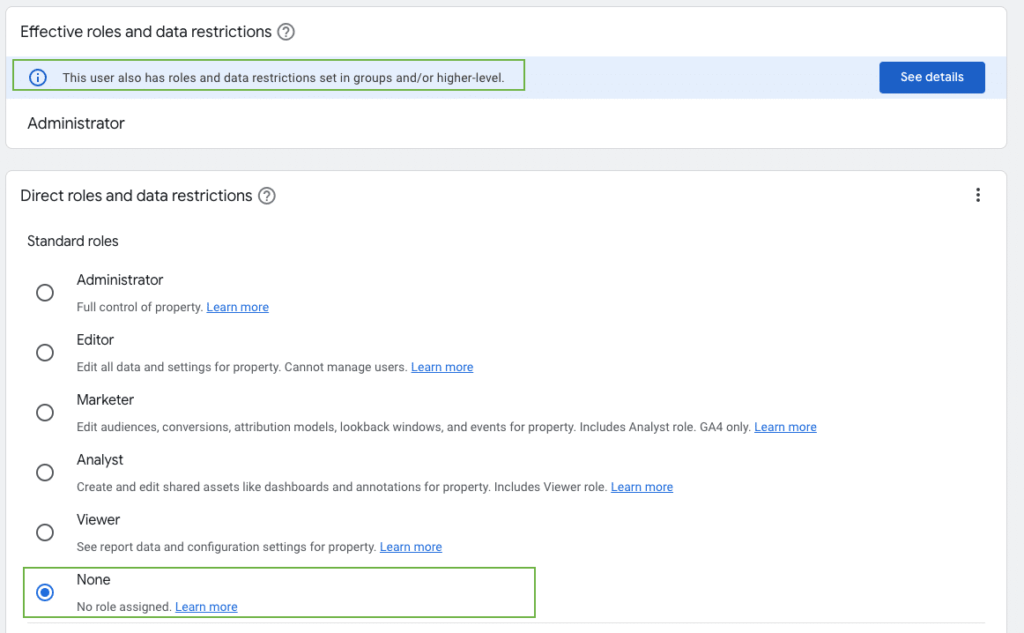
- If you change permissions at a higher level, granted roles are inherited at lower levels. However, these appear under “Effective Roles and File Limits” and not under “Direct Roles”. These permissions are applied to all underlying properties/accounts.
The image shows that administrator rights were assigned at the account level and these are transferred to the property levels. Even if “None” is set in the detailed view. However, there is a note in blue at the top that the users also have authorization at a higher level. None always appears if the rights have not been adjusted manually at the lowest level.

Frequently Asked Questions:
>> Assume that a user has edit access to all properties in Google Analytics at the account level. In addition, the person is added to a group at organizational level via a user group that only provides read rights in GA. What rights does the user have in this case?
The editing rights in GA remain for the user and are not “overwritten” by the user group with read rights. Ideally, all permissions at tool levels are removed and only granted at the organization level via user groups.
>> What happens if a user group is created at the organization level and a user is part of this group, but at the same time has already been created as a user for the tool in the organization?
A window will appear in which access for this user can be removed. If you click on “Remove” here, the individual user will be removed from the org for this tool, but he or she will remain in the user group.
>> What happens if a user is part of a user group with rights for GA and the user is removed from the organization via the Manage User settings?
The user will then also be deleted from the user group.
Conclusion
The management of user groups in the Google Marketing Platform enables effective and secure control of access rights and roles within a company. This promotes more efficient collaboration and contributes to data security.
In the Google Marketing Platform (GMP), access rights can be managed centrally via user groups. This allows specific roles and permissions to be assigned. Companies can precisely control who can access which data and tools, minimizing the risk of data leaks.
It is important to know that higher level permissions are inherited by lower ones unless you adjust them manually. Changes to roles can take up to 24 hours. Using user groups instead of manually assigning access to individual tools saves time with a large number of users. Unfortunately, not all logic is self-explanatory. Before creating user groups, we recommend reading the “What you need to know” and “Frequently asked questions” paragraphs.