How To Teamwork In Google Data Studio

Management Summary
New feature: Transfer ownership
A few weeks ago, Data Studio released a new feature in Data Studio User Management. From now on, not only can the report be released for reading or editing, but entire ownership can be transferred.
To do this, the account that will receive future ownership must be invited to read or edit the report. There are several options for this:
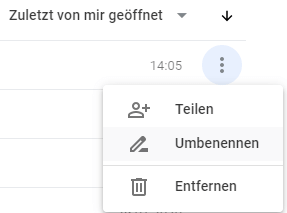
1. In the report overview, use the 3-point menu on the right of the respective report and then click on “Share”.
2. There is also a “Share” button directly in the display or editing mode in the report.
3. In the editing mode of the report in the “File” menu there is also the “Share” item.

As soon as the account has been invited to edit the report, the user management can be opened again in the “Share” window by clicking on “Advanced” at the bottom right. Here you can see which accounts have read or edit access to this Data Studio report.
By clicking on the “eye” or “pen” symbol next to the respective account, the new status “Owner” can be selected in the drop-down menu.
In the user management window, access can also be revoked from individual accounts by clicking on the cross next to the “eye” or “pen” symbol. Don’t forget to save afterwards.
Limitation:
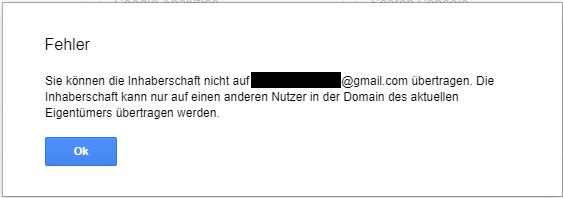
Currently, ownership transfer only works within the domain of the current owner account. Otherwise an error message will be displayed.
Teamwork in Data Studio
Data Studio is not only particularly suitable for creating data visualizations and then sharing them with other people, but also for developing them together. In order for this to work smoothly, it is important for colleagues to see both the report and theData sourceto be released for editing.
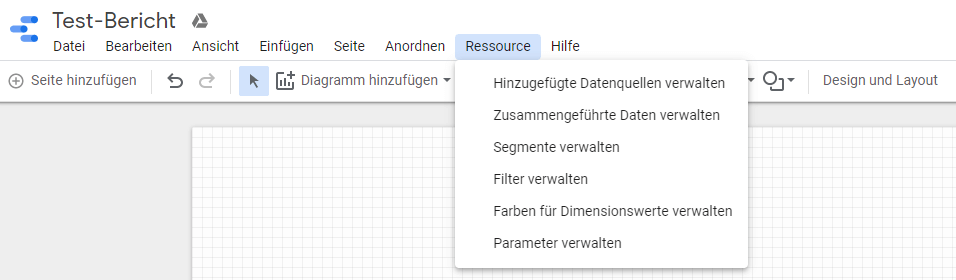
You can see which data sources are used in the report in the “Resource” menu item under “Manage added data sources”.
You can then look for these data sources in the Data Studio main page under the “Data Sources” tab. With the 3-point menu and then clicking on “Share” an account can be added to edit the data source.

What are the benefits?
- By sharing the data source, people who otherwise do not have direct access to the data can also work with it – for example, without Google Analytics access.
- When editing the data, no data is changed in the original tool (e.g. Google Analytics), but only directly in the data source or in the report.
- As soon as the data source is shared and the “Edit fields in reports” function is activated, other users with editing rights can also edit existing calculated fields and add new ones.
Conclusion:
This innovation is particularly valuable when ownership is to be transferred within a company. We hope that it will soon be possible to pass ownership to accounts outside the domain and will of course keep you updated here.