Data Deletion Feature In Google Analytics 4

Management Summary
Data deletion request
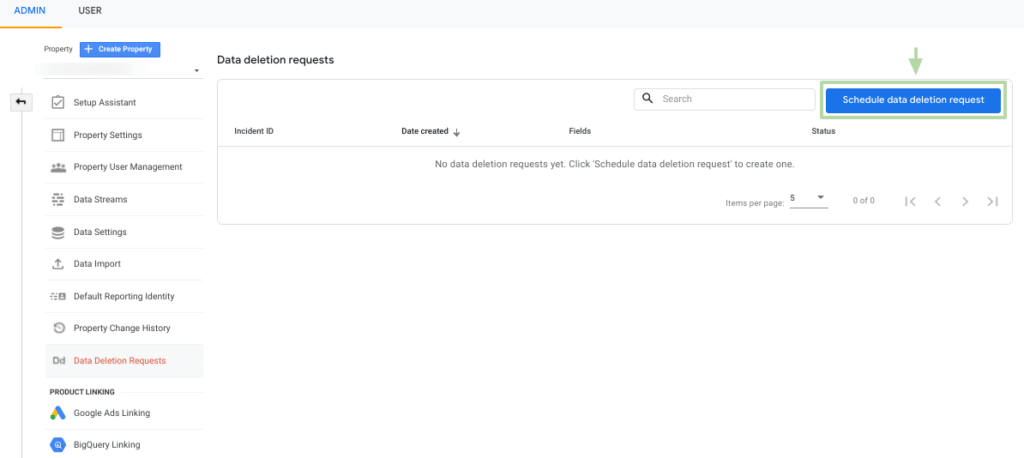
To delete data using the Data Deletion Feature, you need editing rights at the property level. To access the deletion request, click on “Administration” or “Admin” and select the corresponding property. Then click on the “Data Deletion Requests” line in the “Property” column.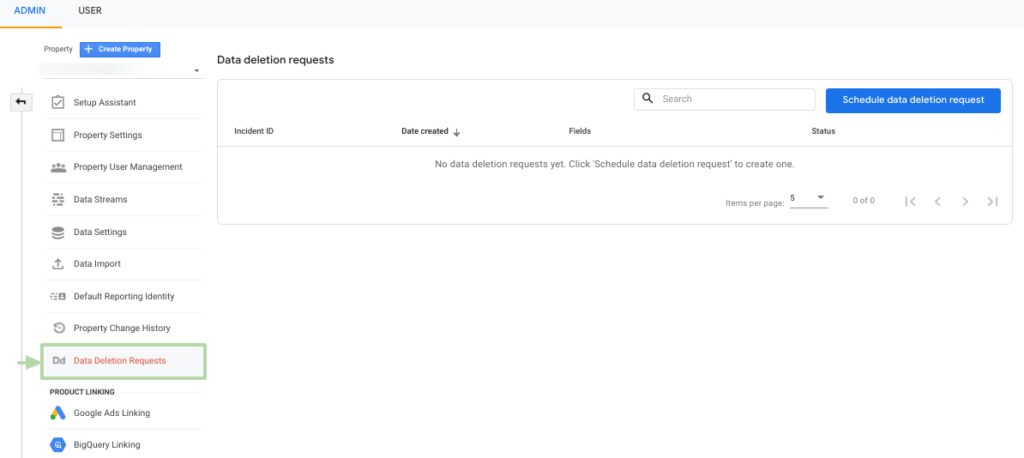 In the screenshot on the right you can see the most recent deletion requests for the respective property. A maximum of 25 requests per property can be active within the 7-day grace period or until final deletion. You will find out what is meant by the grace period later in this blog post. If you would like to make a new request, simply click on the blue “Schedule data deletion request” button.
 You will now see the screen with the configuration settings for the deletion request. By clicking on the drop-down menu under “Deletion type” you will see 5 choices to determine the extent of data deletion.
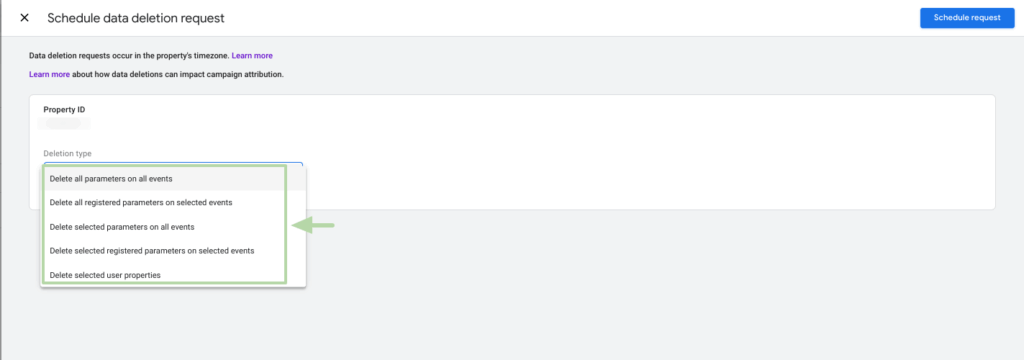 For all five “Deletion Types” a start and end date of the data to be deleted must be defined. Attention, the time zone of the property is used here. The first option “Delete all parameters on all events” is the most far-reaching option and allows you to delete all registered and automatically recorded parameters for all events.
Other options include removing all registered parameters for specific events or specific parameters for all events. An event or parameter selection field is added here, with which you can easily select the affected events or parameters. The “Delete selected user properties” option allows you to delete data with specific user properties. In general, up to 100 events and 100 parameters or 100 user properties can be added to a single deletion request.
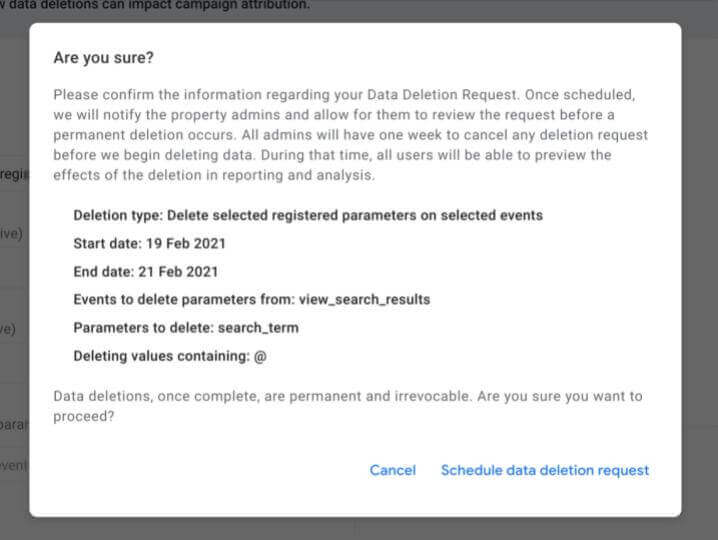
The most selective way to delete data is “Delete selected registered parameters on selected events”. Here you can select registered parameters as well as specify the events from which the parameters should be deleted. You can also restrict data deletion to certain terms using the “contains” operator at the bottom of the configuration.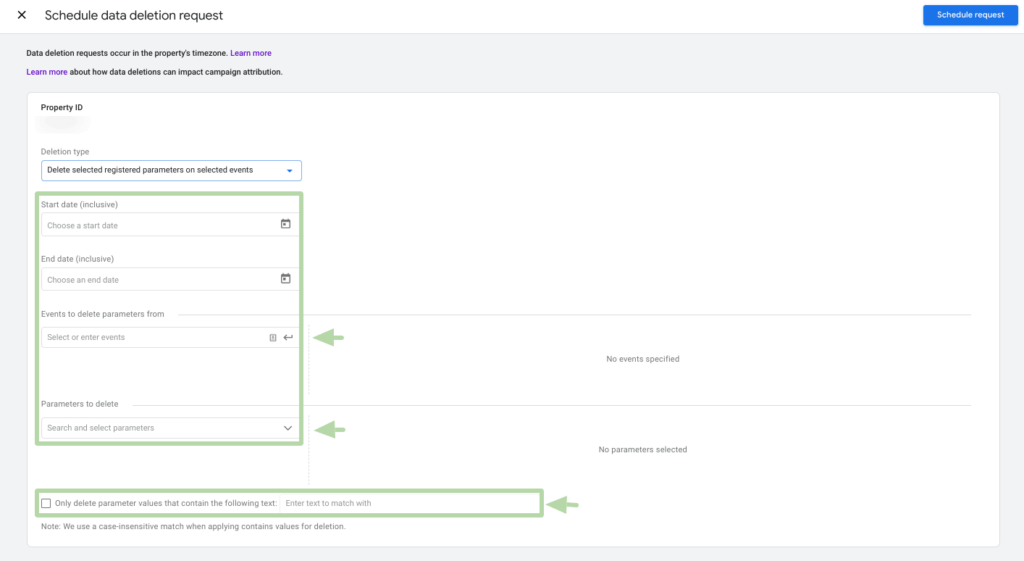 For example, if an email address has crept into your internal search, you can select “view_search_results” as the event and “search_term” as the parameter. Then click the checkbox and enter the email address in the text field. If several email addresses are to be deleted, the text field can only contain the “@” sign, for example. The “contains” operator only deletes dimension values in Analytics for the selected events, parameters or user properties that contain the entered value.
 As soon as you have defined all the specifications, you can submit the deletion request at the top right. After submitting, a pop-up box will follow with a summary of your specifications and the final confirmation. As soon as you confirm the request, the property administrators will be informed about the deletion and the data deletion request will be visible in the table overview in the admin panel.
 Another important note: deleting the data does not affect the total number in the reports. The deleted data is replaced by the value “(data deleted)” or summarized to this value.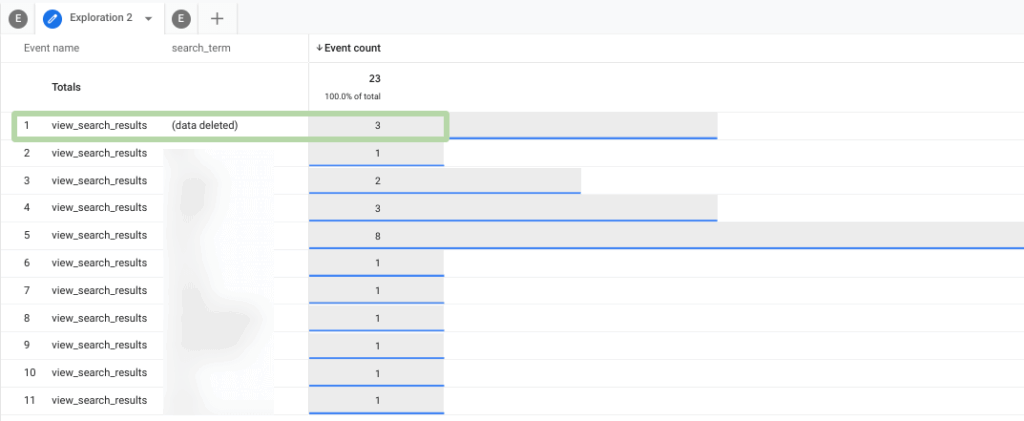
Grace/Preview Period
Google grants a grace period of 7 days when deleting data. Only after this period will the data be permanently deleted. The great thing is that the deletion is visible in the reports and in Analysis after just a few minutes and serves as a preview. If you are not satisfied with the impact of data deletion on the reports, the deletion can be canceled within 7 days via the “Request Details” page. A control check in the respective reports within this period is therefore essential to check whether the data has been removed as desired.
Other restrictions
Certain parameters are not deleted in Google Analytics 4. These include, for example, numerical parameters or reserved values such as “”, “(not set)” or “(data deleted)”. The latter can appear in the reports due to the deletion of data and is intended to not influence the overall figures after a deletion.
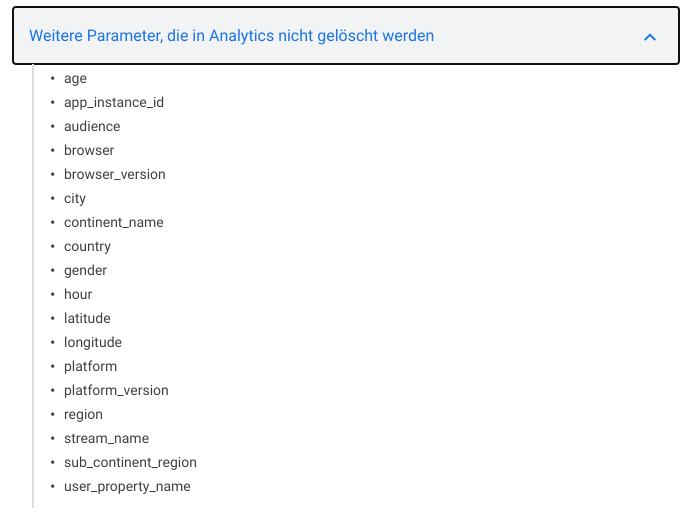
Additionally, the following parameters are not deleted in Analytics:
Conclusion
In Google Analytics 4, the “Data Deletion Request” feature provides a great opportunity to delete data at a more granular level than was previously possible. The desired deletion type and the associated specifications can be defined in just a few steps. You then have 7 days to remove the deletion if you are not satisfied with the effects on the data. Although there are still limitations to data deletion requests that must be taken into account, Google has hereby created greater scope for action for Analytics users with regard to the deletion of data.
Was this article helpful to you? In oursBlogYou will find many more articles on the topic of web analytics and Google Analytics 4!