Ga4 Setup 8211 A Guide

Management Summary
This simple guide is intended to show the steps of a basic Google Analytics 4 setup and give a brief overview of the implementation.
1. Creation and setup of GA4 Property
First you need to clarify whether you already have an existing Google Analytics setup. If one exists, you can easily create a new property using the Google Analytics Assistant:
In your existing Google Analytics account, click on “Administration”. It is important that you are in the desired account, otherwise the new GA4 property will end up in the wrong account.
Now you have to click on the item “Assistant for setting up a GA4 property” in the “Property” column.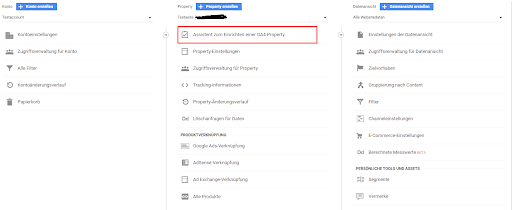 Afterwards, the wizard will be executed by clicking on “Start now” and you will be guided through the creation process (the process is quite short). The process is completed by clicking on “Create property” and you have now created a new GA4 property.
If you want to create a completely new property, you just need to click on the blue “Create Property” button. Then you simply follow the steps and fill out the provided masks.
2. Create data streams
You can choose your own data stream for each of the three instances. You can choose from web, Android app and iOS app.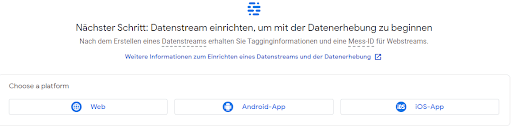 For example, if you now select the web stream, you only have to add the website URL and the stream name and you can then create the stream. In the default settings, standard measurements are automatically taken on the web page -> This new feature is called “Optimized Analytics” or “Activate Enhanced Measurement” and no further settings are required.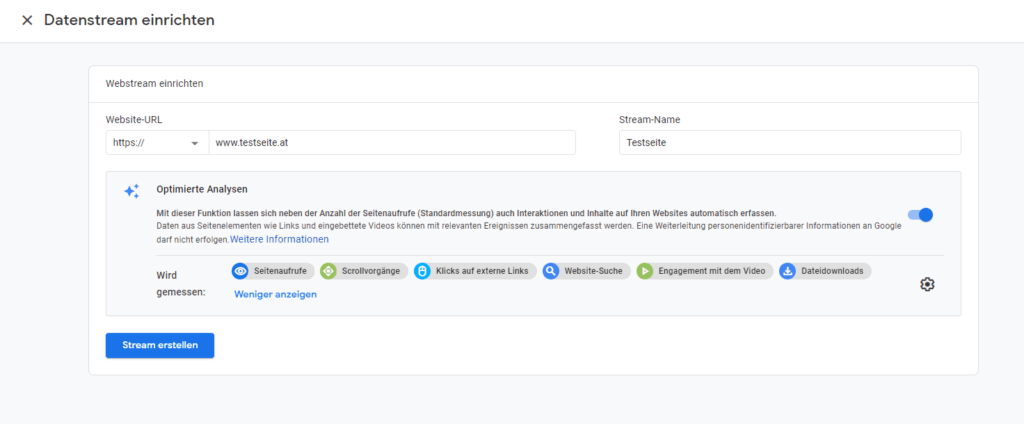
3. Implement on the website
Depending on which method you previously used to implement Universal Google Analytics, GA4 can be implemented into the website in the same way:
- Either bygTag directly in the source code(this code should be included in the area).Notice: {{measurement ID}} is a placeholder for the ID (measurement ID) from your own property.
- The other method is via theGoogle Tag Manager:
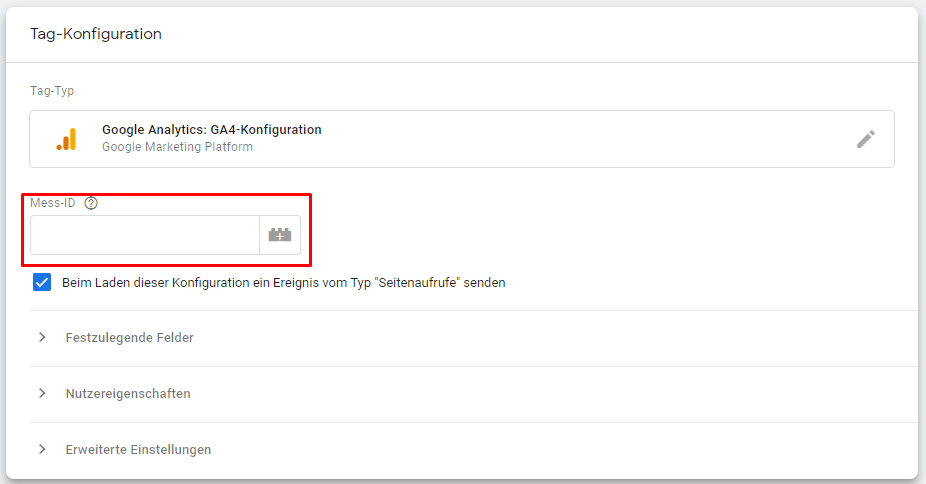
All you need to do here is create a GA4 configuration tag. The “page view” trigger is usually chosen as the trigger so that GA4 is fired on every page. It is important to enter the correct measurement ID again.
4. Enable Google Signals (if desired)
Google Signals is required for remarketing. It can also be used to create comprehensive reporting and insights into the customer journey. This also enables cross-device reporting and the collection of demographics and interests.More about Google Signalsis described in this article.
To make this setting, you must click on “Data Settings” in the “Property” column and then on “Data Collection”. This opens a window with which you can activate Google Signals in just a few steps.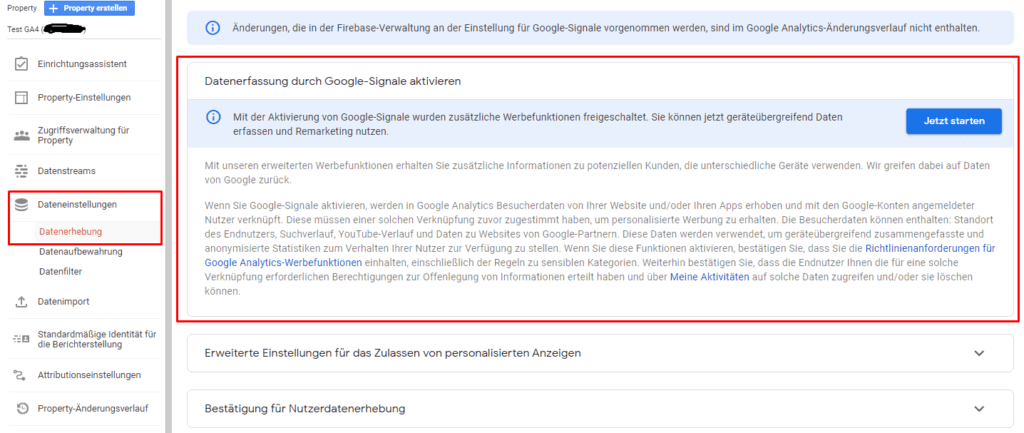
5. Linking to Google Ads, BigQuery and other products (if desired)
It’s even easier to link Google Ads accounts or BigQuery to GA4. The following example describes the Google Ads link. Under the “Property” column you will find the “Google Ads link” as the first item in the “Product link” category. Then you just have to follow the input mask. Up to 20 Google Ads CIDs can be stored.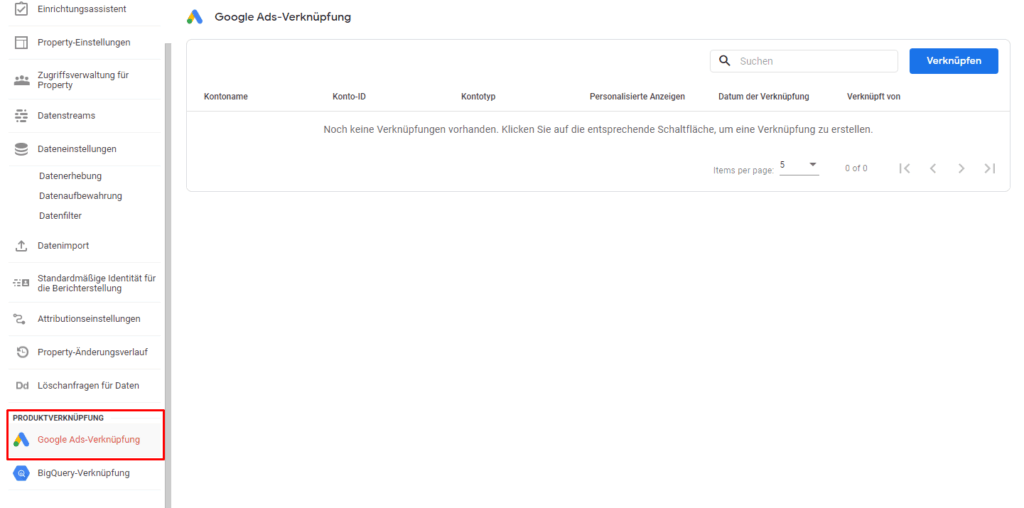 With these 5simple stepsA basic Google Analytics 4 setup can be set up.